Articles / Guidesupdated for DaVinci Resolve 21.0.2 (July 2026)
DaVinci Resolve Podcast Video Export Settings That Actually Work
Quick answer
Export podcast video as MP4, H.264, 1080p at your timeline's native frame rate, 15-25 Mbps CBR, AAC-LC audio at 128-192 kbps stereo. That single file covers YouTube and Spotify's video specs. Separately, bounce an audio-only WAV or 96 kbps mono MP3 master for RSS feeds and Apple Podcasts, since audio-only distribution still expects mono, not stereo.
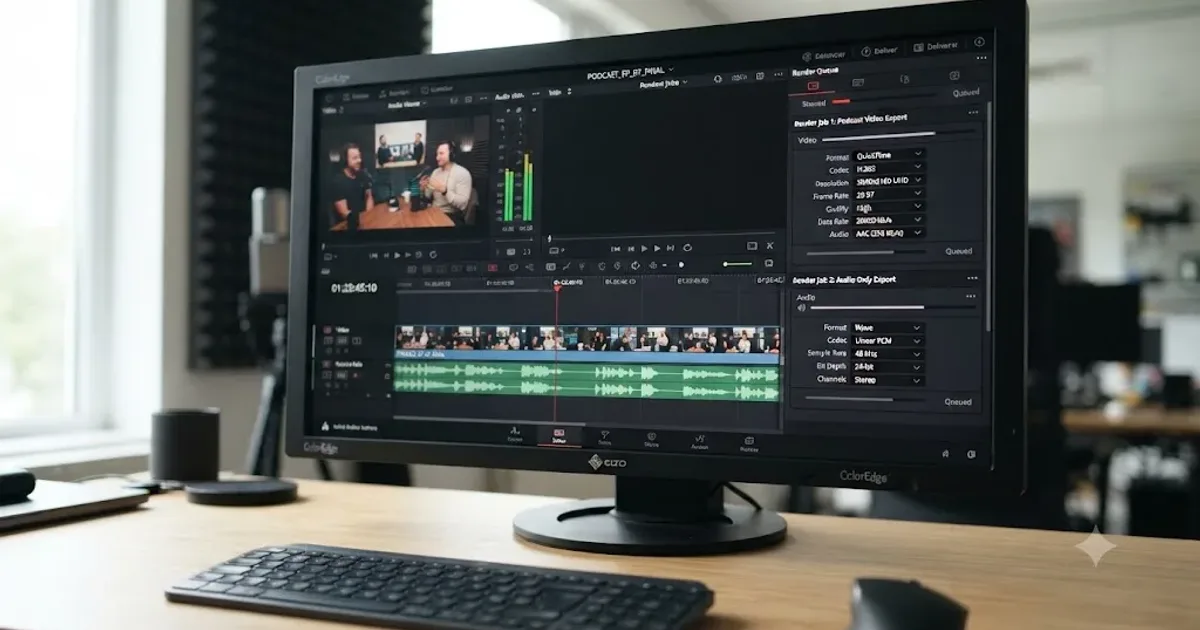
Two files come out of a podcast recording session, not one. A video file goes to YouTube and Spotify. An audio file goes to your RSS feed and Apple Podcasts. Most export guides treat a podcast like a slightly longer YouTube video and stop there, which is how creators end up uploading a stereo, 384 kbps AAC video export to a podcast host built around mono spoken word, or delivering a 4K master to a platform whose video spec never asked for more than 1080p.
This guide covers both files: the video export that satisfies YouTube and Spotify's actual published specs, and the separate audio-only bounce your RSS feed and Apple Podcasts still expect, mono, smaller, and measured against a quieter loudness target than any video platform uses. Below is where each setting lives on the Deliver page, why podcast audio still means mono in 2026 even as video podcasts explode in size, and the worked examples that show what a real bitrate decision costs in gigabytes.
What are the actual DaVinci Resolve export settings for a podcast video?
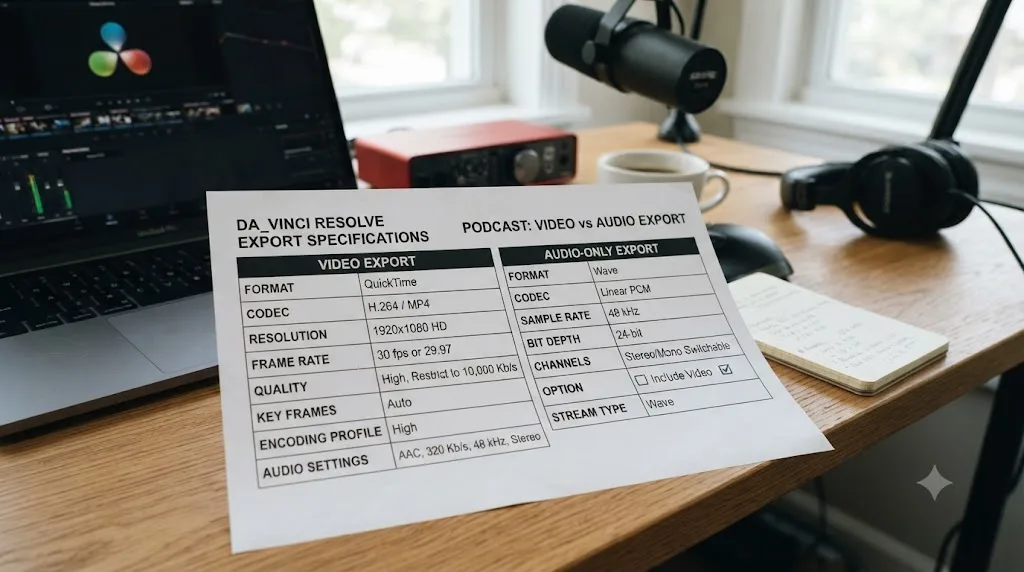
Here's the spec sheet, and the sections below explain where each number comes from.
| Setting | Video export (YouTube, Spotify) | Audio-only export (RSS, Apple Podcasts) |
|---|---|---|
| Container | MP4 | MP3 or Wave |
| Video codec | H.264 | None (audio-only) |
| Resolution | 1080p (1920x1080), 16:9 | N/A |
| Frame rate | Native, matching your timeline | N/A |
| Video bitrate | 15-25 Mbps restricted | N/A |
| Audio codec | AAC-LC | MP3 or PCM (Wave) |
| Audio channels | Stereo | Mono |
| Audio bitrate | 128-192 kbps | 96-128 kbps (MP3) |
| Sample rate | 48kHz | 44.1kHz |
| Loudness target | -14 LUFS integrated | -16 LUFS integrated |
A podcast video and a podcast audio file are two different deliverables cut from the same timeline, not one file wearing two names. Treat them as one export and you either bloat your RSS feed with a stereo file nobody's ears can distinguish from mono, or hand YouTube and Spotify a video track compressed for a spoken-word podcast host that never had to think about motion or gradients.
On the Deliver page, that spec sheet maps to four fields for the video job: Format set to MP4, Codec set to H.264, resolution matched to 1080p, and a restricted bitrate between 15 and 25 Mbps. The audio-only job is a second render, built by unchecking Export Video and letting the Format dropdown switch to an audio container. Everything past this point in the guide is the reasoning behind those two jobs, sourced from what YouTube, Spotify, and Apple Podcasts actually publish rather than a number borrowed from a general YouTube export guide.
Why does a podcast need different export settings than a normal YouTube video?
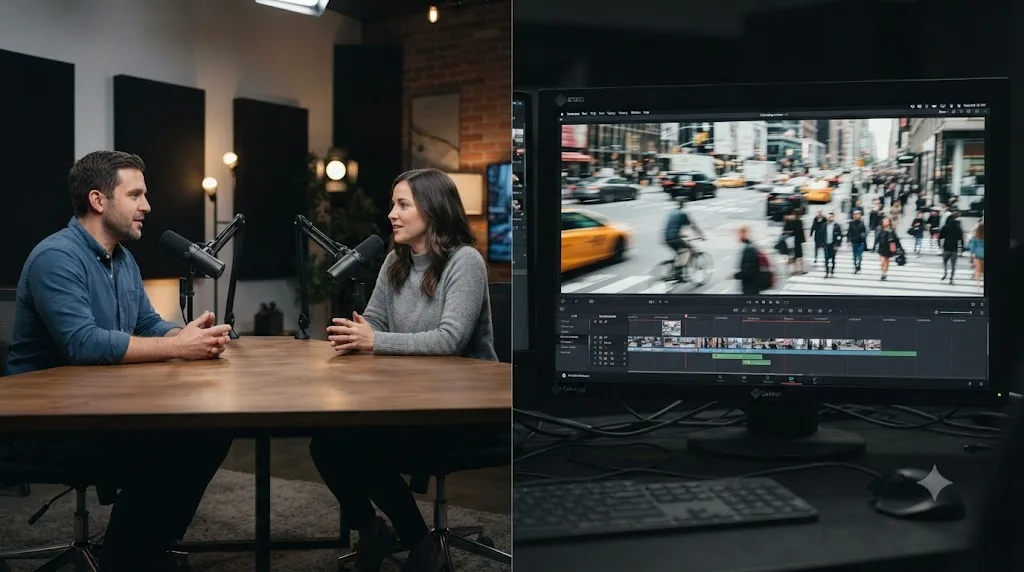
Because a podcast's video content is almost always locked-off, low-motion, talking-head footage, and its audio distribution still runs on infrastructure built for spoken word, not music or sound design. Both facts push the settings in a different direction than a typical vlog or tutorial export.
The motion argument matters more than it sounds like it should. Interframe codecs like H.264 spend bits describing what changed between frames, and a two-camera interview with two people sitting mostly still spends almost nothing on that motion compared to b-roll, whip pans, or fast cuts. A locked-off podcast interview can hit the same visual quality at 15 Mbps that a b-roll-heavy video needs 30 Mbps to reach, because there's simply less changing frame to frame for the encoder to describe.
The audio side runs on a completely different set of assumptions. Video podcast platforms are a genuinely new and fast-growing category. Spotify alone had streamed video podcasts to more than 390 million users as of late 2025, a 54% year-over-year jump, according to TechCrunch's reporting on Spotify's video podcast growth, and Spotify's own investor materials put that figure past 500 million users by mid-2026, per Spotify's Investor Day podcast update. YouTube crossed one billion monthly video podcast viewers in early 2025, according to Deloitte's 2026 technology, media, and telecom predictions. None of that changed the audio side of the business. RSS feeds, the format every podcast app outside YouTube and Spotify still relies on for discovery and playback, remain built around a spoken-word MP3 tradition that predates video podcasts by two decades, and Apple's own audio requirements page still recommends mono for that exact reason.
Spotify co-CEO Gustav Söderström framed the platform's video push directly: "It's part of our ubiquity strategy, and it's really important that while we build a good user experience, we also need to have a very strong creator offering," he said, as reported by TechCrunch. That's the business case for exporting video at all. It doesn't touch why your RSS master still needs to be a small mono file, which is a separate, older set of constraints this guide covers on its own terms.
What are Spotify's video podcast export requirements, and how do you hit them in DaVinci Resolve?
Spotify publishes an actual spec sheet for video podcast uploads, which is more than most platforms bother with. Here's what it says, per Spotify for Creators' own video specs page:
| Setting | Recommended | Also compatible |
|---|---|---|
| Container | MP4 | MOV |
| Video codec | H.264 or H.265 (HEVC) | — |
| Resolution | 1080p or higher | 180p or higher |
| Aspect ratio | 16:9 widescreen | Other ratios |
| Frame rate | 24, 25, 30, 50, or 60fps | — |
| Video bitrate | 25 Mbps CBR (1080p source) | 35 Mbps CBR (4K source) |
| Color space | Rec.709 | Rec.2020 |
| Audio codec | AAC-LC, PCM, or FLAC | — |
| Audio bitrate | 128 kbps or higher | — |
| Audio channels | Stereo | Mono, 5.1 (auto-converted) |
| Max file size | Under 10GB | Up to 60GB |
| Max duration | Under 4 hours | Up to 12 hours |
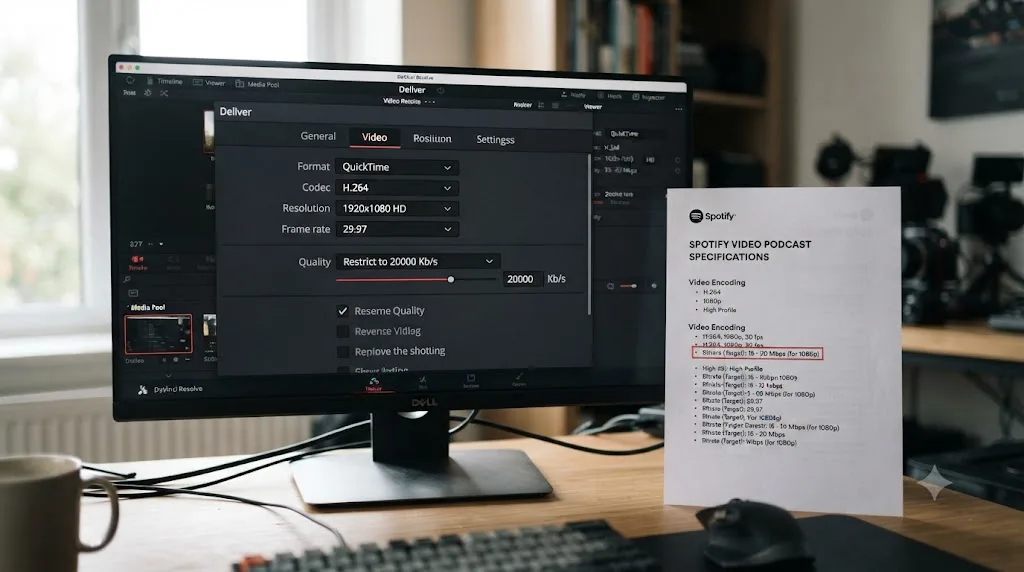
Two details in that table are worth flagging before you build a preset around them. First, Spotify wants constant bitrate (CBR), not the variable bitrate most Resolve presets default to, and the platform states a hard number, not a range: 25 Mbps for a 1080p source, 35 Mbps for 4K. Spotify's own video spec caps out at 25 Mbps for a 1080p podcast upload, and a locked-off two-camera interview needs nowhere near that ceiling. Set your restricted bitrate at 15-20 Mbps in practice, well under Spotify's cap, and you'll clear the quality bar with room to spare on a talking-head format that doesn't need Spotify's full allowance.
Second, notice the requirement that video and audio tracks share one video track and one audio track of matching duration, per the same spec page. That rules out delivering a file with a separate silent video track and a stem-heavy multi-track audio mix; render your finished stereo mix down to one track before this export, the same output track selection covered in our Fairlight mixing guide.
On the Deliver page, the Spotify-ready job looks like this: Format MP4, Codec H.264, Resolution 1080p matched to your timeline, Frame Rate native, then in Advanced Settings switch the rate control from the encoder's default to a fixed or capped setting close to 20 Mbps. Audio tab: AAC-LC, 128-192 kbps, stereo, 48kHz sample rate. That single job also happens to satisfy YouTube's general encoding recommendations, which is why most podcasters only need to build one video preset, not two.
Does YouTube have podcast-specific export requirements?
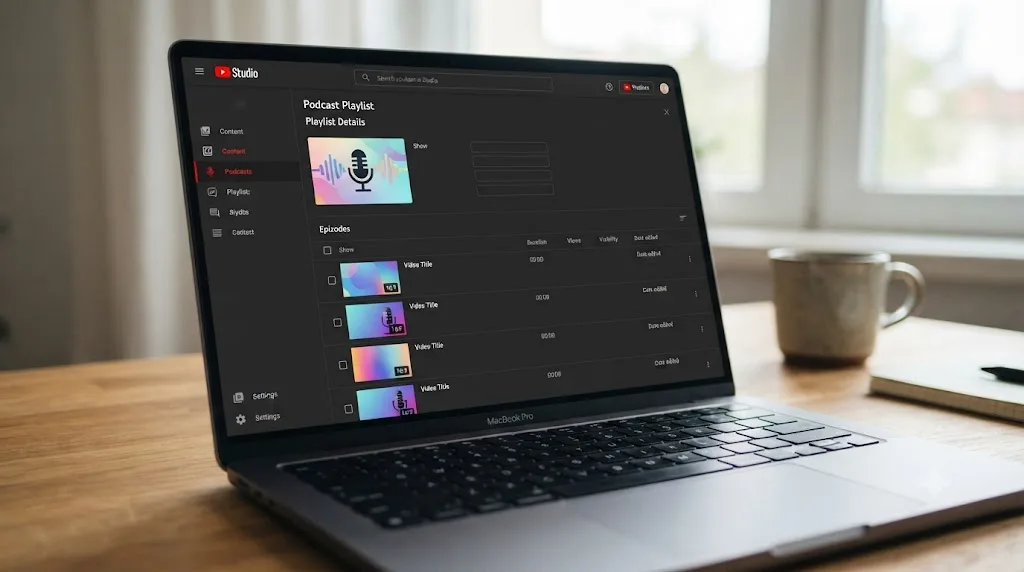
Not really, and this is worth stating plainly because it's easy to assume otherwise. YouTube's own podcast documentation is organizational, not technical: "On YouTube, a podcast show is a playlist, and podcast episodes are videos in that playlist," per YouTube's guide to creating a podcast in YouTube Studio. There's no separate codec table, bitrate table, or resolution requirement specific to podcast content. You're uploading a regular video, and it gets the same encoding treatment as any other YouTube upload.
Two things the podcast page does require: a square show thumbnail at 1280x1280px, distinct from the standard 16:9 thumbnail every individual episode still needs, and full-length episodes only, since YouTube explicitly warns not to apply podcast features to a playlist that mixes full episodes with clips or shorts. It also flags something worth knowing before you build your delivery pipeline: "MP3s can't be turned into podcasts on YouTube," per the same guide, meaning the audio-only master this guide covers below has no home on YouTube at all. YouTube only ever wants the video file.
For the actual encode, fall back to YouTube's general recommended upload encoding settings: MP4 container, H.264 video, AAC-LC audio, and, if you're exporting from the command line or a tool that exposes it, a moov atom placed at the front of the file (sometimes called Fast Start) so playback can begin before the full file finishes uploading. Resolve handles that atom placement automatically in its MP4 export; it's not a field you set manually.
| Podcast-specific YouTube requirement | Detail |
|---|---|
| Show thumbnail | Square, 1280x1280px |
| Episode thumbnail | Standard 16:9, per video |
| Content rule | Full episodes only in the podcast playlist |
| Audio-only uploads | Not supported; MP3s can't become YouTube podcasts |
| Video encoding | No podcast-specific table; use YouTube's general guide |
That last row is why the settings sheet earlier in this guide doubles as your YouTube export: since there's no separate podcast spec to reconcile, the same MP4, H.264, 1080p file you build for Spotify uploads directly to YouTube's podcast playlist without any changes. Our dedicated YouTube export settings guide covers the full bitrate table by resolution and frame rate if your podcast occasionally ships a 4K special episode or a higher frame rate segment.
Does Apple Podcasts support video episodes, and what settings does it need?
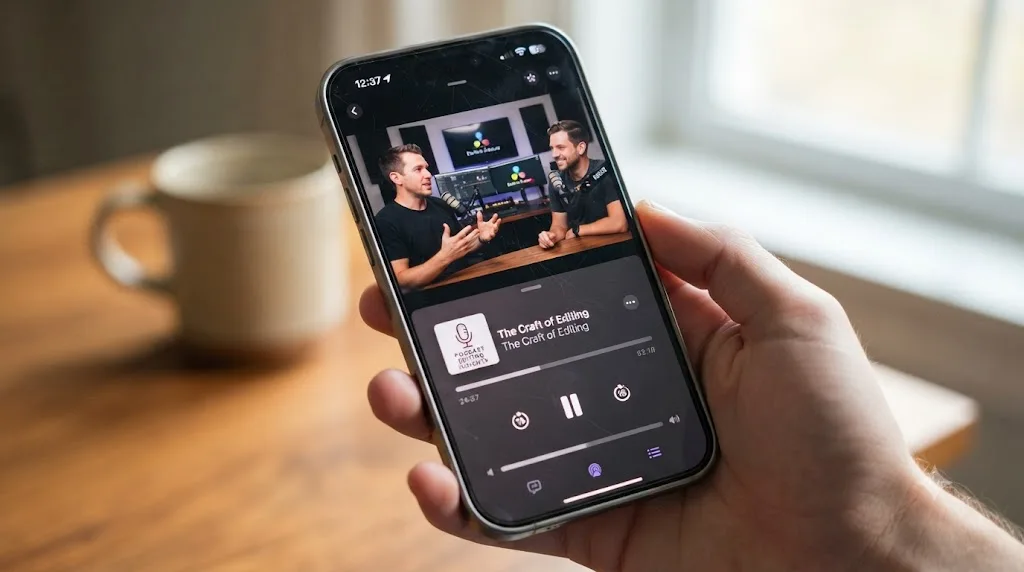
Yes, and the answer changed meaningfully in 2026. Apple has long accepted video delivered through a standard RSS feed, supporting MOV, MP4, and M4V files, per Apple's own guide to video podcasts using RSS. That page also names something newer: "HLS video is the preferred method for distributing video on Apple Podcasts," a streaming-adaptive format rather than a single static file, though standard RSS-delivered files remain supported.
In February 2026, Apple rolled out a native video experience across Apple Podcasts, built on that HLS foundation. Per Apple's own newsroom announcement, the update adds seamless switching between watching and listening modes, full-screen horizontal video playback, offline video downloads, automatic quality adjustment based on network conditions, and dynamic video ad insertion. Apple's senior vice president of Services, Eddy Cue, called it a turning point for the platform: "Today marks a defining milestone in that journey. By bringing a category-leading video experience to Apple Podcasts, we're putting creators in full control," he said in Apple's announcement. The feature landed in beta with iOS 26.4, iPadOS 26.4, and visionOS 26.4, with a full rollout to iPhone, iPad, Apple Vision Pro, and web set for spring 2026.
Neither Apple's RSS video page nor the newsroom announcement publishes a specific resolution, bitrate, or codec table the way Spotify does. For the practical export, that means two workable paths:
| Delivery path | What Apple accepts | Practical approach |
|---|---|---|
| Standard RSS video | MOV, MP4, or M4V | Use the same H.264 MP4 master built for YouTube and Spotify |
| HLS (new, preferred) | Adaptive streaming, not a single file | Handled by your hosting provider, not exported directly from Resolve |
For nearly every podcaster, this means exporting the same 1080p H.264 MP4 file covered earlier in this guide and letting your podcast host handle any HLS packaging on the way to Apple Podcasts, the same way most hosts already handle RSS feed generation and audio transcoding today. Building an HLS manifest by hand from inside Resolve isn't a realistic workflow, and no major hosting provider expects you to.
Should podcast audio be mono or stereo?
Mono for the file that goes to your RSS feed. Stereo for the file that goes to YouTube and Spotify's video specs. This is the single most common mismatch in a podcaster's export pipeline, because it's genuinely counterintuitive to deliberately downgrade a mix from stereo to mono, and most editing software defaults to stereo everywhere.
The case for mono on spoken-word audio isn't a compromise, it's the correct engineering choice for the content. Colin Gray, founder of The Podcast Host, puts the recommendation directly: "For the vast majority of us, that 90%, go for 96kbps mono. This is perfectly good quality for a voice-only podcast that has a little bit of intro music, some transitions and an outro," he writes in his guide to podcast bitrate. Buzzsprout's own audio optimization documentation goes further, arguing mono isn't just acceptable but often technically superior at a matched bitrate: "The 96k mono file is actually higher-fidelity and will result in a more pure representation of your master recording," per Buzzsprout's help center, because a stereo file at the same total bitrate has to split that bitrate budget across two channels instead of concentrating it in one.
Mono halves a spoken-word podcast's file size and nobody can hear the difference, because two identical channels carry no extra information a listener's ears can use. A voice recorded on a single microphone was captured as one channel of information regardless of how many channels the export file claims to have; duplicating it to a left and right channel doesn't add spatial information, it just doubles the data. Buzzsprout states the practical cost plainly: stereo means "it will take your listeners longer to download your episodes and they will take up more space on their devices," per the same help article, which matters more on mobile data and older devices than it does on a home broadband connection.
Where stereo genuinely earns its place: music-heavy segments, ambient sound design, or any podcast recorded with a real stereo image, like a live performance capture, rather than mono microphones summed together. And every video platform in this guide, Spotify and YouTube both, expects a stereo audio track riding along with the video file regardless of how simple your source audio is, since stereo remains the assumed default for video delivery even when the content itself is monophonic dialogue.
| Distribution | Recommended channels | Why |
|---|---|---|
| RSS feed / Apple Podcasts audio | Mono | Apple accepts mono MP3 directly; smaller file, same perceived quality for speech |
| Apple Podcasts WAV/FLAC delivery | Stereo (mandatory) | Apple's spec requires two channels for WAV and FLAC even if they're identical |
| YouTube video | Stereo | Video platform convention; audio is a secondary track on a video file |
| Spotify video | Stereo (recommended) | Spotify accepts mono with automatic conversion, but stereo is the stated recommendation |
One wrinkle worth knowing before you build your audio-only export: Apple's own audio requirements page states that "single-channel audio will not be accepted for WAV or FLAC files," per Apple Podcasts for Creators' audio requirements. Mono is for MP3 specifically. If you're delivering an uncompressed WAV or FLAC master to a hosting provider that requests one, duplicate your mono signal across two identical channels rather than exporting a true single-channel file, or Apple's ingestion pipeline will reject it outright.
How do you export an audio-only WAV or MP3 master from a video timeline in DaVinci Resolve?
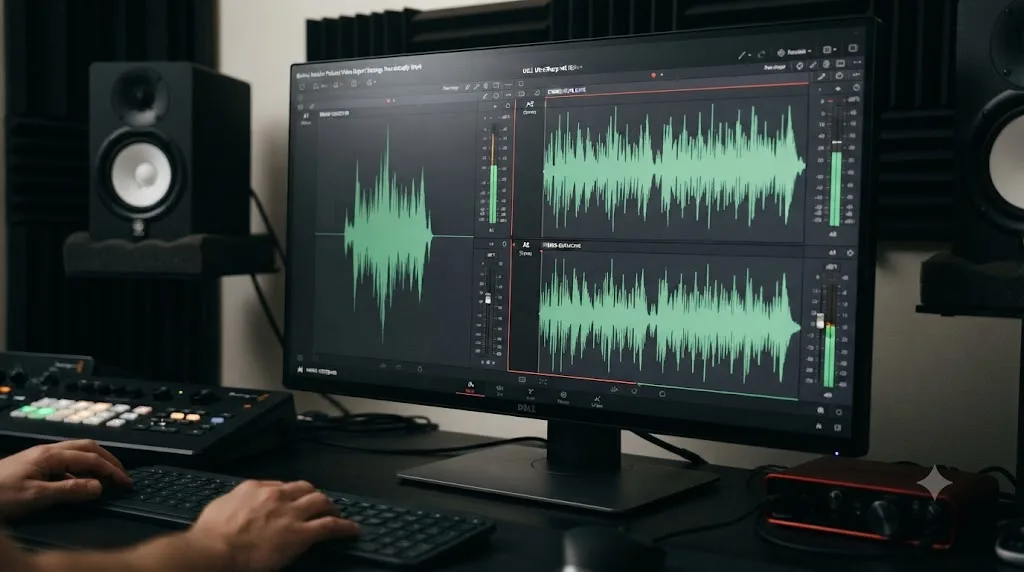
You don't need a separate audio-only project or a reconform. The same Deliver page render queue that builds your video export builds your audio-only master, with one toggle changed.
- Finish and render your video export first, following the settings covered earlier in this guide.
- In the Render Queue, right-click that same job and duplicate it, so you're not rebuilding settings from scratch.
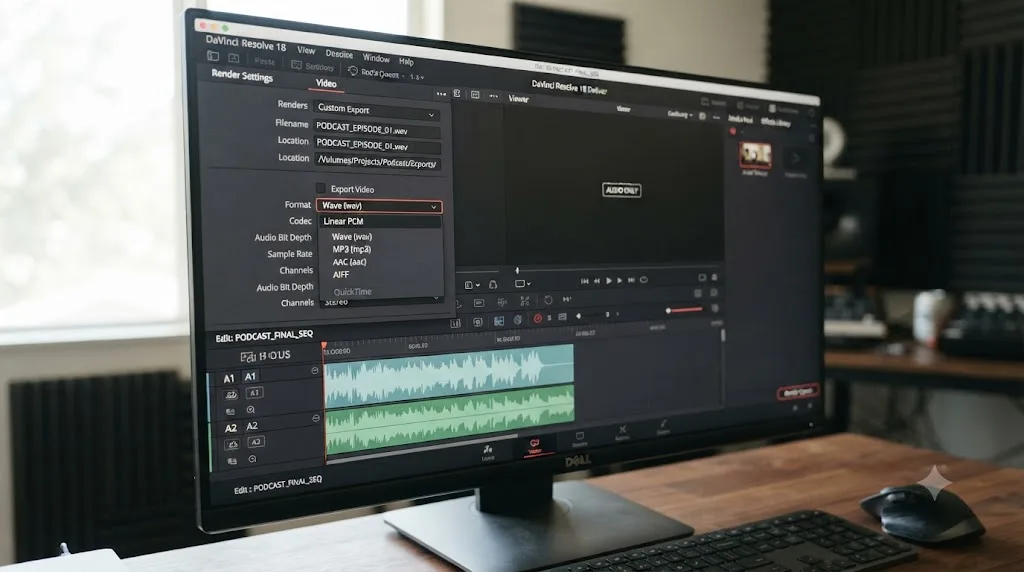
- In the duplicated job's Render Settings, uncheck Export Video at the top of the Video tab. With video unchecked, the Format dropdown switches from video containers like MP4 and MOV to audio-only containers: Wave, AIFF, MP3, and a handful of others depending on your Resolve build.
- For an archival master, choose Wave, set the sample rate to 44.1kHz (or 48kHz to match your project, then let your podcast host resample), and Linear PCM at 16 or 24-bit.
- For the file you actually upload to your podcast host, choose MP3, set channels to Mono, and set bitrate to 96-128 kbps, matching Apple's own recommended range for spoken-word MP3.
- Rename the file distinctly from your video export before adding it to the queue, since both jobs will otherwise want the same output filename.
- Add to Render Queue and render. You now have two files from one timeline: a stereo MP4 for YouTube and Spotify, and a mono MP3 or WAV for your RSS feed.
| Master type | Format | Channels | Bitrate / sample rate | Use for |
|---|---|---|---|---|
| Archival WAV | Wave | Stereo (Apple requires it, even for a mono source) | 44.1 or 48kHz, 16 or 24-bit | Long-term storage, handoff to a podcast editor or producer |
| RSS upload | MP3 | Mono | 96-128 kbps, 44.1 or 48kHz | Your actual podcast host upload |
| Video export | MP4 (H.264 + AAC) | Stereo | 128-192 kbps AAC, 48kHz | YouTube, Spotify, Apple Podcasts video |
Two mistakes catch first-time podcast exporters here. The first is forgetting that Export Audio has to stay checked once you uncheck Export Video; unchecking both produces an empty render with nothing in it. The second is exporting the audio-only file at your project's raw output level without a separate loudness check, covered in the next section, since a mix leveled correctly for a video platform's -14 LUFS target will read too hot against Apple's quieter -16 LUFS podcast figure.
If your source audio needs cleanup before either export, our background noise removal guide covers the Fairlight tools for that, and it's worth doing that pass before you build either render job, since noise reduction and EQ decisions apply identically to both the video and audio-only files coming off the same timeline.
What LUFS target should a podcast video hit?
Two different numbers, depending on which file you're checking. That split trips people up more than any codec setting in this guide.
Apple Podcasts states its target directly: "the overall loudness remains around -16 dB LKFS, with a +/- 1 dB tolerance," with true peak required to stay under -1 dBFS, per Apple Podcasts for Creators' audio requirements. That's your target for the mono MP3 or stereo WAV file headed to your RSS feed and Apple Podcasts specifically. Video platforms use a different, louder figure: -14 LUFS integrated is the de facto industry standard for YouTube uploads, confirmed through independent measurement of the platform's playback normalization rather than a published Google spec, per Critical Listening Lab's breakdown of YouTube's loudness behavior.
Apple Podcasts measures loudness two dB quieter than YouTube, at -16 LUFS instead of -14, because a podcast plays through earbuds during a commute, not a living room speaker. That two-decibel gap explains why a mix that sounds correctly leveled on your YouTube upload can read as slightly hot against Apple's own tolerance, and why exporting one loudness-matched file for both destinations quietly gets one of them wrong.
| File | Target (Integrated) | True Peak ceiling | Source |
|---|---|---|---|
| RSS / Apple Podcasts audio-only master | -16 LUFS | -1 dBFS | Apple Podcasts for Creators |
| YouTube / Spotify video | -14 LUFS | -1 dBTP | Industry consensus (YouTube), Spotify recommendation |
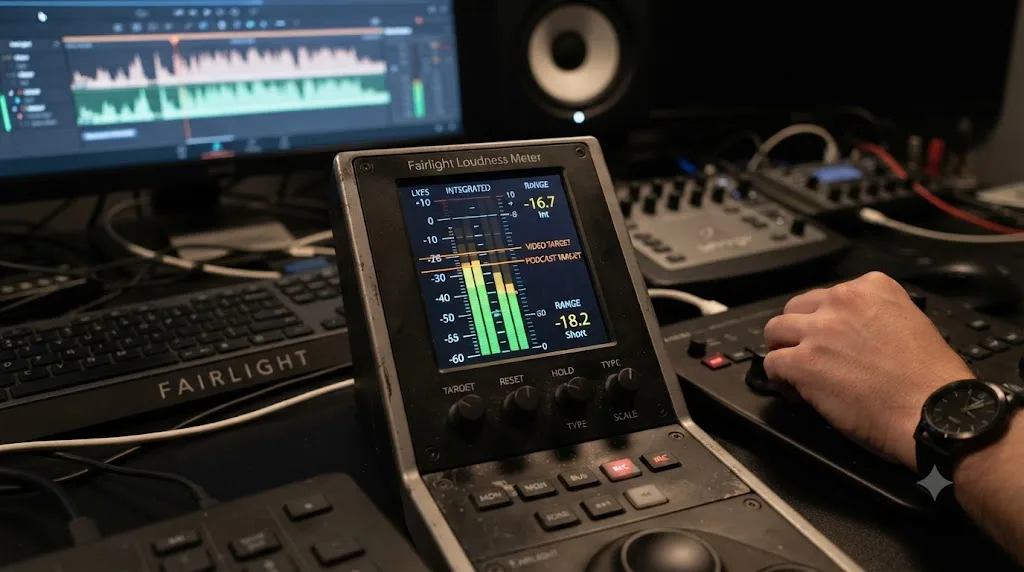
In DaVinci Resolve, set this in Project Settings, then General Options, then the Fairlight section, using the Target Loudness Level field, per Blackmagic's own manual entry on the setting. Because you're rendering two separate files from one timeline, the practical workflow is to mix once, then check Integrated on the Fairlight Loudness Meter twice, once mentally targeting -16 for the audio-only export and once targeting -14 for the video export, adjusting the Main bus fader by whatever small gap separates your mix from each target before that specific render.
If your mix currently reads outside both targets, or you're not sure how to read Integrated versus Momentary on the Loudness Meter in the first place, our full loudness normalization and LUFS guide covers the complete workflow: where the meter lives, how to calculate the exact fader move to hit a target, and what to do when a soloed track or a partial playthrough throws your reading off.
How do you keep a podcast video's file size small without hurting quality?
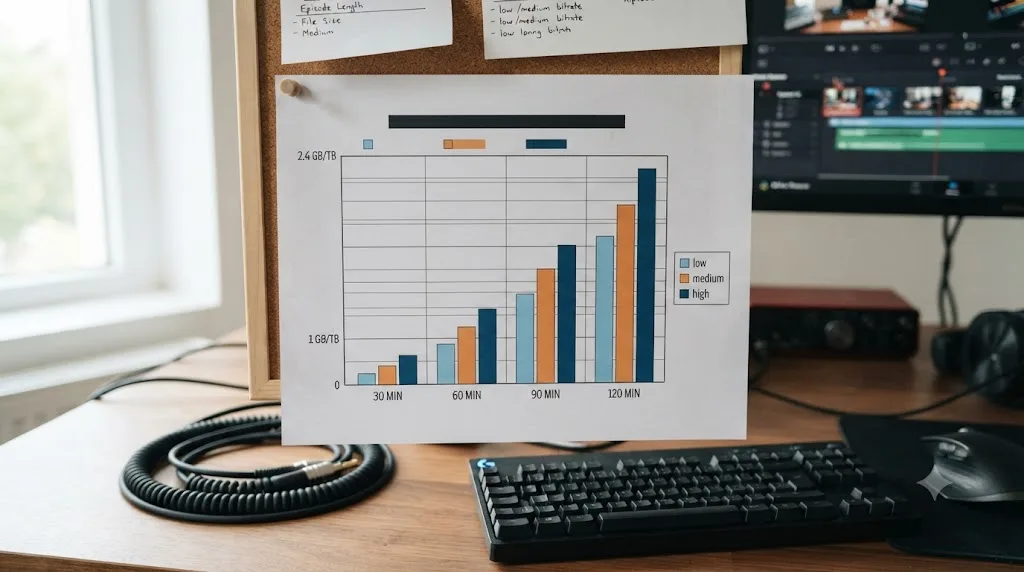
Bitrate times duration, and nothing else, decides your file size before compression efficiency enters the picture. A one-hour podcast at 20 Mbps produces roughly 9GB of video before audio is even added; the same episode at 10 Mbps produces roughly 4.5GB. That math matters more for a weekly hour-long show than it does for a single short video, since file size compounds across an entire back catalog sitting in cloud storage.
Here's the arithmetic worked out at realistic podcast lengths:
| Episode length | 10 Mbps | 15 Mbps | 20 Mbps | 25 Mbps (Spotify's 1080p ceiling) |
|---|---|---|---|---|
| 30 minutes | ~2.25 GB | ~3.4 GB | ~4.5 GB | ~5.6 GB |
| 60 minutes | ~4.5 GB | ~6.75 GB | ~9 GB | ~11.25 GB |
| 90 minutes | ~6.75 GB | ~10.1 GB | ~13.5 GB | ~16.9 GB |
| 2 hours | ~9 GB | ~13.5 GB | ~18 GB | ~22.5 GB |
Spotify accepts video files up to 60GB, but a two-hour interview show at a sane bitrate lands closer to 10-15GB, nowhere near that ceiling. The 60GB and 10GB-recommended figures on Spotify's spec page exist to accommodate long-form content generally, not to suggest podcasters should push toward them. A locked-off talking-head format doesn't need the headroom a music video or a heavily edited documentary does.
The actual lever for keeping file size down without visibly hurting quality is exploiting exactly the low-motion content this guide opened with. Because a podcast interview is mostly static frames with small head and hand movement, an interframe codec spends very little data per frame after the first one in a shot. Drop your bitrate from 20 Mbps to 12-15 Mbps on a genuinely locked-off two-camera setup and the visual difference is often difficult to spot, while your storage and upload time both shrink by 25-40%. Push that same low bitrate onto a podcast with a lot of camera movement, screen-share segments, or fast graphic overlays, and banding and blockiness show up fast, because motion-heavy content is exactly what interframe compression struggles with.
| Content pattern | Safe bitrate range (1080p) | Why |
|---|---|---|
| Locked-off, single or two camera, minimal movement | 10-15 Mbps | Almost no frame-to-frame change for the encoder to describe |
| Camera moves, hand gestures, occasional cutaways | 15-20 Mbps | More motion, still well within comfortable range |
| Screen-share segments, graphics, b-roll inserts | 20-25 Mbps | Motion-heavy sections need more data to avoid banding |
If your show alternates between a static interview format and a screen-share or b-roll-heavy segment within the same episode, don't split the difference with one mediocre bitrate for the whole file. Restrict-to-bitrate mode in Resolve applies one target across the entire render, so if variability within an episode is a recurring problem, switch to Automatic quality mode instead, letting the encoder spend more data on the busy segments and less on the static ones without you manually calculating a compromise number.
Should you export 1080p or 4K for a podcast video?
1080p, for almost every podcast, and the reasoning has nothing to do with what your cameras can capture.
Spotify's own spec recommends 1080p or higher, and the higher tier it names is specifically 4K, with a correspondingly higher bitrate ceiling of 35 Mbps. Nothing in that spec penalizes a 1080p upload; it's the recommended baseline, not a minimum creators are expected to exceed. YouTube has no podcast-specific resolution requirement at all, following its general upload guide, which treats 1080p as a completely standard, well-supported resolution tier.
The practical case for staying at 1080p comes down to what a podcast video actually is: two or three people talking, viewed on a phone screen scrolling a feed, an earbuds-and-screen-off audio session, or occasionally a living room television. The safest single video setting for a podcast release is 1080p, H.264, in an MP4 container, because every platform in this guide accepts it and none of them require more. A 4K master roughly quadruples your pixel count and, at a matched perceptual quality, meaningfully increases both render time and file size, for a resolution gain that's largely invisible on the small-screen, background-viewing context most podcast video actually gets consumed in.
Where 4K earns its place: if your show does dedicated visual segments, like a cooking demonstration, a product review with close-up detail, or content where the visual itself is the point rather than a backdrop for conversation, export at 4K and let the higher-quality source give you cropping and reframing flexibility later, even if you deliver the final file at 1080p. Recording or grading at a higher resolution than your delivery resolution is a legitimate production choice; delivering the final file at 4K when nobody watching needs that resolution is usually just added render time and storage cost with no perceptible benefit.
| Scenario | Recommended export resolution |
|---|---|
| Standard two or three person interview format | 1080p |
| Visual demonstration content (cooking, product review, whiteboard) | 4K if source allows, or 1080p with headroom for cropping |
| Multi-camera show with planned reframing or zoom-ins in post | Record 4K, deliver 1080p |
| Screen-share or slide-heavy tutorial-style podcast | 1080p is usually sufficient; text legibility matters more than raw resolution |
If you're recording remote guests through a browser-based tool or a video call, resolution ceilings are often set by the guest's upload bandwidth rather than your own settings, and a 4K delivery target built around footage that only ever arrived at 720p from a shaky home connection doesn't add quality back in; it just upscales the softest source in your timeline to fill a bigger frame.
How do you build a reusable podcast export preset in DaVinci Resolve?
Build it once, name it by destination, and stop rebuilding the same settings every week a new episode is due.
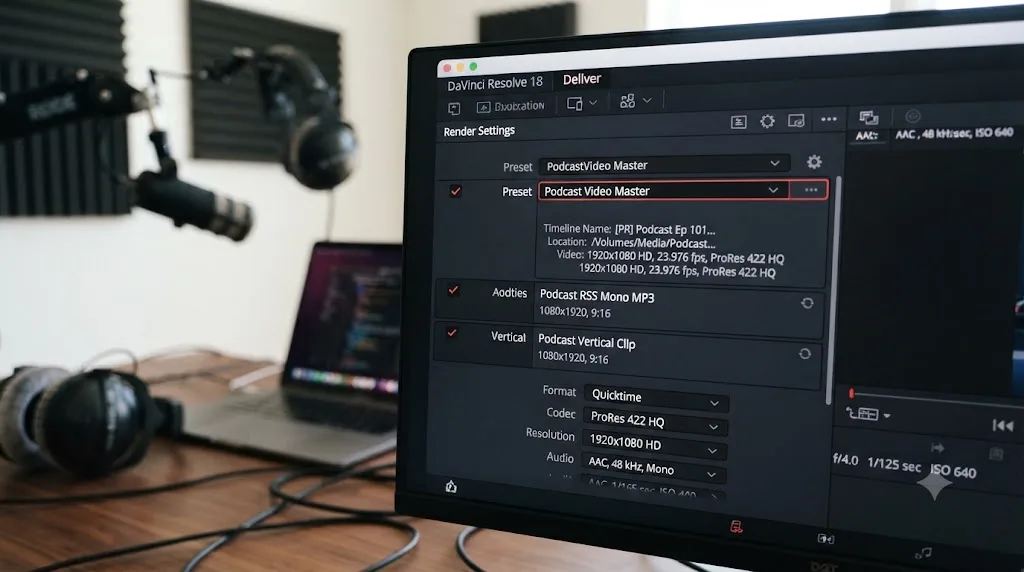
- Configure the video job fully: Format MP4, Codec H.264, resolution 1080p, restricted bitrate around 18-20 Mbps, Audio tab set to AAC-LC at 160 kbps stereo, 48kHz.
- Click the three-dot options menu at the top right of the Render Settings panel, choose Save As New Preset, and name it something like "Podcast Video Master," not a generic label.
- Set up the audio-only job separately, following the steps covered earlier in this guide, and save it as its own preset, named something like "Podcast RSS Mono MP3."
- Both presets now sit in the strip at the top of Render Settings, alongside Resolve's stock YouTube and ProRes presets, ready for every future episode on this machine.
For a weekly or biweekly show, this collapses your entire export routine into: open the timeline, click the "Podcast Video Master" preset, click "Podcast RSS Mono MP3," verify resolution and frame rate against the current episode's timeline, and render both. The settings sheet in this guide becomes something you check once when building the presets and rarely need to reopen after.
One addition worth building into your preset routine specifically for a recurring show: if you also cut short vertical clips from each episode for social distribution, covered in the next section, save that as a third preset too. Three saved presets, one video master, one RSS audio file, one vertical clip template, cover the entire weekly export routine most podcasts actually run.
How do you handle multicam podcast footage before you ever reach the Deliver page?
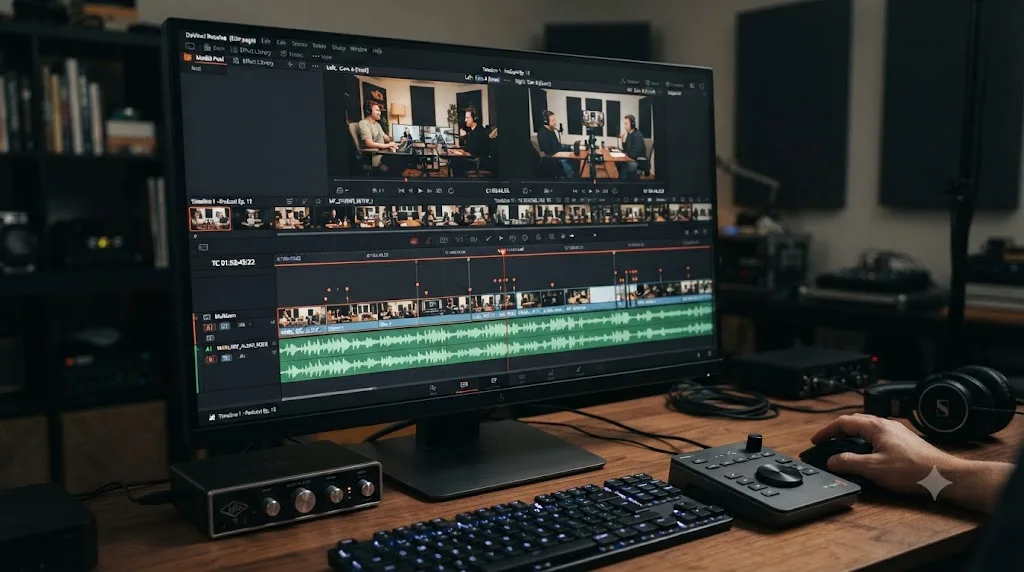
Most podcast video comes from two or more cameras, sometimes a wide two-shot and a close-up on each speaker, sometimes a dedicated camera per remote guest pulled in through a recording tool. Before any of the settings in this guide matter, that footage has to actually sync and cut together cleanly, or the export settings are polishing a broken timeline.
Resolve's Multicam Clip tool syncs multiple camera angles using either timecode, if your cameras were jam-synced or genlocked, or audio waveform matching, if they weren't, which is the common case for a home podcast studio running separate cameras with separate on-board mics. Build a multicam clip from your synced angles, cut between them live using the multicam viewer while your Fairlight audio plays underneath, and the result is a single edited timeline with clean cuts between camera angles, ready for the export settings covered throughout this guide.
The audio side deserves particular attention in a multicam podcast setup, because it's common to record a dedicated audio interface alongside camera audio, meaning your best-sounding source often isn't attached to any single camera angle at all. Build your multicam clip's audio from the dedicated recorder, not from whichever camera happens to be selected at a given cut point, and route every speaker's channel through the Dialogue, Music, and Effects bus structure covered in our Fairlight mixing guide before you ever touch the Deliver page.
If your cameras drift out of sync partway through a long recording, a common failure with consumer cameras recording separately over an hour or more, that's a separate problem from export settings entirely, and worth catching before you build either render job. Symptoms and fixes for that specific issue live in a dedicated guide if you're seeing lips drift out of alignment with audio partway through an episode.
| Multicam setup | Sync method | Common pitfall |
|---|---|---|
| Jam-synced or genlocked cameras | Timecode | Rare in home podcast setups; needs dedicated hardware |
| Separate cameras, no shared timecode | Audio waveform matching | Camera's built-in mic audio must be present and usable for the sync algorithm |
| Remote guests via a recording tool | Tool handles sync automatically | Frame rate or resolution mismatches between local and remote tracks |
Remote guest footage recorded through a browser-based call or a dedicated remote recording tool introduces its own variable: guests often arrive at whatever frame rate and resolution their local device and connection happened to produce, which may not match your host-side camera at all. Resolve's timeline conforms mismatched sources automatically, but a guest's webcam feed captured at 24fps sitting next to a host camera shot at 30fps is worth normalizing intentionally, not leaving to whatever Resolve's default conform does, since an unintentional frame rate mismatch is exactly the kind of subtle judder covered in general export guides that's easy to miss until the file is already live.
Should you also export vertical clips for shorts and Reels from your podcast?
For most shows chasing discovery, yes, and it's worth building into the same export session rather than treating it as a separate project days later.
Video podcast viewers behave differently than audio-only listeners in a way that matters for distribution strategy specifically: vodcast watchers consume 1.5 times more content than audio-only listeners, per Deloitte's 2026 technology, media, and telecom predictions, and roughly 27% of US consumers report watching video podcasts weekly as of late 2025, per the same report. A short vertical clip pulled from a longer episode and posted to TikTok, Instagram Reels, or YouTube Shorts is one of the more effective ways full-episode video podcasts actually get discovered by people who weren't already subscribed.
The export mechanics are identical to any other vertical social export: build a duplicate 1080x1920 timeline, reframe the pulled segment using Transform controls so both speakers (or whichever one is talking) sit inside the tall frame, and export H.264 in an MP4 container, since Instagram in particular doesn't reliably accept H.265 even when your source cameras recorded in HEVC. Our Instagram Reels export settings guide covers the full vertical export spec, safe zones for captions and calls to action, and the bitrate range that holds up under each platform's aggressive recompression.
Video podcast viewers watch 1.5 times more content than audio-only listeners, which is exactly the kind of viewer a short vertical clip is built to convert into a full-episode listener. A clip's job isn't to be the whole show; it's to be the on-ramp, which is why captioning matters more on a podcast clip than almost any other short-form content type, since a viewer scrolling with sound off needs to understand the hook in the first two seconds before they'll tap through to the full episode.
| Export | Timeline | Aspect ratio | Purpose |
|---|---|---|---|
| Full episode video | Native, matched to source | 16:9 | YouTube, Spotify, Apple Podcasts video |
| Short clip | Duplicate, rebuilt at 1080x1920 | 9:16 | TikTok, Reels, YouTube Shorts, discovery |
| RSS audio master | N/A (audio only) | N/A | Podcast apps, Apple Podcasts audio |
Building all three from one editing session, rather than returning to the project days later to cut clips, keeps your grade, your audio mix, and your captions consistent across every version of the same episode, and it's a meaningfully smaller time investment when the multicam sync and audio cleanup work is already fresh rather than needing to be reloaded from scratch.
Does the free version of DaVinci Resolve limit podcast video exports?
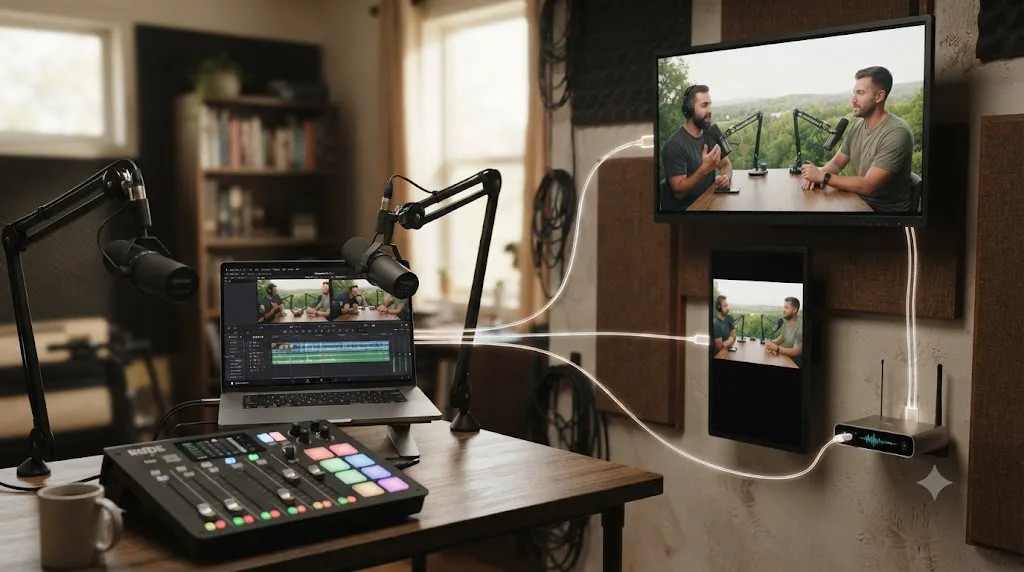
No, not in any way that touches this guide's settings. Per Blackmagic's own tech specs, the free version renders up to Ultra HD 3840x2160 at 60fps in 8-bit, which comfortably covers every resolution and frame rate this guide recommends, including the 4K tier for shows that occasionally deliver higher-resolution visual segments.
Fairlight, the page every audio setting in this guide lives on, ships completely in the free version with no watermark or feature gate, per Blackmagic's Fairlight product page. The Loudness Meter, Target Loudness Level setting, buses, EQ, compression, and the Deliver page's audio-only export toggle are all standard tools available whether or not you've paid $295 for a Studio license.
| Free | Studio | |
|---|---|---|
| Max export resolution | Ultra HD 3840x2160 | Beyond 4K |
| Max export frame rate | 60fps (8-bit) | 120fps (10-bit) |
| Fairlight loudness and mixing tools | Full access | Full access, identical |
| Audio-only export toggle | Available | Available |
| Multicam sync and editing | Available | Available |
| Hardware-accelerated H.264 encoding (Windows, Linux) | CPU-based (slower renders) | GPU-accelerated |
| Smart Reframe (AI auto-track for vertical clips) | Not available | Available |
The two genuine gates sit in speed and one AI convenience feature, neither of which changes what a finished export looks like. On Windows and Linux, hardware-accelerated H.264 and H.265 encoding is Studio-only, so free-version renders on those platforms lean on the CPU and take longer to produce the same file; on macOS, Apple's VideoToolbox handles hardware encoding regardless of license tier. Smart Reframe, the AI tool that auto-tracks a subject when converting horizontal footage to vertical for the short clips covered above, is Studio-exclusive, though the identical result is achievable by hand with keyframed Transform values on the free version, just with more manual work per clip. Neither gap affects whether your podcast's video and audio exports meet the specs covered throughout this guide.
What does a full podcast export pass look like, start to finish?
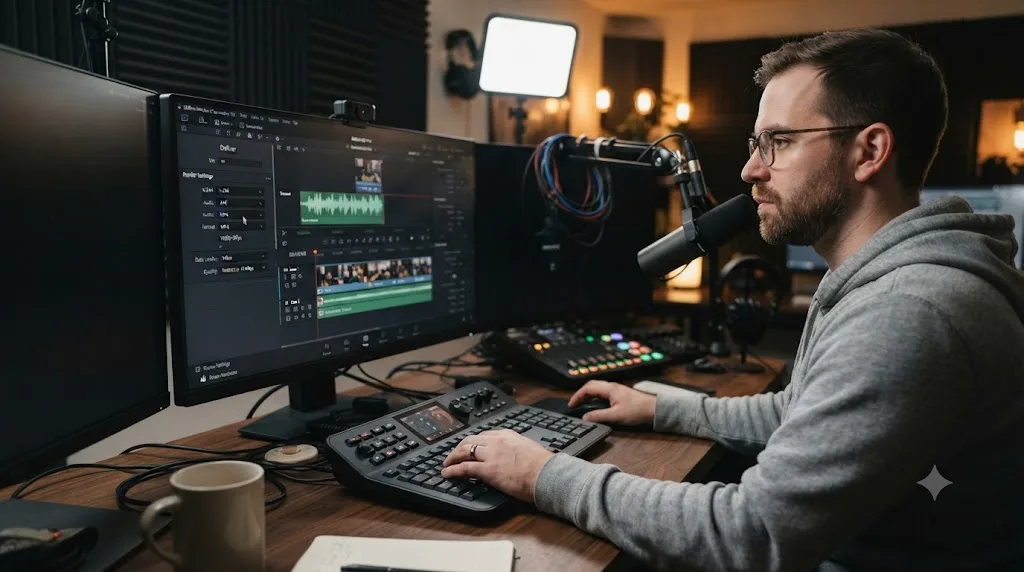
Here's the whole workflow applied to a realistic weekly show: a 55-minute two-camera interview, host and guest each on a dedicated camera, audio captured through a separate USB interface rather than camera mics, with a short cold-open clip planned for social.
Step one, multicam sync. Both camera angles and the interface audio get synced into a multicam clip using audio waveform matching, since the cameras weren't jam-synced. The edit cuts between the wide two-shot and each speaker's close-up as the conversation moves.
Step two, audio mix. Both speakers route to a Dialogue bus, a short intro music bed routes to a Music bus, both feed a Main bus. Dialogue gets a light high-pass and a 2.5:1 compressor, following the same process covered in our Fairlight mixing guide. The music bed under the cold open gets ducked automatically under the host's intro line.
Step three, first loudness check. Target Loudness Level gets set to -16 in Project Settings for the audio-only pass. A full playthrough reads Integrated at -19 LUFS, 3 LU under target, so the Main bus fader goes up 3dB. A second playthrough confirms -16.2 LUFS, well within Apple's ±1dB tolerance, and True Peak sits at -3.1 dBFS, comfortably clear of the -1 dBFS ceiling.
Step four, video render. Deliver page, Format MP4, Codec H.264, resolution 1080p matched to the timeline's native 30fps, bitrate restricted to 18 Mbps given the mostly locked-off two-camera setup. Audio tab: AAC-LC, 160 kbps, stereo, 48kHz. Target Loudness Level gets bumped to -14 for this specific render, and the video job is added to the queue.
Step five, audio-only render. The video job gets duplicated, Export Video unchecked, Format switched to MP3, channels set to mono, bitrate set to 112 kbps. Target Loudness Level reverts to -16 for this job, matching the earlier mix check, and it's added to the same render queue.
Step six, vertical clip. A 90-second segment from the middle of the interview, where the guest tells a specific story, gets duplicated onto a new 1080x1920 timeline. Both speakers get reframed with Transform controls so the close-up shots fill the tall frame, captions get burned in for sound-off viewing, and the clip exports as H.264 MP4 at 8 Mbps, well within the range that holds up under Instagram and TikTok's recompression.
Step seven, render all. Three jobs sit in the queue: an 8.5GB video master at 18 Mbps for 55 minutes, roughly a 46MB mono MP3 for the RSS feed, and a small clip file for social. Render All runs them in sequence while the next episode gets scheduled.
Three files, one editing session, and every setting in that pass traces back to a specific platform requirement covered earlier in this guide, not a guess.
What's the fastest way to fix a bad podcast export?
Work through these before assuming the grade or the mix itself is the problem.
- The video file is too large for comfortable hosting or upload. Check your bitrate against the file size table earlier in this guide. A locked-off interview rarely needs more than 15-18 Mbps; drop from 25 Mbps toward that range before reaching for a lower resolution.
- The RSS audio file sounds thin or the file size seems too small. Confirm you actually set channels to mono intentionally and bitrate to 96-128 kbps, not an accidentally low setting like 32 or 64 kbps that falls below Apple's recommended range.
- The video export sounds too quiet or too loud on YouTube after you built it around your podcast's -16 LUFS mix. You mixed for the wrong target. Reset Target Loudness Level to -14 for the video render specifically and recheck Integrated before finalizing that job.
- Instagram or TikTok rejects or mangles your vertical clip. Almost always a codec issue; confirm the clip export is H.264, not H.265, since Instagram in particular doesn't reliably accept HEVC even from an iPhone-sourced multicam angle.
- No audio in either export. Open the Audio tab in Render Settings and confirm Export Audio is checked on both the video and audio-only jobs independently; they don't share this setting. Our no audio troubleshooting guide covers the deeper checklist if it's checked and still silent.
- Multicam angles drift out of sync partway through a long episode. That's a sync problem upstream of export settings entirely, most often camera clock drift over a long recording. Fix it before you build either render, since no export setting corrects a timeline that's already out of sync.
- The render stalls or errors partway through. That's a resources problem, most often GPU memory on a long, effects-heavy timeline. Our render failed guide walks the full diagnosis.
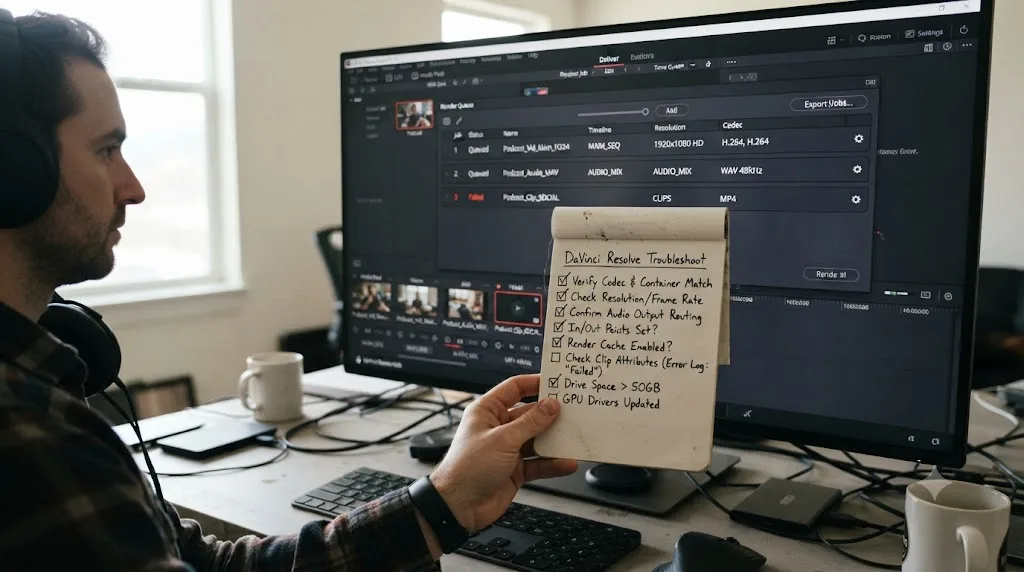
If keeping track of which bitrate, which channel setting, and which loudness target belongs to which of your three podcast export files is the part that eats your afternoon every single week, that's the specific gap TryUncle is built for. It's an AI tutor that looks at your actual Resolve window and points at the exact control you're asking about, instead of sending you back through a guide like this one for a setting you needed twenty seconds ago.
Which settings should you actually memorize?
For video, headed to YouTube and Spotify: MP4, H.264, 1080p at your timeline's native frame rate, 15-20 Mbps, AAC-LC at 128-192 kbps stereo, mixed to -14 LUFS. For the file your RSS feed and Apple Podcasts actually want: mono MP3 at 96-128 kbps, or stereo WAV if your host demands uncompressed, mixed to -16 LUFS. Two files, two targets, from one timeline.
A podcast that treats its video export and its audio export as the same decision is solving one problem twice and getting at least one of them wrong. Save both as named presets once, check them against the platform tables in this guide when Spotify or Apple next revise a spec, which they've both done within the past year, and the entire export routine collapses into two clicks and a loudness glance instead of a settings hunt every time an episode is due.
Frequently asked questions
- What DaVinci Resolve export settings should I use for a podcast video?
- MP4 container, H.264 codec, 1080p at your timeline's native frame rate, a bitrate around 15-25 Mbps restricted CBR, and AAC-LC audio at 128-192 kbps stereo, 48kHz. That single spec sheet satisfies both YouTube's general encoding guide and Spotify's video podcast requirements, which is why you don't need separate video masters for each platform.
- Should podcast audio be mono or stereo?
- Mono for audio-only distribution, stereo for video. Apple Podcasts and most spoken-word podcast guidance recommend mono MP3 at 96-128 kbps for RSS feeds, since two identical channels just double the file size with nothing a listener can hear differently. Video podcast platforms like Spotify and YouTube expect a stereo audio track riding along with the video file.
- What are Spotify's video podcast export specs?
- MP4 preferred, H.264 or H.265, 1080p or higher at 16:9, 24-60fps, capped at 25 Mbps CBR for 1080p or 35 Mbps CBR for 4K, per Spotify's own video specs page. Audio should be AAC-LC, PCM, or FLAC at 128 kbps or higher, and Spotify recommends stereo, though it accepts mono with automatic conversion.
- Does YouTube have podcast-specific export requirements?
- Not a dedicated technical spec. A podcast show on YouTube is just a playlist of regular video uploads, so your export follows YouTube's general recommended upload encoding settings: MP4, H.264, AAC-LC. The one podcast-specific requirement is a square 1280x1280px show thumbnail, separate from each episode's normal 16:9 thumbnail.
- How do I export an audio-only file from a DaVinci Resolve video timeline?
- On the Deliver page, uncheck Export Video and leave Export Audio checked. The Format dropdown switches to audio-only containers like Wave, AIFF, or MP3. Set Wave at 44.1kHz for an archival master, or MP3 at 96-128 kbps mono for the file you actually upload to your podcast host.
- Does Apple Podcasts support video episodes?
- Yes. Apple has long accepted MOV, MP4, and M4V video files delivered through a dedicated RSS feed, and in February 2026 it rolled out a native HLS-based video experience with adaptive quality, offline downloads, and seamless switching between watching and listening, arriving in beta with iOS 26.4 and rolling out fully in spring 2026.
- What LUFS target should a podcast video hit?
- -16 LUFS integrated with true peak under -1 dBFS, per Apple Podcasts' own audio requirements. That's two LU quieter than the -14 LUFS most video platforms target, because Apple's figure was built around earbud and phone-speaker listening, not living room television. Set Target Loudness Level to -16 in Resolve's Fairlight project settings before your final mix pass.
- Does the free version of DaVinci Resolve limit podcast video exports?
- No. The free version exports up to Ultra HD 3840x2160 at 60fps in 8-bit, which is far beyond the 1080p or 4K ceilings covered in this guide, and Fairlight's mixing, EQ, and loudness tools all ship complete in the free version too. The one place license tier matters is render speed: hardware-accelerated H.264 encoding on Windows and Linux is Studio-only.
Sources
- Create a podcast in YouTube Studio (YouTube Help)
- YouTube recommended upload encoding settings (YouTube Help)
- Spotify for Creators: Video specs
- Video podcasts using RSS (Apple Podcasts for Creators)
- Apple Podcasts for Creators: Audio requirements
- Apple Introduces a New Video Podcast Experience on Apple Podcasts (Apple Newsroom)
- Buzzsprout Help: Automatic Audio Optimization
- The Podcast Host: What Bitrate Should I Use for a Podcast? (Colin Gray)
- TechCrunch: Spotify now has half a million video podcasts, which nearly 400M users have watched
- Deloitte 2026 TMT Predictions: Video podcasts reach new heights
- DaVinci Resolve - Fairlight product page (Blackmagic Design)
- DaVinci Resolve - Tech Specs (Blackmagic Design)
- DaVinci Resolve - What's New (Blackmagic Design)
- DaVinci Resolve Manual - Target Loudness Level (Blackmagic Design)
Learn by doing, not watching
Learn Resolve inside Resolve.
TryUncle watches your screen and points at the exact control when you ask. No tabs, no timestamps, no rewatching tutorials.
Download for MacKeep reading
Guides · Jul 8, 2026 · 33 min
DaVinci Resolve Loudness Normalization: The Right LUFS Target
The exact LUFS target for every platform in DaVinci Resolve: -14 for YouTube and Spotify, -16 for podcasts, -23 EBU R128 broadcast. Plus how to set and hit it.
Guides · Jul 11, 2026 · 31 min
How to Mix Audio in DaVinci Resolve Using Fairlight
Mix audio in DaVinci Resolve's Fairlight page: build a dialogue/music/effects bus structure, gain-stage your clips, EQ and compress dialogue, then duck music under it.
Guides · Jul 12, 2026 · 26 min
DaVinci Resolve Export Settings for Instagram Reels
Exact DaVinci Resolve export settings for Instagram Reels: 1080x1920 vs 1440x2560, H.264 only, bitrate, safe zones, and duration, sourced from Meta's own specs.