Articles / Guidesupdated for DaVinci Resolve 21.0.2 (July 2026)
DaVinci Resolve Best Settings for Apple Silicon M4
Quick answer
On an Apple M4 Mac, DaVinci Resolve needs at least 24 GB of unified memory, an internal SSD for cache and media, and GPU cores prioritized over extra RAM once you clear 24 GB. Turn on hardware H.264/H.265 encoding (already default on Mac), keep macOS 15 Sequoia or later, and use ProRes or DNxHR proxies only for RAW-heavy multicam timelines.
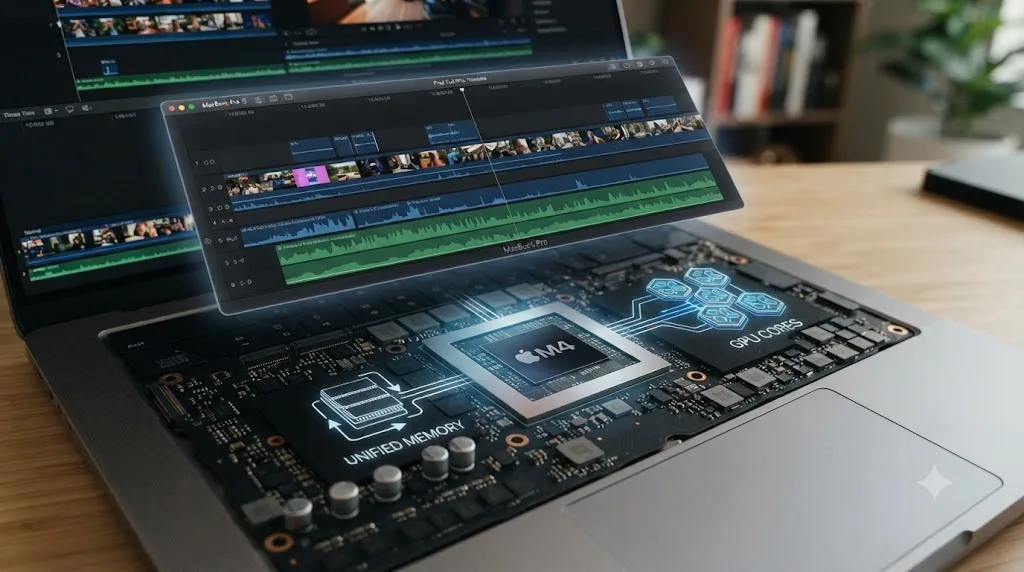
I get the same question from three different kinds of people: someone who just unboxed a Mac mini with an M4 chip, someone comparing an M4 Pro MacBook Pro against a Windows machine with a discrete GPU, and someone who bought an M4 Max Mac Studio two years ago and wants to know if they left performance on the table. The answer for all three lives in the same handful of settings, and none of them are hidden.
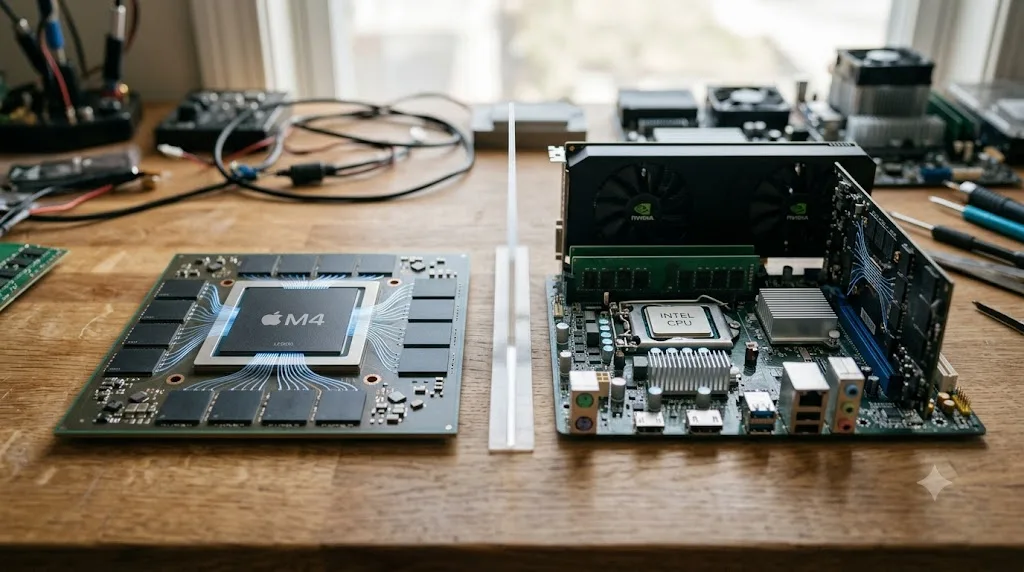
DaVinci Resolve on Apple silicon behaves differently than it does anywhere else, because the M4 family shares one pool of memory between the CPU and GPU instead of keeping them separate. That single architectural fact changes what "add more RAM" actually buys you, what your GPU memory ceiling looks like, and which export settings are worth touching. Get that part right and the rest of this guide is mostly confirming defaults that are already correct.
Which Mac with an M4 chip do you actually have?
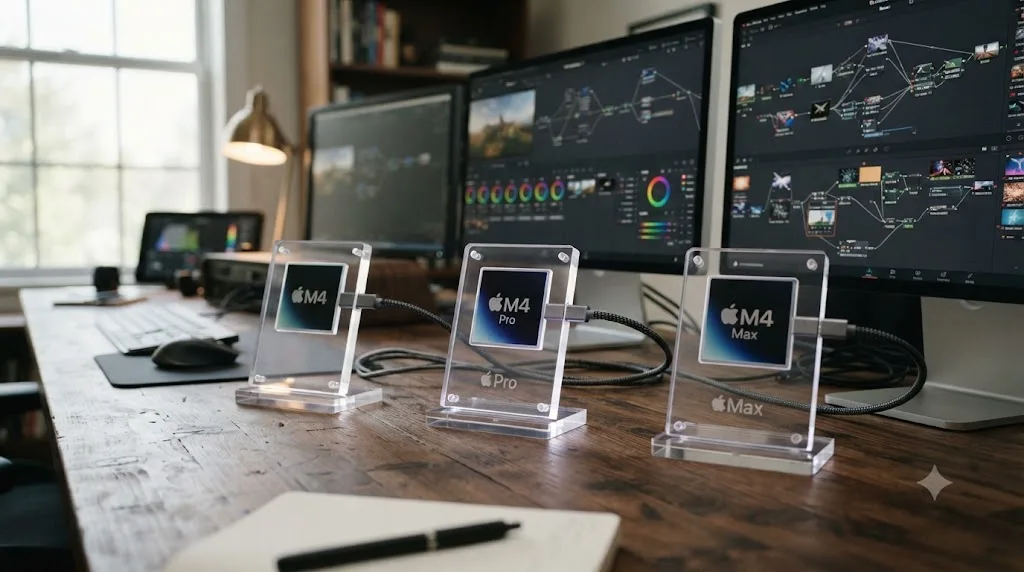
Apple shipped the M4 generation across four different Mac lines between October 2024 and March 2025, and "M4" alone doesn't tell you what you're working with. There's a base M4, an M4 Pro, and an M4 Max, and the gap between them matters more for Resolve than it does for almost anything else you'd run on the same machine.
Open the Apple menu, choose About This Mac, and read the chip name and the unified memory figure together. That's the only spec that actually predicts how Resolve behaves.
| Chip | CPU cores | GPU cores | Max unified memory | Memory bandwidth | Thunderbolt |
|---|---|---|---|---|---|
| M4 | Up to 10 (4 performance + 6 efficiency) | 10 | Up to 32 GB | 120 GB/s | Thunderbolt 4 |
| M4 Pro | Up to 14 (10 performance + 4 efficiency) | Up to 20 | Up to 64 GB | 273 GB/s | Thunderbolt 5 |
| M4 Max | Up to 16 (12 performance + 4 efficiency) | Up to 40 | Up to 128 GB | Up to 546 GB/s | Thunderbolt 5 |
Source: Apple's M4 Pro and M4 Max announcement and Apple's Mac mini, MacBook Pro, and Mac Studio spec pages.
The M4 Max also carries hardware other tiers don't: two video encode engines and two ProRes accelerators, against a single set on the base M4 and M4 Pro, according to Apple's own announcement. That's the reason an M4 Max exports multi-stream ProRes noticeably faster than the difference in GPU core count alone would suggest, since it can push two encode jobs through dedicated silicon at once instead of queuing them.
Which Mac carries which chip also matters, because the lineup isn't uniform. As of mid-2026, the Mac mini, iMac, and Mac Studio still ship with M4-generation chips, while Apple moved the MacBook Pro to the M5 family starting in March 2026. That doesn't make an M4 MacBook Pro obsolete, since Resolve's performance characteristics on M4 haven't changed, but it's worth knowing if you're shopping new versus configuring a Mac you already own.
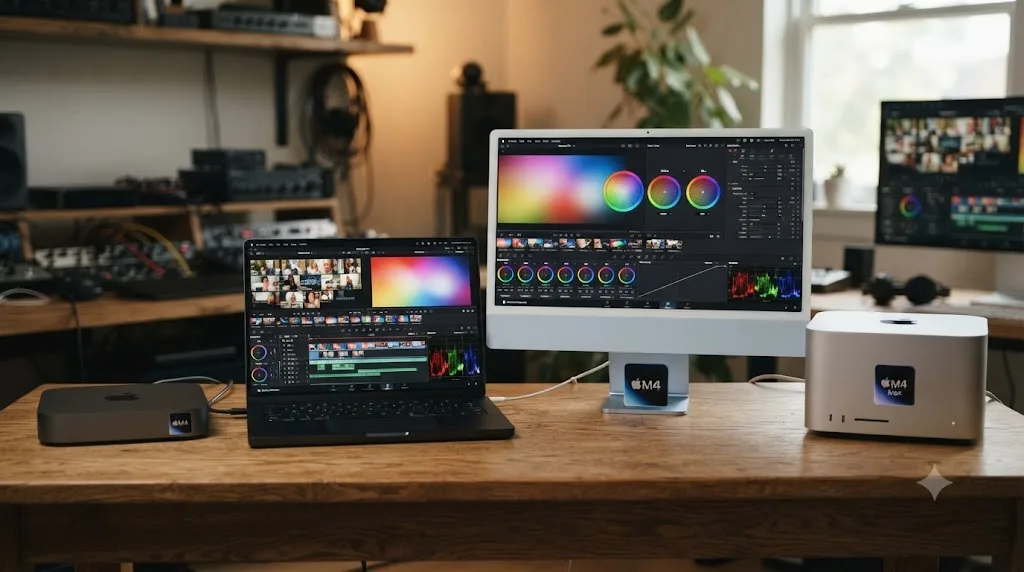
Is the fanless M4 MacBook Air good enough for DaVinci Resolve?
Short version: for most single-camera 4K work, yes. For long, sustained renders, the fan Apple left out of this machine is the thing that eventually catches up with you.
The MacBook Air ships with the same base M4 chip Apple puts in the entry Mac mini and entry MacBook Pro: the same CPU and GPU core counts, the same unified memory options, the same media engine, the same hardware codec support covered later in this guide. Nothing about what the chip can do changes. What changes is how long it can do it at full speed, because the MacBook Air has no fan.
A fanless Mac and a fan-cooled Mac running the identical M4 chip perform identically until the workload runs long enough to heat the chip up. Scrubbing a 4K timeline, applying a grade, cutting a short-form video, none of that pins the chip at high sustained load for more than a few seconds at a time, so the MacBook Air handles it exactly like the entry MacBook Pro does. A long export with noise reduction, Magic Mask, or a heavy Fusion comp baked into the timeline is a different story: that workload holds the chip near its ceiling for minutes at a stretch, generating heat with nowhere to go but through the aluminum chassis itself.
Stress testing from The Mac Observer, which pushed a fanless M4 MacBook Air through sustained heavy compute, found the chip holds up to real workloads without becoming unusable, but does throttle its clock speed once things run hot for long enough, trading some sustained speed to stay within its thermal limits. That's the mechanism worth understanding before you buy: it's not that the MacBook Air can't do the work, it's that a long, hot export may finish a bit slower on it than the identical export would on a MacBook Pro with the same chip and an active fan.
| Trait | MacBook Air (M4) | MacBook Pro (M4) |
|---|---|---|
| Cooling | Fanless, passive | Active, fan-cooled |
| CPU and GPU core counts | Same as base M4 | Same as base M4 |
| Short edits, scrubbing, single-node grades | No practical difference | No practical difference |
| Long exports with noise reduction or Magic Mask | May throttle partway through | Sustains clock speed for the full render |
| Best fit | Light 4K editing where quiet, fanless operation matters | Any workload that holds the chip near full load for minutes at a time |
If you're deciding between the two at the same chip and memory configuration, the question isn't "which is faster," since they're the same silicon. It's "how often do my exports run long and hot," and if the honest answer is often, the MacBook Pro's fan is worth the extra cost and the extra weight.
Source: The Mac Observer's fanless M4 MacBook Air stress test.
How much unified memory does DaVinci Resolve need on an M4 Mac?
This is the setting that actually decides whether your Mac struggles. Unified memory means DaVinci Resolve's GPU and CPU draw from the same pool, so the RAM number on an M4 Mac's spec sheet is also its VRAM number. On Windows or Linux, adding system RAM does nothing for a discrete GPU that's run out of its own dedicated memory. On an M4 Mac, more unified memory raises both ceilings at once, because there's only one ceiling.
Blackmagic's stated floor for DaVinci Resolve is low, deliberately low enough to cover machines far weaker than any current Mac. It's not a useful target for real editing.
| Workload | Realistic unified memory |
|---|---|
| HD editing, light grade, no Fusion | 16 GB |
| Single-camera 4K editing, standard grade | 24 GB |
| 4K multicam, noise reduction, moderate Fusion | 24 to 48 GB |
| 6K/8K RAW (BRAW, R3D), heavy Fusion, HDR grading | 48 GB or more |
| Multi-layer Fusion compositing, large node trees | 64 GB or more |
These figures track what Blackmagic documents as general minimums and recommendations for DaVinci Resolve, adjusted for the fact that unified memory serves double duty on Apple silicon. Source: DaVinci Resolve tech specs.
Larry Jordan, who benchmarks Apple silicon Macs specifically for video editing workloads, draws a firm line at 24 GB in his configuration guide: "At a minimum, get 24 GB of RAM." For anyone editing 4K footage with a real grade on top, that's not an aspirational number, it's the floor where Resolve stops fighting you for memory.
If you're deciding between a base M4 with 16 GB and the same chip configured to 24 GB, pay the upgrade cost. Apple doesn't let you add memory after purchase on any Apple silicon Mac, unified memory is soldered to the package at time of manufacture, so this is the one M4 spec decision you can't walk back later.
Should you prioritize GPU cores or RAM when buying an M4 Mac for Resolve?
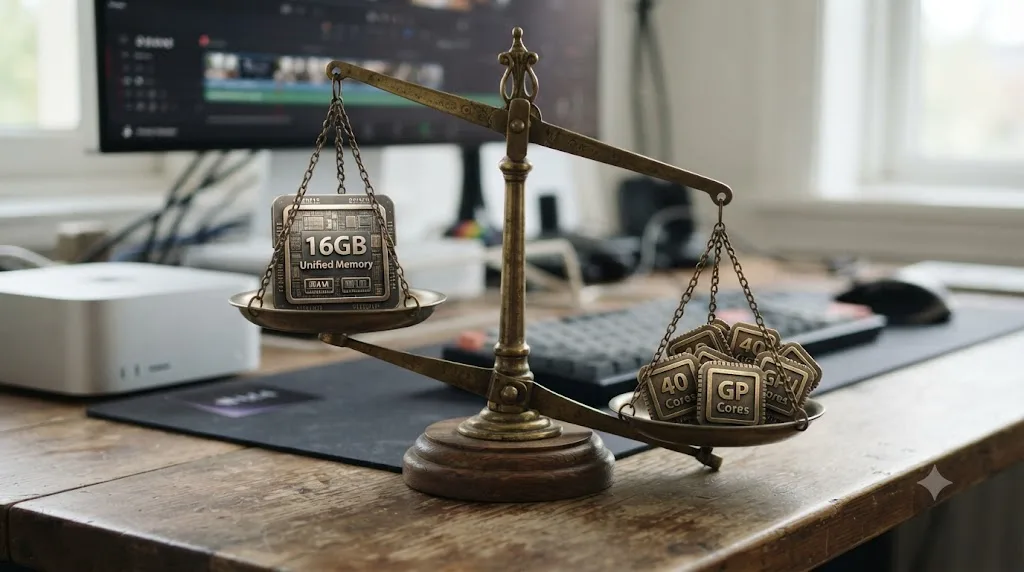
Once you clear that 24 GB floor, the calculation flips, and this is where most buying guides get Apple silicon wrong by treating it like a PC spec sheet. Past 24 GB of unified memory, more GPU cores speed up DaVinci Resolve more reliably than more RAM does.
Jordan's testing across multiple M4 configurations backs this up directly: "More RAM is nice, but more GPUs boost performance," and more pointedly, "systems with more RAM, but fewer GPU cores are not as fast as systems with relatively less RAM and more GPU cores." That's a specific, tested claim from someone who runs the same render and export benchmarks across chip tiers, not a general assumption about Apple silicon.
Here's what that means for a real purchase decision. If you're choosing between a 32 GB base M4 and a 24 GB M4 Pro at similar prices, the M4 Pro's extra GPU cores are very likely to win on Resolve's actual grading and rendering workload, even with 8 GB less memory. In his November 2024 configuration guide, Jordan priced out a Mac mini with the base M4 (10-core CPU, 10-core GPU, 16 GB RAM, 1 TB storage) at $999 for budget-conscious editors, versus a Mac mini with M4 Pro (12-core CPU, 16-core GPU, 24 GB RAM, 1 TB storage) at $1,599 for meaningfully better Resolve performance, and a higher-tier M4 Pro configuration (14-core CPU, 20-core GPU, 24 GB RAM, 2 TB storage) at $2,199. On the MacBook Pro side, he priced a 16-inch M4 Pro (14-core CPU, 20-core GPU, 24 GB RAM, 1 TB storage) at $2,699 against a 16-inch M4 Max (14-core CPU, 32-core GPU, 36 GB RAM, 2 TB storage) at $3,899.
None of those numbers are Blackmagic's, and Apple's own pricing shifts over time, so treat them as a snapshot of relative positioning rather than a current price list. The pattern underneath them holds regardless: GPU core count scales Resolve's performance more consistently than unified memory does, once you're past the point where memory itself is the bottleneck.
| If your budget allows | Choose | Over |
|---|---|---|
| A tight budget, HD or light 4K work | Base M4, 24 GB | Base M4 with more storage instead of RAM |
| A meaningful upgrade for 4K grading | M4 Pro, 24 GB, more GPU cores | Base M4 with 32 GB |
| Heavy multicam, RAW, or Fusion work | M4 Max, 36 GB or more | M4 Pro with maximum RAM |
| A tiebreak between two similarly priced configs | The one with more GPU cores | The one with more unified memory |
How much faster is DaVinci Resolve on M4 versus older Apple silicon Macs?
Jordan's guidance about GPU cores mattering more than chip generation isn't just a general principle, it shows up in actual timed tests. Scott Simmons, reviewing the M4 Pro Mac mini for ProVideo Coalition in November 2024, ran the same Resolve jobs across four different Apple silicon Macs, and the results back up exactly what this guide has been arguing about GPU core count.
On a Scene Edit Detection pass over an hour and 29 minutes of 1080 ProRes footage, a task that leans on Resolve's AI tools rather than raw encode speed, the results didn't line up neatly by chip generation:
| Mac | Scene Edit Detection time |
|---|---|
| M4 Pro Mac mini (48 GB) | 5:28 |
| M3 Max MacBook Pro | 4:30 |
| M2 Max Mac Studio | 5:14 |
| M1 Ultra Mac Studio | 8:33 |
A two-year-old M3 Max MacBook Pro finished a Resolve AI task faster than a brand-new M4 Pro Mac mini, because the M3 Max carries more GPU cores than the M4 Pro does. That's not a fluke or a knock against the M4 generation, it's the GPU-cores-over-chip-tier pattern from earlier in this guide showing up in a real, timed test. Newer doesn't automatically mean faster in Resolve; more GPU cores does.
On a straight export test, a mixed-format documentary export running an hour and 36 minutes down to 1080 ProRes, the M4 Pro Mac mini finished in 10 minutes and 6 seconds. The same project, same hardware, exported from Adobe Premiere Pro instead, took 18 minutes and 12 seconds. Simmons' own conclusion: "What strikes me most here is how much faster DaVinci Resolve is at encoding than Adobe Premiere Pro."
A 2024 test of the M4 Pro Mac mini found DaVinci Resolve finishing an export in roughly half the time the same hardware needed for the identical job in Adobe Premiere Pro. That gap is worth knowing if you're choosing between the two editors on Apple silicon specifically, separate from anything else in this guide about chip tier or memory.
These are third-party test results, not our own hands-on numbers, and results vary by codec, resolution, and the specific effects on a timeline. Treat the exact times as one data point rather than a promise your own project will match them.
Source: Scott Simmons' M4 Mac mini review for video editors, ProVideo Coalition.
What happens when DaVinci Resolve runs out of unified memory on an M4 Mac?
Unified memory has a hard ceiling, and it's fixed the day you buy the Mac. When Resolve, macOS, and everything else running need more memory than that ceiling allows, the system doesn't crash, it swaps: writing memory pages out to the internal SSD and reading them back as needed, treating fast storage as an overflow for RAM it doesn't have.
Apple's own Activity Monitor tracks this directly in the Memory tab, as a "Memory Pressure" graph with three states:
| Memory Pressure | What's happening | What you'll notice in Resolve |
|---|---|---|
| Green | Memory managed efficiently, little to no swap | No impact |
| Yellow | Swap is active, free memory is low | Occasional stutter, slower switching between pages |
| Red | Heavy, sustained swap | Real slowdown: playback drops, the UI lags, tools respond late |
On an M4 Mac, there's no separate VRAM warning to chase the way there is on a PC with a discrete GPU, Activity Monitor's Memory Pressure graph is the only signal that matters, because Resolve's GPU and CPU draw from the same unified pool. A red Memory Pressure reading while you're grading, even with plenty of storage space free, is the actual mechanism behind sluggish scrubbing, slow tool response, and "GPU memory is full" warnings on a maxed-out Mac. Swap access, even on a fast internal NVMe SSD, is dramatically slower than reading straight from unified memory, so sustained red pressure is a real, measurable performance cost, not a number you can ignore because storage still has room.
What actually helps when you hit this ceiling on a real project:
- Lower your timeline or proxy resolution temporarily while you work, since less resolution held per frame means less memory demand.
- Clear or reduce your render cache, especially Smart cache on complex Fusion comps, which can consume a surprising share of unified memory on a long timeline.
- Close other memory-heavy apps while you're grading or exporting, particularly browsers with many tabs open, which compete for the same pool.
- Accept the ceiling on this project, this Mac. If red pressure persists after all three, the honest fix is more unified memory, and since you can't add it after purchase on any Apple silicon Mac, that means your next Mac, not a setting in this one.
Sustained heavy swap also adds wear to the SSD over time, since every swap event is a write, though Apple's NVMe drives are built to tolerate normal usage patterns. It's one more reason chronic red Memory Pressure is worth fixing rather than living with.
Sources: Apple Support's guide to checking memory pressure in Activity Monitor and OS X Daily's walkthrough of memory pressure states.
What are the first DaVinci Resolve preferences to set on an M4 Mac?
Before touching a single export setting, three preferences pay off on every project you'll ever open on this machine.
- Preferences, User, Playback Settings: set Performance Mode to Automatic. This analyzes your specific M4 chip and unified memory and tunes Resolve's internal image processing to favor real-time playback. It ships enabled by default, but it's worth confirming, especially if you're troubleshooting a machine someone else configured.
- Project Settings, Master Settings: point your Cache Files Location and Gallery Stills Location at your fastest drive. On a Mac mini or MacBook Pro with a single internal SSD, this is automatic. On a Mac Studio or MacBook Pro connected to external storage over Thunderbolt, verify it explicitly, since Resolve doesn't always default cache location to the drive carrying your active project.
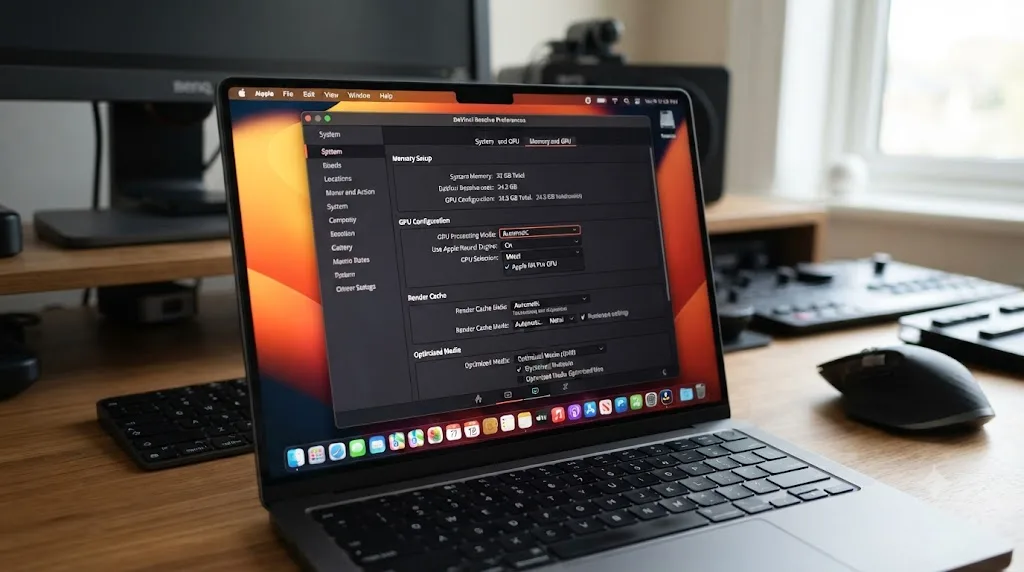
- Preferences, Memory and GPU: confirm your GPU selection. On a single-chip Mac this has one option, but it's worth opening once to see the actual GPU configuration Resolve detected, since a misdetected GPU after a macOS update is a real, if rare, cause of unexplained slowdowns.
There's no Decode Options panel to hunt for on a Mac the way there is on Windows. Blackmagic reserves hardware-accelerated H.264 and H.265 decoding for Studio on Windows and Linux, gating it behind a checkbox users have to find and enable. On any Apple silicon Mac, free or Studio, hardware decode is simply always on, because it's built into the media engine at the chip level rather than licensed in software. That single difference is why Mac users troubleshooting playback stutter skip an entire category of fixes that matter constantly on Windows.
Should you turn on High Power Mode for DaVinci Resolve?
If your Mac has the option, yes, specifically for long exports and grading sessions. Apple's own guidance is direct: in video editing and 3D applications, you may experience smoother playback and faster exports in High Power Mode, and Apple calls out color grading 8K ProRes 4444 and 8K DNxHR video by name as a workload that benefits.
The catch is that not every M4 Mac has this option. As of mid-2026, High Power Mode is available on the 14-inch and 16-inch MacBook Pro with M4 Pro or M4 Max, and on the Mac mini with M4 Pro, the first time Apple extended it to a Mac carrying a "Pro" tier chip rather than reserving it for Max. Base M4 Macs, including the base M4 MacBook Pro, the base M4 Mac mini, and the fanless MacBook Air, only offer Low Power and Automatic.
| Mac | Power Mode options | Best setting for heavy Resolve work |
|---|---|---|
| MacBook Pro, base M4 | Low, Automatic | Automatic |
| MacBook Pro, M4 Pro or M4 Max | Low, Automatic, High Power | High Power for long exports or grading |
| Mac mini, base M4 | Low, Automatic | Automatic |
| Mac mini, M4 Pro | Low, Automatic, High Power | High Power for long exports or grading |
| MacBook Air, M4 | Low, Automatic | Automatic (no High Power option) |
To set it, open System Settings, go to Battery on a laptop or Energy on the Mac mini, and choose Power Mode. Switch to High Power before starting a long render or an HDR grading pass, then switch back to Automatic for everyday editing, since High Power runs the fan harder and drains a laptop's battery faster than it needs to for light work. If you're using a MacBook Pro with M4 Pro on High Power Mode while charging, Apple specifically recommends its 96W USB-C Power Adapter, since a lower-wattage charger may not sustain that power draw plugged in.
This guide's earlier list of Macs that don't yet have an M5 refresh, the Mac mini, iMac, and Mac Studio, means High Power Mode's M4 Pro Mac mini support is still directly relevant buying information as of this guide's last update, not a detail that's aged out.
Sources: Apple Support's overview of Power Modes and 9to5Mac's coverage of High Power Mode's expansion to M4 Pro Macs.
Do you need Optimized Media or Proxy Media on an M4 Mac?
Less often than on other platforms, and that's a direct consequence of the M4's media engine handling H.264, HEVC, and ProRes in hardware regardless of chip tier. A single stream of 4K H.265 footage that would bring a CPU-bound Windows laptop to a crawl decodes almost for free on a base M4.
Where Optimized Media and Proxy Media still earn their keep on an M4 Mac:
| Situation | Do you need it? | Why |
|---|---|---|
| Single-camera 4K H.264/H.265, standard grade | Usually not | Hardware decode handles it natively on every M4 tier |
| 4K or 6K multicam, 3+ angles | Often yes | Decoding several simultaneous streams still adds up, even in hardware |
| Heavy RAW (Blackmagic RAW, R3D) at full resolution | Sometimes | RAW debayering is GPU compute work, not hardware media-engine decode, so it scales with GPU cores |
| 10-bit 4:2:2 footage from a recent mirrorless camera | Rarely | Apple's media engine has handled 4:2:2 in hardware for years, unlike some competing GPU decode blocks |
| Fusion-heavy timelines with many effect nodes | Not for the source footage, but Render Cache helps | The bottleneck there is compute, not decode |
If you do need it, set Optimized Media Format and Render Cache Format to Apple ProRes 422 or ProRes 422 HQ, not DNxHR. On a Mac, ProRes is the native, hardware-accelerated intermediate format, the same way DNxHR is the practical default on Windows. Our ProRes vs DNxHR comparison covers when the reverse choice actually makes sense, mainly cross-platform delivery and Avid pipelines, neither of which changes the answer for your working cache on a Mac-only edit.
Generate it the same way regardless of platform: select clips in the Media Pool, right-click, choose Generate Optimized Media, and check Use Optimized Media if Available under the Playback menu. Switch that checkbox off before your final export, so the render pulls from your original camera files rather than the optimized stand-ins.
What export settings are fastest on an M4 Mac?
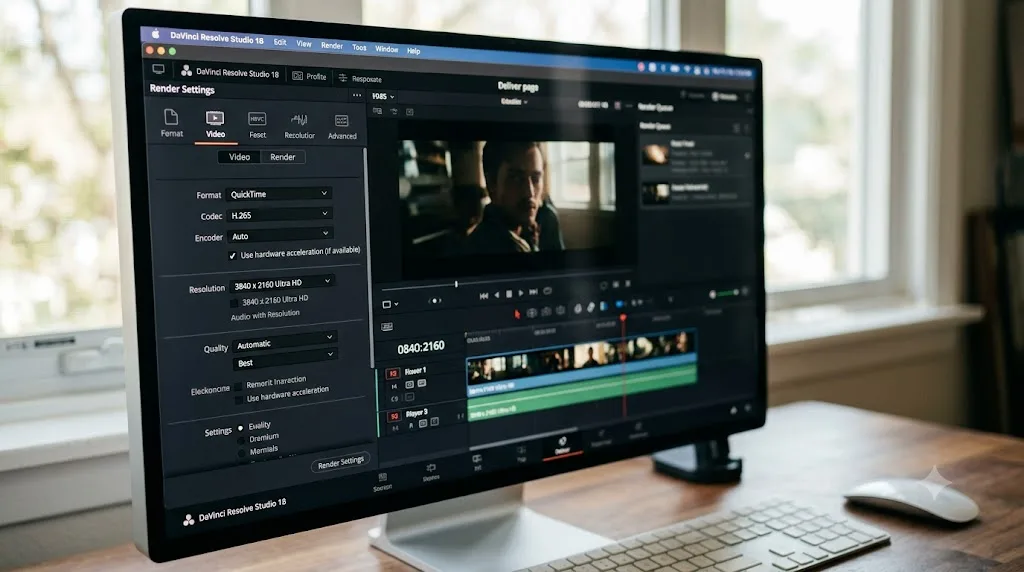
For standard web delivery, the fast path is short: QuickTime or MP4 container, H.264 or H.265 codec, Encoder set to Auto. That last setting is the one people skip, and it's the one that matters most on a Mac. Auto tells Resolve to route the encode to the M4's dedicated hardware encoder instead of falling back to software, and on Apple silicon that hardware path is fast enough that manually forcing software encoding almost never buys you better quality worth the time cost.
| Delivery target | Container | Codec | Encoder | Notes |
|---|---|---|---|---|
| YouTube, general web | MP4 | H.264 or H.265 | Auto | H.265 gives smaller files at similar quality; both are hardware-accelerated |
| Client review, ProRes master | QuickTime | Apple ProRes 422 HQ | Auto | Hardware-accelerated on every M4 tier, including the base chip |
| Archival or further grading | QuickTime | Apple ProRes 4444 | Auto | Adds alpha support; still hardware-accelerated |
| Streaming platforms requesting AV1 | MP4 | AV1 | N/A | See note below; encode still isn't hardware-accelerated on M4 |
One asymmetry is worth knowing before you pick a codec for delivery: every current Apple silicon Mac, M4 included, decodes AV1 in hardware, but none of them encode it in hardware. Apple's own Mac mini and Mac Studio spec pages list AV1 decode explicitly alongside H.264, HEVC, ProRes, and ProRes RAW, all under hardware acceleration, and that decode capability arrived starting with the M3 generation and carried forward. AV1 encoding acceleration didn't show up until the M5 Pro and M5 Max chips launched in March 2026, so an M4 Mac exporting AV1 falls back to a slower software encode path, even though it plays back AV1 content from other sources instantly. If a platform is asking specifically for AV1 delivery, budget real extra export time on an M4 Mac, or export H.265 if the platform accepts it instead.
Network Optimization, the checkbox on the Deliver page's advanced settings, is worth leaving off unless a specific streaming destination's spec sheet asks for it. It restructures the file for progressive download at the cost of some encode efficiency, and most delivery targets, YouTube included, re-encode on ingest anyway, which makes the setting mostly irrelevant for anything except direct-play delivery.
What codecs does the M4 media engine actually accelerate?
Every M4-generation chip, base M4 through M4 Max, ships the same core codec support in its media engine. The difference between tiers isn't which formats get hardware acceleration, it's how many encode and ProRes engines are physically present to run jobs in parallel.
| Codec | Hardware decode | Hardware encode | Present on |
|---|---|---|---|
| H.264 | Yes | Yes | M4, M4 Pro, M4 Max |
| HEVC (H.265), including 10-bit 4:2:2 | Yes | Yes | M4, M4 Pro, M4 Max |
| Apple ProRes, including ProRes RAW | Yes | Yes | M4, M4 Pro, M4 Max |
| AV1 | Yes | No | M4, M4 Pro, M4 Max (encode arrives with M5 Pro/Max) |
Source: Apple's Mac mini and Mac Studio technical specifications, which list Media Engine capabilities explicitly for each current chip.
Every current Apple silicon Mac, from the base M4 up to the M4 Max, decodes H.264, HEVC, ProRes, and AV1 in dedicated hardware, so DaVinci Resolve's free version already gets the fast path Windows and Linux users have to pay for. That last part isn't a small detail. Blackmagic's Studio page lists accelerated H.264 and H.265 hardware decoding and encoding as a paid feature specifically because Windows and Linux route it through the free version's software path by default. Our free vs Studio breakdown covers that split in full, but the short version for Mac users: you're not buying Studio for export speed the way a Windows editor might, because that speed already ships in Resolve's free version on any M4 Mac.
The 10-bit 4:2:2 detail matters more than it looks like it should. Recent mirrorless cameras from Sony, Canon, Fujifilm, and Panasonic commonly record in that flavor, and it's the specific format that trips up hardware decode on several generations of NVIDIA GPUs, forcing playback onto the CPU. Apple's media engine has supported 4:2:2 hardware decode for years across the M-series lineup, which is a genuine, measurable advantage for anyone cutting recent mirrorless footage on a Mac instead of a comparable Windows machine with an older GPU.
Does the base M4, M4 Pro, or M4 Max change how Fusion and Color perform?
Yes, and this is where GPU core count stops being an abstract spec and starts being something you feel every time you scrub the timeline. Resolve's DaVinci AI Neural Engine, which powers Magic Mask, Speed Warp, Super Scale, and Smart Reframe, is fully supported across the whole M-series lineup, but the actual speed of those tools scales with the Neural Engine and GPU core count each chip carries, and that count roughly doubles at each tier.
Real-world comparisons back this up in the direction you'd expect. Editors comparing M4 Max against older M1 Max hardware report significantly quicker rendering specifically on effects-heavy nodes, noise reduction, color correction, face correction, and film look correction stacked together, with straight encoding showing a smaller, more modest gap between generations. That matches the general pattern in this guide: compute-heavy grading and Fusion work scale with GPU cores far more than simple export does.
| Task | Base M4 | M4 Pro | M4 Max |
|---|---|---|---|
| Basic color correction, 1-2 nodes | Real time, no issue | Real time, no issue | Real time, no issue |
| Temporal noise reduction on 4K | Usable, may need Render Cache | Comfortable | Comfortable, even on multiple clips |
| Magic Mask tracking | Usable on single subjects | Faster tracking, less waiting | Fastest, handles complex multi-subject tracking |
| Fusion compositing, moderate node count | Workable for simple comps | Solid for most Fusion work | Handles heavy comps and multi-layer masks |
| 6K/8K RAW debayer at full resolution | Struggles, drop Camera RAW decode quality | Manageable | Comfortable at full or half decode |
None of this is a claim that the base M4 can't do color work. It's a real, professional grading tool at every tier. What changes is how much you lean on Render Cache, Camera RAW decode quality, and Timeline Proxy Mode to keep playback smooth while you work, and how patient you need to be waiting for a Magic Mask track to finish on a complex multi-subject shot. Our noise reduction settings guide covers the specific Temporal and Spatial values worth trying if that's the tool pushing your M4 hardest.
What storage and Thunderbolt setup does Resolve need on an M4 Mac?
Codec math means nothing if the bytes can't reach the chip fast enough, and this is the setting people most often get backwards on a Mac: they assume Thunderbolt bandwidth alone guarantees speed, when the drive on the other end of the cable is almost always the actual limit.
| Mac configuration | Thunderbolt version | Theoretical bandwidth |
|---|---|---|
| Base M4 (Mac mini, iMac, MacBook Pro, MacBook Air) | Thunderbolt 4 | Up to 40 Gb/s |
| M4 Pro (Mac mini, MacBook Pro) | Thunderbolt 5 | Up to 120 Gb/s |
| M4 Max (MacBook Pro, Mac Studio) | Thunderbolt 5 | Up to 120 Gb/s |
Source: Apple's M4 Pro and M4 Max announcement.
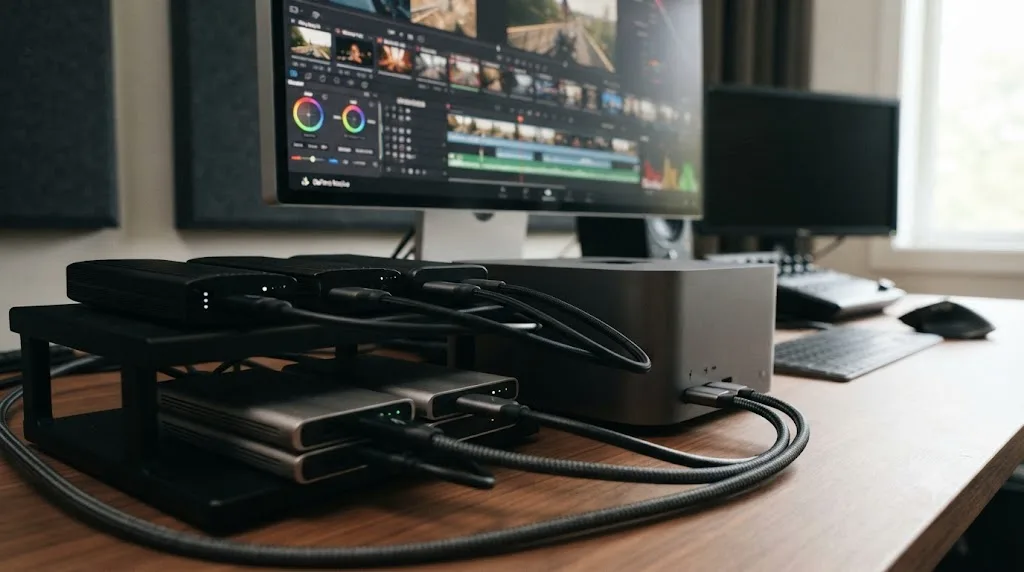
An M4 Mac's Thunderbolt bandwidth is only as fast as the drive plugged into it, and most portable SSDs never come close to saturating even Thunderbolt 4. A single-stream 4K ProRes 422 HQ project needs roughly 90 MB/s of sustained throughput, well inside what almost any modern external SSD delivers regardless of Thunderbolt generation. The place Thunderbolt 5's extra headroom actually matters is multicam, high-bitrate RAW, and cache-heavy Fusion work, where several simultaneous streams stack up fast.
Practical setup, in order of what matters most:
- Keep your OS and your active project media on separate physical drives where you can. Even on a fast internal SSD, constant simultaneous read and write during playback and caching creates contention. This matters less on a Mac mini or MacBook Pro with one internal SSD than it does when you've added external storage, but it's worth building the habit either way.
- Buy the fastest enclosure your Thunderbolt generation supports, not just the fastest drive. A genuinely fast NVMe drive in a cheap USB enclosure gets bottlenecked by the enclosure's controller before the drive's own speed matters.
- Don't expect a Thunderbolt 4 base M4 to feed a 4-angle 6K RAW multicam timeline from a single external drive. That's a real bandwidth ceiling, not a Resolve setting problem, and it's the scenario where an M4 Pro or M4 Max's Thunderbolt 5 ports genuinely change what's editable directly from external storage.
- Point Resolve's cache and Gallery Stills location explicitly at your fastest drive, covered in the preferences section above, since Resolve doesn't always default there on a multi-drive setup.
If your playback is choppy and you've confirmed it's not a decode problem, since Apple silicon rarely has one, our choppy playback guide covers the disk-throughput diagnosis in detail, including how to isolate a drive bottleneck from an effects bottleneck before you spend money on new storage.
Which macOS version should you run DaVinci Resolve 21 on?
DaVinci Resolve 21 requires an Apple silicon Mac running macOS 15 Sequoia or later, and it no longer runs on Intel Macs at all, a hard break from Resolve 20, which was the last version to support Intel hardware. Source: DaVinci Resolve tech specs.
"Or later" is doing real work in that requirement. macOS 26 Tahoe, Apple's current release as of mid-2026, satisfies it, and community reports on Blackmagic's own forum describe Resolve 21.0 running without incident on Tahoe. If you're troubleshooting a specific crash or graphics glitch that only shows up after a macOS update, update Resolve to the latest 21.x point release first; Blackmagic ships compatibility fixes for new macOS releases in point updates rather than holding them for the next major version.
There's no reason to avoid updating macOS on an M4 Mac specifically for Resolve compatibility, the way there sometimes is with older Intel Macs running legacy plugins that assumed a specific OS version. Every M4 Mac ships on Apple silicon by definition, so the Intel-only compatibility questions that complicate some older setups don't apply here at all.
Do you need DaVinci Resolve Studio on an M4 Mac?
The calculus is genuinely different on a Mac than it is on Windows or Linux, and it's worth understanding why before you spend $295.
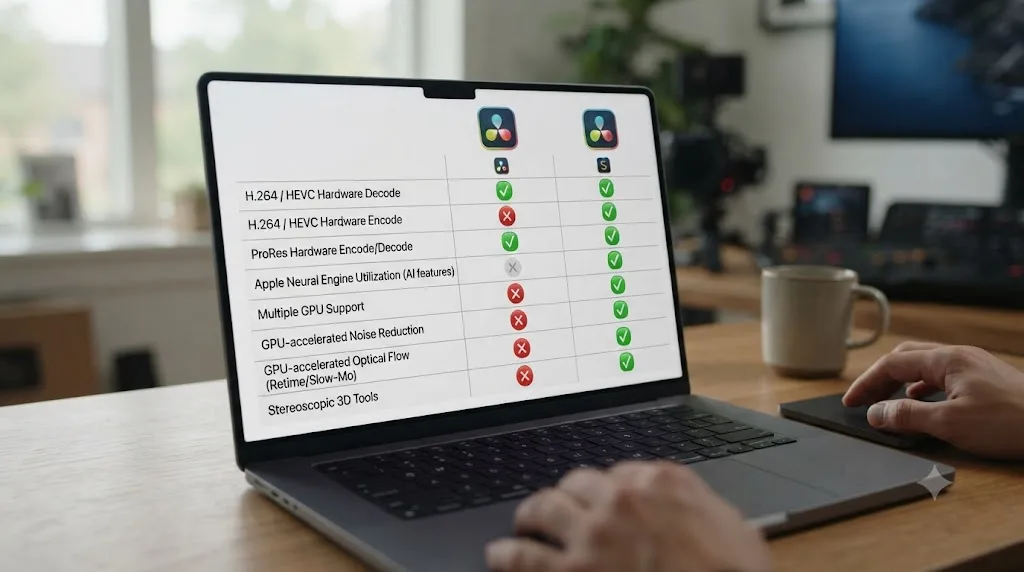
On Windows and Linux, Studio's accelerated H.264/H.265 hardware decoding and encoding is a real, measurable speed upgrade, because the free version routes those codecs through the CPU. On any M4 Mac, that entire argument for Studio disappears, since hardware decode and encode for H.264, HEVC, and ProRes are built into the chip and available in the free version too.
| Feature | Free version on an M4 Mac | Studio on an M4 Mac |
|---|---|---|
| Hardware H.264/H.265 decode and encode | Yes | Yes, no speed difference |
| ProRes hardware decode and encode | Yes | Yes, no speed difference |
| Timeline resolution ceiling | Up to 4K | Unlimited, HD through 8K+ |
| AI noise reduction | No | Yes |
| Magic Mask | No | Yes |
| Voice Isolation | No | Yes |
| Advanced HDR grading tools | No | Yes |
| Watermark on export | None either way | None either way |
Source: DaVinci Resolve Studio product page and our own free vs Studio pricing breakdown.
A conversation in Apple's own community forums captures this well. A user planning a Mac mini purchase for short, uncomplicated video projects asked whether to spend up on an M4 Pro. Ian R. Brown, a longtime Resolve Studio user answering in that thread, put it directly: "The basic M4 mini has far more power than you will ever need for the projects you propose," adding that "for your workflow any upgrades (other than an external SSD) will be a complete waste of money." His actual recommendation wasn't more RAM or a higher chip tier, it was external storage, which tracks with everything else in this guide about where Mac bottlenecks actually show up.
If you're on a Mac and deciding whether Studio is worth it, the honest framing is: buy it for the features, Magic Mask, noise reduction, resolutions past 4K, HDR tools, not to fix a speed problem, because on Apple silicon there usually isn't one to fix.
Can you use an eGPU with an M4 Mac to speed up Resolve?
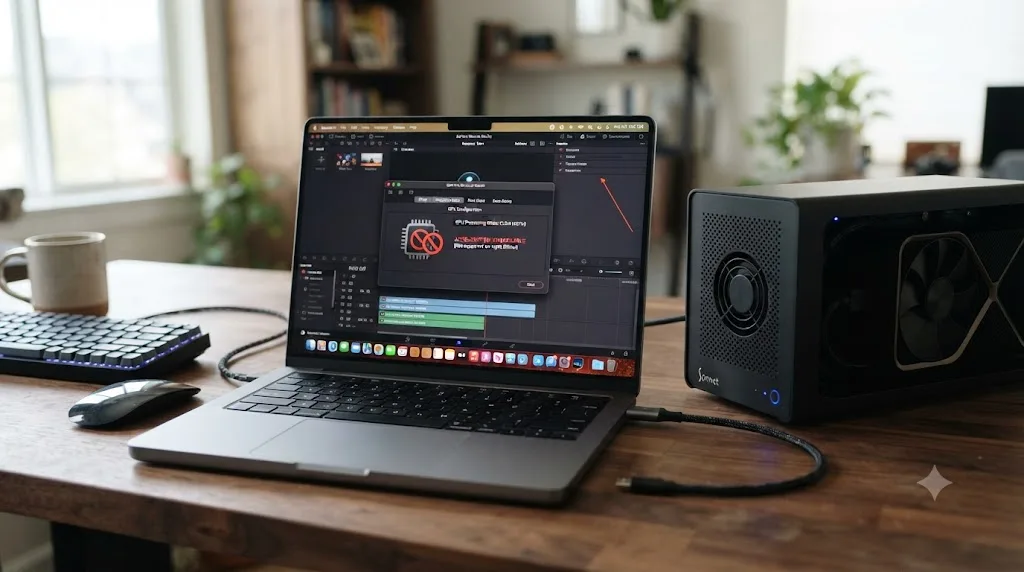
No, and this trips people up specifically because it used to work. Intel Macs supported external GPUs over Thunderbolt for real graphics acceleration going back to macOS High Sierra, and some editors coming from older Mac Pro or Intel MacBook Pro setups still expect that option to exist.
Apple Silicon Macs dropped graphics acceleration through eGPUs entirely, so no external card, however powerful, makes DaVinci Resolve's viewer or grade run faster on an M4 Mac. Apple's own support documentation on external graphics processors describes eGPU support as available on Intel-based Macs with Thunderbolt 3, with no equivalent path for Apple silicon. The architectural reason tracks with everything else in this guide: unified memory means the on-package GPU shares memory with the CPU and Neural Engine by design, and that tight integration doesn't have a clean handoff point for routing rendering work to an external card the way a traditional discrete-GPU system does.
There's one narrow exception worth knowing about, and it's not the one people are hoping for. As of April 2026, Apple authorized third-party drivers, developed by Tiny Corp, that let AMD and Nvidia eGPUs function on Apple silicon Macs for general compute tasks, things like local AI model inference or developer testing against real GPU hardware. That's compute access, not graphics acceleration. Buying an eGPU enclosure expecting it to speed up Resolve's viewer, your color grade, or your export would be a mistake; none of that routes through the eGPU under this driver support, and Resolve's own rendering pipeline has no path to use it.
If you need more GPU power on an M4 Mac for Resolve, the only real lever is the one covered earlier in this guide: buy a Mac with more GPU cores built into the chip. There's no upgrade path around that on Apple silicon the way there is on a PC tower.
A worked example: setting up a base M4 MacBook Pro for a solo 4K project
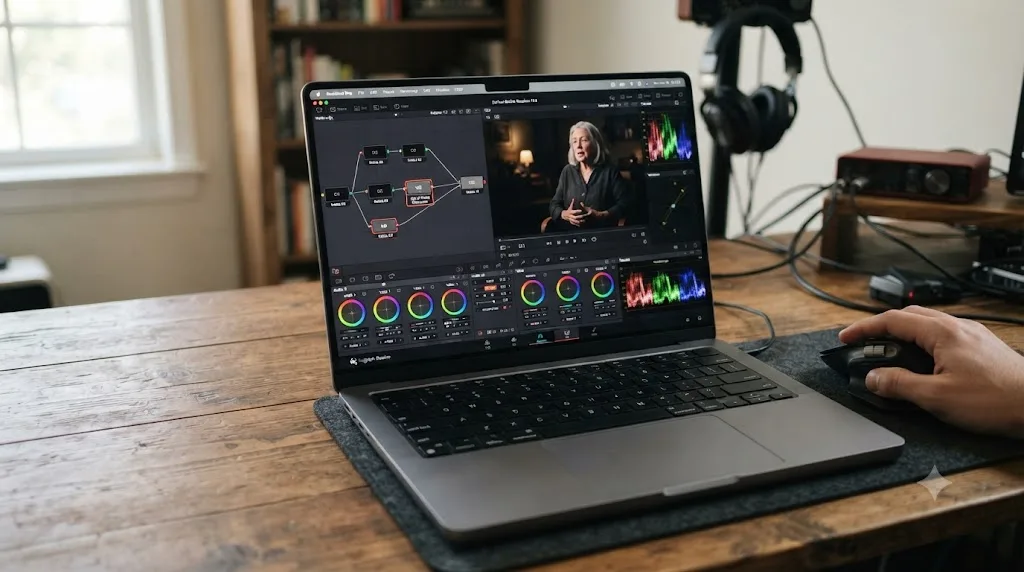
Concrete beats abstract, so here's the shape of a real setup: a 14-inch MacBook Pro, base M4, 24 GB unified memory, 1 TB internal SSD, editing a single-camera 4K H.265 documentary interview shot on a mirrorless camera in 10-bit 4:2:2, no multicam, standard color grade with some noise reduction on low-light sections.
- Confirm macOS 15 Sequoia or later and update Resolve to the latest 21.x release before importing any media, since point releases carry the compatibility fixes for the newest camera formats.
- Skip Optimized Media entirely for the first pass. A single 4K H.265 stream, even in 10-bit 4:2:2, decodes comfortably in the base M4's hardware media engine. Test playback first before assuming you need it.
- Keep project media and Resolve's cache on the internal SSD. With only one drive in the system, there's no I/O contention decision to make, which is one less thing to configure on this specific setup.
- Build the grade on a dedicated noise reduction node, isolated from the primary correction, following the node structure in our noise reduction settings guide. Cache that node once it's dialed in, since temporal noise reduction is the single heaviest tool likely to appear on this timeline.
- Set Optimized Media and Render Cache Format to ProRes 422 HQ in Project Settings, ready to generate if playback stutters once noise reduction and a full grade stack up.
- Export to H.264 or H.265, Encoder set to Auto, for the documentary's web delivery, and to ProRes 422 HQ for the client's archival master.
On this hardware, for this workload, that's the entire setup. No Proxy Media, no external drive purchase, no eGPU consideration. The base M4 with 24 GB is built for exactly this kind of project, and the honest answer for a lot of solo documentary and interview work is that spending more on hardware wouldn't change how the edit feels day to day.
A worked example: an M4 Max Mac Studio for multicam RAW
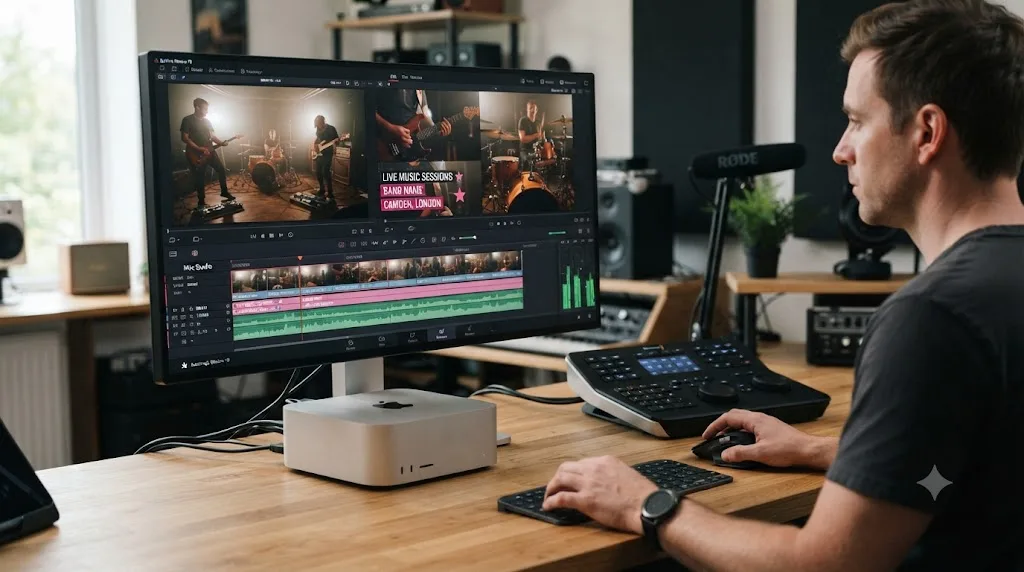
Now the case where hardware tier genuinely changes the workflow: a Mac Studio, M4 Max, 64 GB unified memory, editing a four-camera live event shot in Blackmagic RAW at 6K, with Fusion titles and a full HDR grade for delivery.
- Group and normalize the four cameras first, following the multicam and color-matching principles from our camera color matching guide if the bodies are mixed brands, since BRAW's GPU-accelerated debayer means the color pipeline, not the decode, is where this project's real cost lives.
- Set Camera RAW decode quality to Half Resolution for editing, in Project Settings under Camera RAW, since even an M4 Max benefits from a lighter debayer while cutting four simultaneous 6K RAW streams. Switch back to Full for the final grading pass and export.
- Point cache files and media at the fastest available Thunderbolt 5 storage, or the Mac Studio's internal SSD if the project lives there, since four-stream 6K RAW playback is exactly the scenario where Thunderbolt bandwidth and drive speed both matter simultaneously.
- Build the multicam grade using Open in Timeline before locking the edit, matching every angle's color first, so the creative HDR grade applies once at the timeline level instead of being rebuilt per angle. Our HDR grading guide covers the nit-scaled scopes and delivery targets this stage depends on.
- Cache Fusion titles with Render Cache set to Smart once their design is locked, since Fusion compositing doesn't play in real time by default and an M4 Max's extra GPU cores mainly buy you faster caching, not free real-time preview.
- Export the HDR master in ProRes 4444 or ProRes 422 HQ, hardware-accelerated on the M4 Max's dual ProRes engines, which is where the chip's extra encode hardware actually shows up as a measurable time savings on a multi-stream, high-bitrate deliverable like this one.
This is the project profile where the base M4's limitations would actually cost real time, four simultaneous RAW streams, heavy Fusion work, and an HDR grade all stacked on the same timeline. It's also, per Blackmagic's own tech specs and Apple's chip announcements, roughly the ceiling of what an M4 Max Mac Studio is built to absorb without needing proxies or a resolution drop at any stage.
Is the M4 still worth buying now that M5 exists?
Depends entirely on which Mac you're looking at, and this is worth being precise about instead of giving a generic "buy the newest chip" answer. Apple announced the base M5 in October 2025 for the 14-inch MacBook Pro, and M5 Pro and M5 Max followed in March 2026, which moved the entire MacBook Pro line to the new generation. As of mid-2026, the Mac mini, iMac, and Mac Studio are all still selling on M4-generation chips; an M5 refresh for those lines is expected later in 2026, but hadn't shipped as of this guide's last update.
That leaves three practical situations:
| Your situation | What to do |
|---|---|
| Buying a new MacBook Pro today | You're getting M5, M5 Pro, or M5 Max by default, since Apple no longer sells M4 MacBook Pro models new |
| Buying a new Mac mini, iMac, or Mac Studio today | Still M4-generation, and everything in this guide applies directly with no compromise |
| You already own an M4 Mac of any kind | Nothing here obsoletes your hardware; Resolve's performance characteristics on M4 haven't changed, and a well-configured M4 Mac remains a fully capable machine for the workloads this guide covers |
Buying used or refurbished M4 hardware specifically for Resolve is a legitimate way to save money, not a compromise. The media engine, unified memory architecture, and hardware codec support that make Apple silicon a good Resolve platform are identical whether the machine is new or two years old. The base M4 is not a compromise chip for DaVinci Resolve, it is the same media engine and the same hardware decoder that ships inside the M4 Max, just with fewer GPU cores attached to it. The GPU core count is what you're actually paying for at every tier above the base chip, not access to features the cheaper chip lacks entirely.
If you're choosing between a new M5 MacBook Pro and a discounted M4 MacBook Pro right now, the honest guidance from everything in this post is: buy based on GPU core count and unified memory for your actual workload, not chip generation number. A 24 GB M4 Pro with 20 GPU cores will handle more of what this guide covers than a base-tier M5 with fewer cores and less memory, generation number aside.
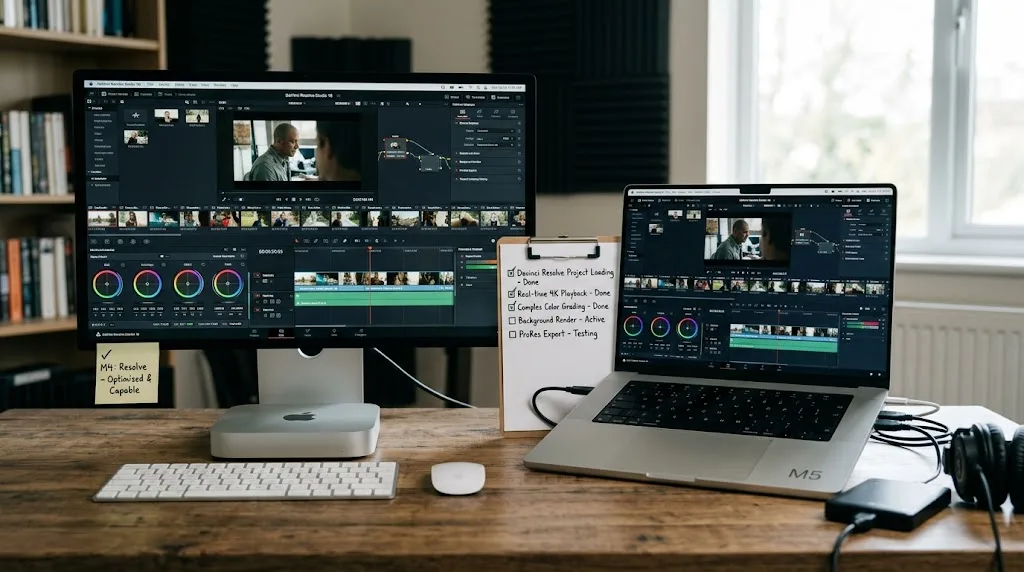
Quick reference: DaVinci Resolve settings by M4 chip tier
Everything in this guide, condensed into one table you can check against the Mac you actually have.
| Setting | Base M4 | M4 Pro | M4 Max |
|---|---|---|---|
| Realistic unified memory floor | 24 GB | 24 to 48 GB | 48 GB or more |
| Optimized Media needed for standard 4K work | Usually not | Usually not | Usually not |
| Optimized Media needed for multicam or RAW | Often, especially below 24 GB | Sometimes | Rarely below 6K/8K |
| Export encoder | Auto | Auto | Auto |
| ProRes hardware acceleration | Yes | Yes | Yes, on two dedicated engines |
| High Power Mode available | No (MacBook Pro/mini) | Yes (MacBook Pro/mini) | Yes (MacBook Pro only) |
| eGPU for graphics acceleration | Not supported | Not supported | Not supported |
| Best-fit workload | Single-camera 4K, standard grade | 4K multicam, moderate Fusion, noise reduction | 6K/8K RAW, heavy Fusion, multi-stream HDR delivery |
If your Mac and your workload land in the same row, the defaults this guide covers are already correct for you. If your workload sits a row above your Mac, that's where Optimized Media, Half Resolution Camera RAW decode, and patience with Magic Mask tracking earn their keep instead of a hardware upgrade.
What goes wrong with DaVinci Resolve on M4 Macs, and how do you fix it?
Most of the platform-specific problems Windows and Linux editors chase simply don't exist on Apple silicon. What's left is a smaller, more specific list.
"GPU memory is full" on an M4 Mac with plenty of unified memory showing free. This is confusing precisely because Apple silicon doesn't have separate VRAM, so the instinct to check a discrete card's memory usage doesn't apply. The actual causes are the same ones that eat unified memory on any Mac: timeline resolution, render cache, and heavy effects like temporal noise reduction or Magic Mask all draw from the same pool at once. Our GPU memory is full guide covers the fixes in detail, and the memory pressure section above covers the full mechanism: lower timeline or proxy resolution, clear render cache, close memory-heavy apps, and if red pressure in Activity Monitor persists, treat it as a sign this project has outgrown this Mac's unified memory rather than a setting to keep hunting for.
Playback stutters even though decode should be hardware-accelerated. Confirm it's actually a decode problem and not effects or disk throughput, using the same three-test diagnosis from our choppy playback guide: bypass your grade, drop Timeline Proxy Mode to Quarter Resolution, and test playback from your fastest local drive. On an M4 Mac, decode is rarely the actual cause, since hardware acceleration is always on, which means the diagnosis usually points you straight to effects or storage instead of sending you chasing a driver setting that doesn't exist on this platform.
A MacBook Air export runs at full speed for the first few minutes, then visibly slows down. That's thermal throttling on the fanless chip, covered above, not a bug. Working on a hard, cool, elevated surface instead of a soft one that traps heat underneath the chassis can buy back a bit of margin, but the fix that actually holds for consistently long, hot exports is the fan-cooled MacBook Pro on the same chip.
An eGPU or external graphics card doesn't speed anything up. Covered in full above: it can't, by design, on Apple silicon. If a forum post or old tutorial recommends one, it predates the Apple silicon transition or is describing the narrow compute-only driver support that has no path into Resolve's rendering pipeline.
A project built on an Intel Mac won't open, or opens with missing plugins. Resolve 21 dropped Intel Mac support entirely, and third-party OFX plugins built for Intel Macs sometimes lack an Apple silicon build. Check the plugin developer's site for a universal or Apple silicon-native version before assuming the project itself is broken.
External display or dock limits feel tighter than expected on a base M4. The base M4 chip supports two external displays plus the built-in screen; going beyond that, or driving multiple high-resolution reference monitors through a single dock, is where M4 Pro or M4 Max's additional display controllers matter, separate from anything about Resolve's own performance.
Export takes longer than expected specifically on AV1 delivery. Not a bug. As covered above, no M4-generation chip encodes AV1 in hardware, so that specific codec falls back to software regardless of chip tier or unified memory. If a deadline is tight and the platform accepts H.265 instead, that's the faster path on this hardware.
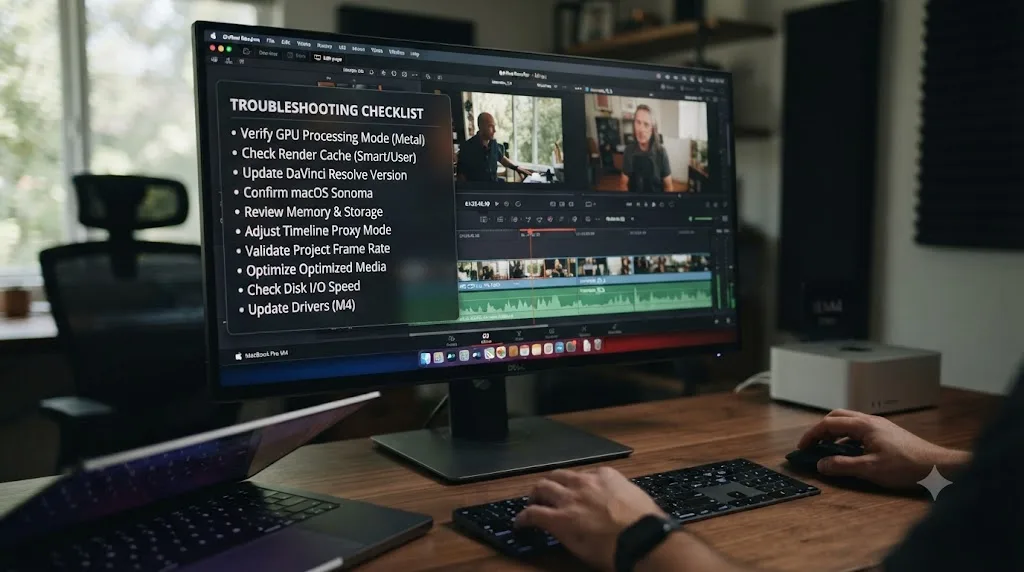
Where do you go from here?
Confirm your chip tier and unified memory first, since every other decision in this guide branches from that one number. Get to 24 GB of unified memory as your floor for any real 4K work, then spend further budget on GPU cores over additional RAM. Leave hardware decode and Auto encoding alone, since Apple silicon already does the fast thing by default. Reach for Optimized Media only when multicam, RAW, or Fusion actually demand it, not as a reflex habit carried over from a Windows workflow where it solves a different problem.
Most of what makes DaVinci Resolve fast on an M4 Mac was already true the day you unboxed it. The settings in this guide mostly confirm defaults and point you at the two or three that genuinely change under load, storage location, cache format, and export encoder, rather than asking you to fight the machine.
If you're staring at a Preferences panel on your actual Mac and can't remember which checkbox this guide meant, that's the specific gap TryUncle is built for. It's a macOS app whose AI tutor watches your actual Resolve window and points at the exact control in front of you, on the Edit, Color, and Fusion pages, instead of sending you back to reread a whole section for one setting. It's a paid subscription, currently in founder pricing for its first 100 seats, and that pricing will change over time, so treat any specific number as a snapshot rather than a current quote. Either way, the hardware you already own is very likely not the bottleneck. The settings between you and it usually are.
Frequently asked questions
- What's the minimum RAM for DaVinci Resolve on an M4 Mac?
- Blackmagic's own floor is 8 GB, and 16 GB is realistic for basic HD editing. For any real 4K work, treat 24 GB of unified memory as the practical minimum. Editor Larry Jordan, who benchmarks Apple silicon Macs for video editing, puts it plainly: at a minimum, get 24 GB of RAM, and past that point he found GPU cores matter more than additional memory.
- Is the base M4 enough for DaVinci Resolve, or do I need M4 Pro or M4 Max?
- For single-camera 4K editing with a normal grade, the base M4 with 24 GB of unified memory handles it. Reach for M4 Pro or M4 Max when you're running multicam timelines, heavy noise reduction or Magic Mask, Fusion compositing, or RAW formats like Blackmagic RAW and RED R3D at higher resolutions, since those workloads scale with GPU core count more than any other single spec.
- Does DaVinci Resolve need an eGPU on Apple Silicon?
- No, and it can't use one for graphics acceleration even if you buy one. Apple Silicon Macs dropped eGPU graphics support entirely when Apple moved away from Intel; an external GPU on an M4 Mac can only be used for general compute tasks through third-party drivers, not for accelerating Resolve's viewer, grade, or export.
- Should I use an external SSD or the internal drive for DaVinci Resolve on an M4 Mac?
- Either works if the drive is fast enough, but keep your OS, Resolve's cache, and your active project media on separate volumes where possible to avoid I/O contention. A base M4 Mac's Thunderbolt 4 ports handle a single 4K ProRes stream easily; multicam or RAW-heavy projects benefit from an M4 Pro or M4 Max Mac's Thunderbolt 5 ports paired with a genuinely fast NVMe enclosure.
- Do I need DaVinci Resolve Studio on an M4 Mac?
- Not for hardware decode speed, since every Apple silicon Mac gets accelerated H.264, HEVC, and ProRes playback in the free version already. Studio's relevant additions on a Mac are Magic Mask, AI noise reduction, and resolutions above 4K, not export speed, which is the opposite of the situation on Windows and Linux.
- What export settings are fastest on an M4 Mac?
- QuickTime or MP4 with H.264 or H.265, encoder set to Auto so Resolve uses the M4's dedicated hardware encoder, and Network Optimization off unless you're specifically delivering for streaming platforms that require it. For a ProRes master, export ProRes 422 HQ; the M4's media engine encodes and decodes it in hardware regardless of chip tier.
- Is the M4 still worth buying for DaVinci Resolve now that M5 exists?
- Yes, if you're buying a Mac mini, iMac, or Mac Studio, since all three still ship with M4-generation chips as of mid-2026; only the MacBook Pro line has moved to M5. A well-configured M4 Mac with 24 GB or more of unified memory and enough GPU cores for your workload remains a fully capable Resolve machine, and buying used or refurbished M4 hardware is a legitimate way to save money without losing hardware decode.
- Does High Power Mode help DaVinci Resolve on an M4 Mac?
- Yes, on the Macs that support it. Apple's own guidance says video editing and 3D apps can see smoother playback and faster exports in High Power Mode, and it specifically calls out 8K ProRes 4444 and 8K DNxHR grading as a workload that benefits. As of mid-2026 that option only exists on the 14-inch and 16-inch MacBook Pro with M4 Pro or M4 Max, and on the Mac mini with M4 Pro; base M4 Macs and the fanless MacBook Air are limited to Automatic and Low Power.
Sources
- DaVinci Resolve - Tech Specs (Blackmagic Design)
- DaVinci Resolve - What's New (Blackmagic Design)
- DaVinci Resolve - Studio (Blackmagic Design)
- Apple Introduces M4 Pro and M4 Max (Apple Newsroom)
- Apple Introduces New iMac Supercharged by M4 and Apple Intelligence (Apple Newsroom)
- Mac mini - Technical Specifications (Apple)
- Mac Studio - Technical Specifications (Apple)
- MacBook Pro - Technical Specifications (Apple)
- iMac - Technical Specifications (Apple)
- Configuring an M4 Mac for Video Editing, by Larry Jordan
- Performance Tests: DaVinci Resolve 19.1, by Larry Jordan
- Apple Community: DaVinci Resolve Studio on M4 or M4 Pro
- Use an External Graphics Processor with Your Mac (Apple Support)
- AMD or Nvidia eGPUs Can Work on Apple Silicon Macs, but Not for Graphic Acceleration (AppleInsider)
- Apple M4 (Wikipedia)
- Apple M5 (Wikipedia)
- When Will Apple's Macs Get M5 Chips? 2025-2026 Launch Timeline (MacRumors)
- Puget Bench for DaVinci Resolve (Puget Systems)
- DaVinci Resolve Update 21.0.2 Adds Faster Image Bypass Switching, Improved H.265 Playback, and More (No Film School)
- DaVinci Resolve 21.0.2 Update (Newsshooter)
- Review: M4 Mac mini for video editors, by Scott Simmons (ProVideo Coalition)
- Check if your Mac needs more RAM (Apple Support, Activity Monitor Guide)
- How to Tell if a Mac Needs More RAM Using Memory Pressure (OS X Daily)
- About Power Modes on your Mac (Apple Support)
- macOS High Power Mode Comes to MacBook Pro and Mac mini with M4 Pro (9to5Mac)
- I Stress-Tested the Fanless M4 MacBook Air, Here's How It Held Up (The Mac Observer)
Learn by doing, not watching
Learn Resolve inside Resolve.
TryUncle watches your screen and points at the exact control when you ask. No tabs, no timestamps, no rewatching tutorials.
Download for MacKeep reading
Fixes · Jul 7, 2026 · 25 min
DaVinci Resolve Playback Choppy or Stuttering? The Real Fix
Fix choppy DaVinci Resolve playback with Optimized Media, Proxy Media, Render Cache, Timeline Proxy Mode, and the Resolve 21.0.2 NVIDIA decode fix.
Fixes · Jul 7, 2026 · 25 min
DaVinci Resolve GPU Memory Is Full: Every Real Fix
Why DaVinci Resolve throws 'GPU memory is full,' and which fixes actually work: timeline resolution, drivers, effects, and how much VRAM you need.
Comparisons · Jul 12, 2026 · 32 min
ProRes vs DNxHR in DaVinci Resolve: Which Should You Use?
ProRes vs DNxHR in DaVinci Resolve: real bitrates, the Windows export fix, HDR and alpha support, and a decisive pick for Mac, Windows, and mixed teams.