Articles / Comparisonsupdated for DaVinci Resolve 21.0.2 (July 2026) and CapCut's 2026 Pro pricing
DaVinci Resolve vs CapCut for YouTube Shorts and TikTok
Quick answer
CapCut is faster and cheaper for quick TikToks and Shorts, with built-in captions, templates, and a real mobile app. DaVinci Resolve is free too, but desktop-only (plus a genuine iPad app), and wins on color grading and audio once your content needs to look better than average. Most creators who post daily end up using both.
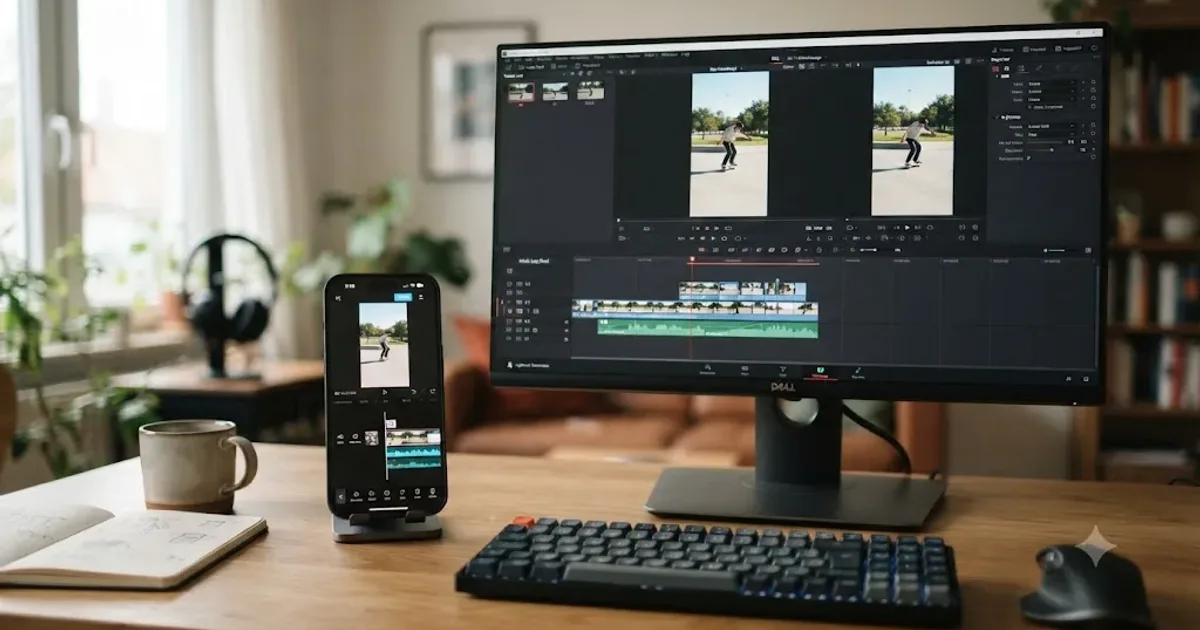
I get this question from two completely different people. One is filming on a phone between classes, posting three TikToks a day, and just wants captions and a beat drop before the sound gets stale. The other already owns a camera, already edits longer videos, and is wondering whether a "quick" 30-second Short deserves the same tool as everything else they cut. Those two people should not get the same answer, and most comparison posts pretend they should.
So here's the honest split. CapCut is built for the first person. DaVinci Resolve, free and desktop-first, is built for the second. Neither app is wrong for short-form video. They're just optimized for opposite ends of the same job: one for getting a video out the door in ten minutes, the other for making a video that looks like it cost more than ten minutes.
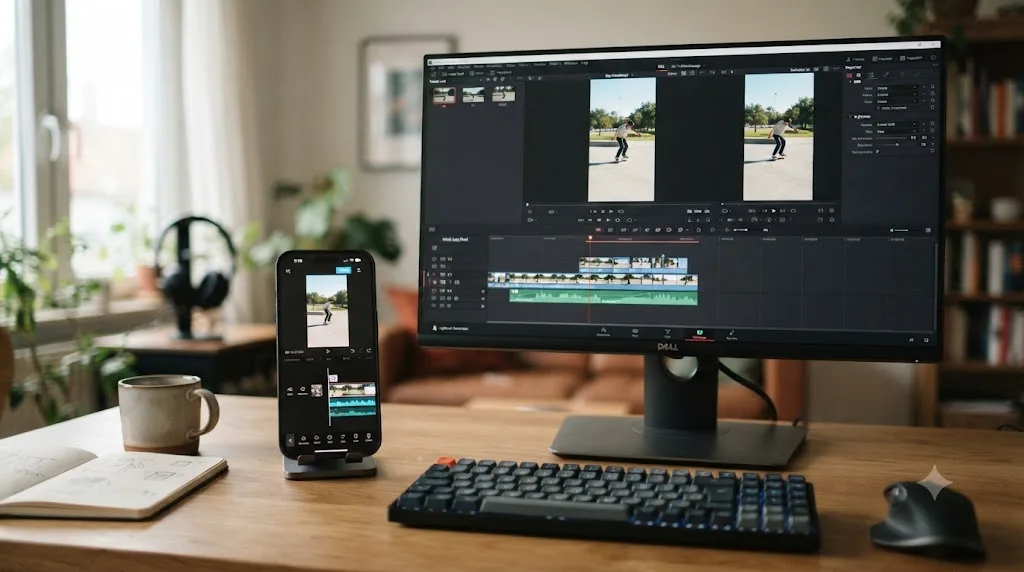
What's the quick verdict?
If your entire workflow lives on a phone, shooting, editing, captioning, and posting without ever touching a laptop, CapCut is the better fit, full stop. It's built mobile-first, its templates and auto-captions exist specifically for the TikTok and Shorts feed, and a finished 30-second video genuinely takes minutes.
If you're already editing on a desktop, or your short-form content is a byproduct of longer videos you're already cutting in a real timeline, DaVinci Resolve is worth learning even for 15-second clips. It's free, it has no watermark on any export, and its color and audio tools have no equivalent inside CapCut's panel.
| Category | Winner |
|---|---|
| Speed for a single quick edit | CapCut |
| Mobile / phone-native editing | CapCut |
| Built-in captions and trending templates | CapCut |
| Price for casual, occasional use | Roughly tied (both free tiers) |
| Color grading | DaVinci Resolve |
| Audio finishing and cleanup | DaVinci Resolve |
| Editing longer-form content alongside Shorts/TikToks | DaVinci Resolve |
| Learning curve for a total beginner | CapCut |
| Ceiling for how good the final video can look | DaVinci Resolve |
| Works entirely from a phone | CapCut |
CapCut owns speed. DaVinci Resolve owns the ceiling above speed. That single sentence is the whole comparison, and everything below it is just evidence for why. A trend-chasing TikTok that needs to post in the next ten minutes doesn't care about node-based color science. A brand deal that pays based on how the final video looks absolutely does.
How much does each one actually cost?
Both apps have a genuinely usable free tier, which is the main reason this comparison exists instead of a simple "just buy the better one" answer.
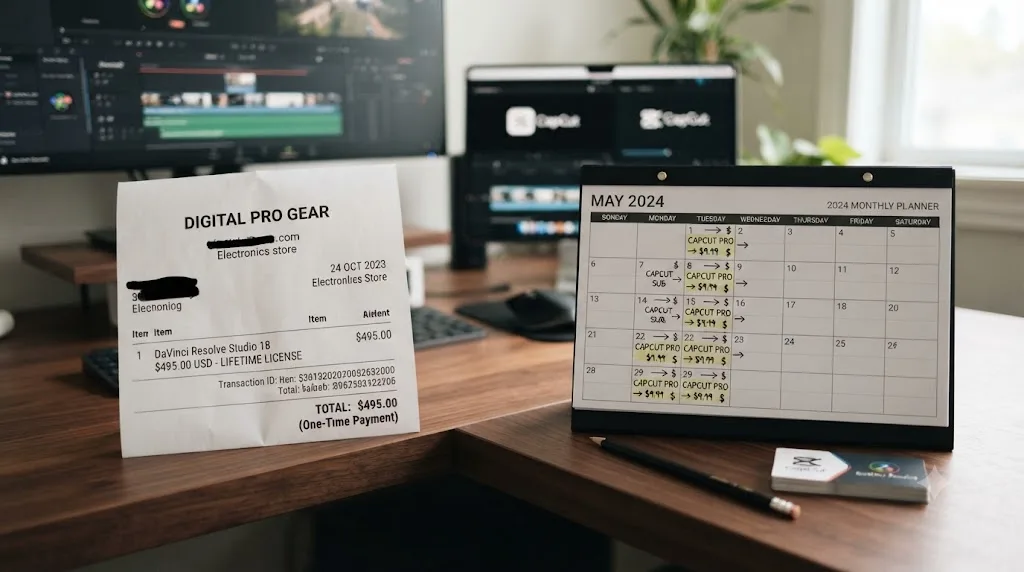
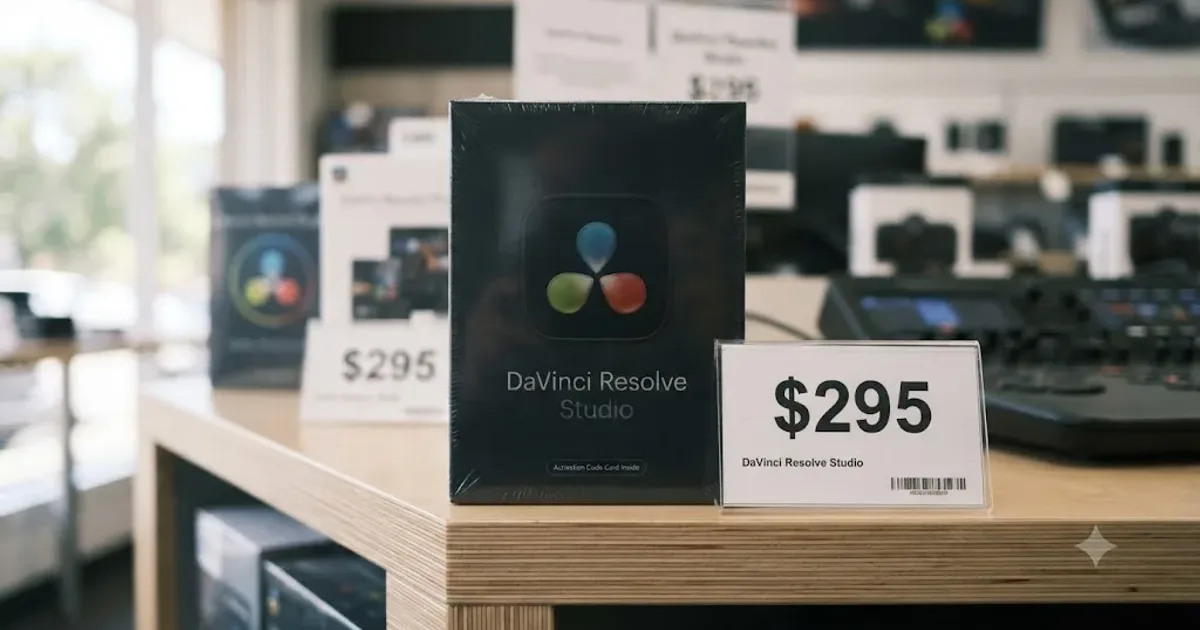
DaVinci Resolve's free version has no watermark, no time limit, and exports up to Ultra HD (3840x2160) at 60fps in 8-bit, per Blackmagic's own tech specs. That ceiling is miles above what a 1080x1920 Short or TikTok needs. Studio, the paid upgrade, costs $295 once, not monthly, and unlocks the DaVinci Neural Engine's AI tools, 10-bit color, and resolutions beyond 4K. Our free vs Studio breakdown covers exactly what that $295 buys if you're weighing the upgrade for reasons beyond short-form work.
CapCut's pricing looks similar on the surface, free with a paid tier above it, but the mechanics differ. Per CapCut's own comparison page, CapCut Pro runs $19.99 a month or $179.99 a year, with the same page noting that "prices can vary by region, platform (mobile, desktop, or web), taxes, and promotional discounts." Several independent pricing trackers report a cheaper Standard tier sitting below Pro at roughly $9.99 a month, positioned as a watermark-free step up from the completely free version without Pro's full AI toolkit or 1TB cloud storage, though CapCut's own pages don't spell that middle tier out as clearly as the Pro numbers. If a specific price matters for your budget, check CapCut's app directly before committing, since the company's own materials confirm pricing shifts by platform and region.
| Editor | Plan | Price | Notes |
|---|---|---|---|
| DaVinci Resolve | Free | $0 | No watermark, no time limit, up to Ultra HD 60fps |
| DaVinci Resolve Studio | One license | $295 | One-time, not a subscription |
| CapCut | Free | $0 | Watermark on Pro-only templates and effects, not on core editing |
| CapCut | Standard (reported) | ~$9.99/month | Watermark-free, limited AI toolkit, no annual option reported |
| CapCut | Pro | $19.99/month or $179.99/year | Full AI toolkit, 4K export, 1TB cloud storage |
| CapCut | Team | ~$24.99/month per user | Collaborative workspace tier |
Neither app is free forever if you actually monetize what you post. DaVinci Resolve's free tier stays free regardless of how successful your channel gets, since Studio is optional and one-time. CapCut's free tier stays usable too, but the moment a client or a brand deal wants a specific trending template, a premium font, or a 4K export, that's a recurring subscription, not a one-time unlock. Run the math on your own posting cadence before assuming "both are free" settles the pricing question.
Does either one actually work on your phone?
This is the question that decides the comparison for a lot of readers before any other feature matters, and it's the one most "versus" posts skip.
CapCut is mobile-first by design. It shipped as a phone app, built its editing gestures around a touchscreen, and only added a desktop version later as a second surface, not a replacement for the phone experience. CapCut runs on the phone in your pocket. DaVinci Resolve does not, outside of a genuinely capable but separate iPad app. If your entire production chain, shooting, editing, captioning, uploading, happens on one iPhone or Android phone with no laptop in the loop, CapCut is the only one of these two apps built for that reality.
DaVinci Resolve's story is more nuanced than "desktop only." There's no DaVinci Resolve app for iPhone or Android phones, full stop, and any app claiming otherwise in an app store search result is almost certainly not the real thing. But Blackmagic Design does ship a free, genuinely capable DaVinci Resolve for iPad app, announced in October 2022 and distributed at no cost through the App Store, with an optional paid Studio upgrade layered on top the same way desktop Resolve works. It's optimized for the 12.9-inch iPad Pro display and requires iPadOS 16 or newer, per Newsshooter's coverage of the announcement, and it includes real color grading tools: power windows, qualifiers, 3D trackers, and HDR grading, not a stripped-down mobile toy.
| Platform | CapCut | DaVinci Resolve |
|---|---|---|
| iPhone / Android phone | Full app, phone-native design | No app exists |
| iPad | Full app | Free app, editing and color grading, iPadOS 16+ |
| Windows / Mac / Linux desktop | Desktop app available | Full desktop app, primary platform |
| Web browser | Web editor available | Not available |
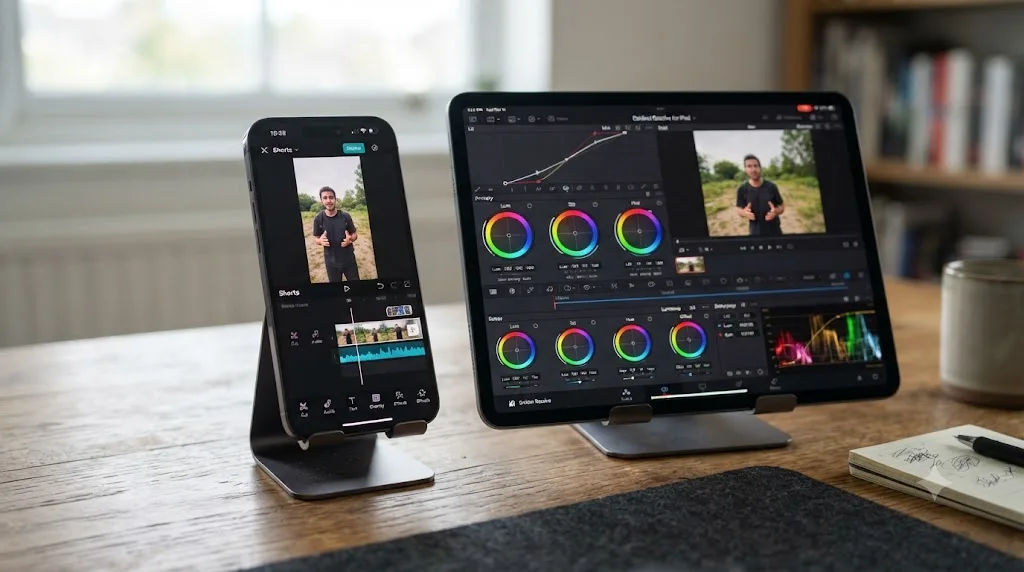
So the honest answer splits three ways. Shooting and editing entirely on an iPhone or Android phone: CapCut is your only option between these two. Shooting and editing on an iPad: both apps are real contenders, with DaVinci Resolve for iPad closing a gap that used to be CapCut's alone. Shooting on a phone but editing on a desktop or laptop afterward: both apps work, and the rest of this comparison decides which desktop workflow fits better.
Which one is actually faster for a 30-60 second edit?
CapCut, and it's not particularly close, though the size of the gap depends entirely on what "fast" means to you.
CapCut's whole design philosophy optimizes for the fastest possible path from raw clip to posted video. Auto-captions transcribe your voice and drop styled text onto the timeline in seconds. Trending templates let you drop your own footage into a pre-built structure, cuts, transitions, and text animations already timed to a specific sound. Auto-reframe and one-tap background removal handle two of the most tedious manual tasks in short-form editing, punching in on a subject and pulling them out of a background, without touching a single keyframe by hand.
DaVinci Resolve wasn't built around that kind of speed. It was built around control, which is a different value entirely, and control costs setup time. Building a vertical 1080x1920 timeline, manually reframing each shot with the Transform controls, adding captions by hand or through Resolve's own subtitle tools, and tuning a grade all take real minutes that CapCut's templates skip past. Our Instagram Reels export guide walks through that manual vertical-timeline workflow in Resolve if you're doing it that way, and it's worth reading before you assume the process is quick.
A thirty-second TikTok doesn't need node-based color grading to perform well. It needs to post before the trend dies. That's not a knock on Resolve's capability, it's a mismatch between what the tool is optimized for and what a same-day trend edit actually rewards. Chasing an audio trend that's already 48 hours old because your color grade took an extra twenty minutes is a real, measurable cost in short-form content, where algorithmic reach often correlates with how early you ride a specific sound or format.
Where the speed gap narrows: creators who already have muscle memory in Resolve's Edit page, who keep a saved vertical timeline preset and a reusable title template, close a lot of that time difference. Speed in either app is partly a skill you build, not a fixed property of the software. But CapCut's floor, the speed a total beginner gets on day one with zero setup, sits well below Resolve's floor for the exact same task.
Which has better templates, captions, and trending effects?
CapCut, decisively, because this category is the entire reason CapCut exists as a product.
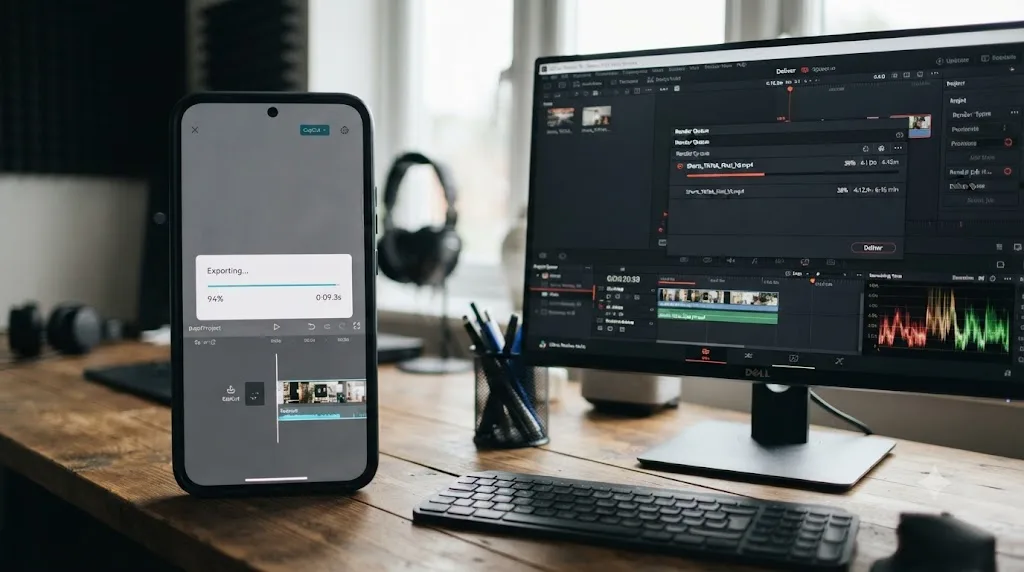
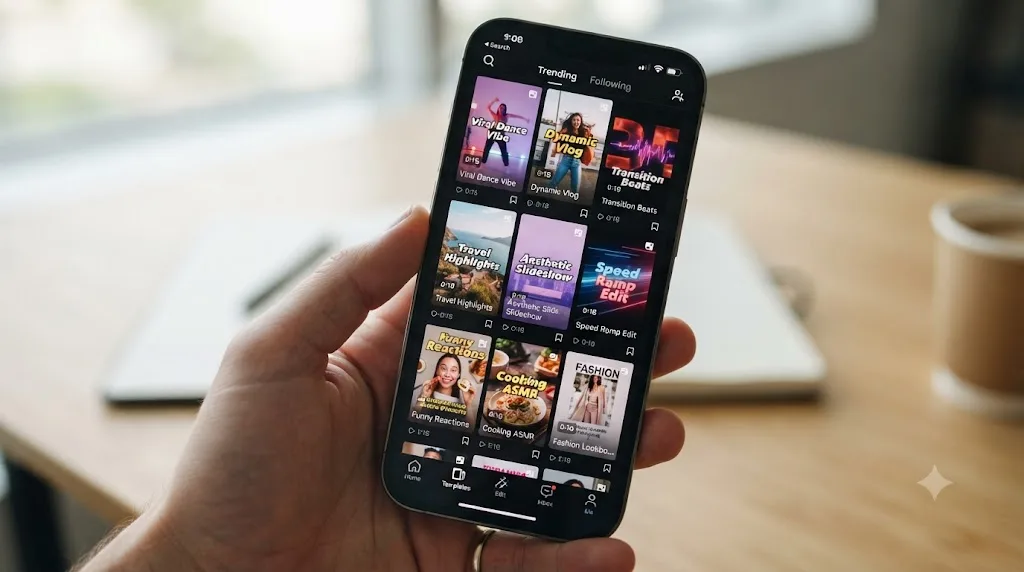
Per CapCut's own comparison page, the app leans on "AI technology" for auto background removal and text-to-speech, one-click caption generation with "intelligent language recognition," an extensive music and sound library, and pre-made templates built for direct customization. None of that is marketing exaggeration; it's an accurate description of what a TikTok or Shorts editor actually reaches for dozens of times a week. A template that syncs cuts to a trending beat, captions that auto-transcribe and auto-style in a recognizable TikTok font, a stitched green-screen effect two taps deep, these are the specific tools short-form editing was built around, and CapCut ships all of them natively.
DaVinci Resolve has none of this as a first-class feature. There's no template marketplace tuned to platform trends, no one-tap trending-sound sync, and while Resolve does have subtitle tools and can transcribe audio, it wasn't designed with the TikTok caption aesthetic in mind the way CapCut's caption engine explicitly was. If your short-form content leans heavily on trend formats, meme templates, or a specific caption style that's currently working on the algorithm, CapCut's library gets you there faster because that's the exact problem it was built to solve.
Where Resolve pulls ahead even here: motion graphics that need to look genuinely custom rather than templated. Resolve's Fusion page, node-based and included free, builds original titles, lower thirds, and composites from scratch rather than filling in a preset. Resolve 21 added Krokodove, a library Blackmagic describes as adding over 70 new graphics to Fusion, according to Blackmagic's What's New page. That's a different kind of asset than a CapCut template: fewer ready-made trend formats, more building blocks for something that doesn't look like everyone else's edit.
| Need | CapCut | DaVinci Resolve |
|---|---|---|
| Trending TikTok/Shorts templates | Native, large library | Not built in |
| Auto-captions styled for short-form | Native, multiple languages | Subtitle tools exist, no TikTok-style presets |
| One-tap trending sound sync | Yes | No equivalent |
| Custom motion graphics from scratch | Limited | Fusion page, node-based, free |
| Green screen / background removal | One-tap AI | Manual keying, more control |
Does color grading actually matter for a 15-second vertical video?
Sometimes, and the honest answer depends entirely on what you're making, not a blanket rule either app's marketing wants you to believe.
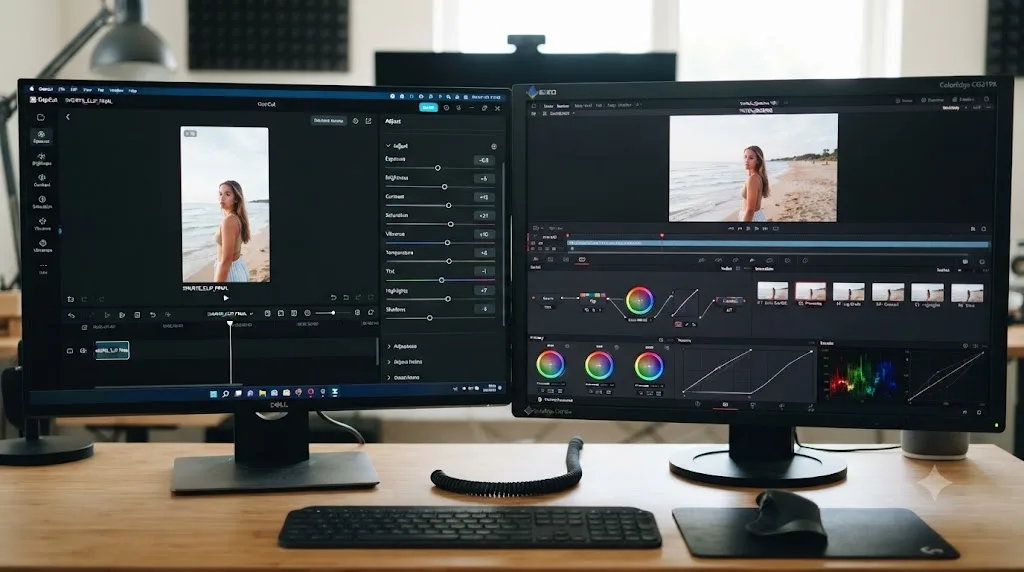
CapCut's color tools are sliders and filters: brightness, contrast, saturation, a basic curves panel, and preset LUT-style filters you tap to apply. That covers a huge share of short-form content well. A talking-head TikTok, a quick recipe clip, a reaction video, none of these need isolated secondary corrections or a tracked power window to look good on a phone screen scrolled past in two seconds.
DaVinci Resolve's Color page is a different category of tool entirely. It's node-based, the same lineage that traces back to the original daVinci Systems hardware suites Blackmagic acquired in 2009, machines that graded Hollywood features long before Resolve was consumer software, according to Forbes' profile of Blackmagic founder Grant Petty. Nodes let you isolate a face, track it through motion, correct it independently from the background, then layer a second correction on a different node entirely, a workflow with no real equivalent in CapCut's slider panel.
The question isn't which tool has more color power, Resolve wins that outright and it isn't close. The question is whether your specific short-form content needs that power. Per CapCut's own self-comparison against DaVinci Resolve, even CapCut's own marketing describes DaVinci Resolve's color and audio capabilities as "exceptional," while noting its own comprehensive feature set "can be overwhelming for beginners." That's a rare moment of a company being straight about where a competitor wins.
Here's a practical filter: if your short-form video is shot in good, consistent lighting and posted same-day, CapCut's sliders are enough, and reaching for Resolve just adds setup time for a quality difference viewers scrolling a feed at arm's length mostly won't register. If you're shooting mixed lighting across multiple cameras, delivering a branded look a client is paying for, or building a portfolio piece meant to hold up next to longer-form work, Resolve's node system earns its extra minutes. Our color grading basics guide is the place to start that specific skill once editing fundamentals feel comfortable.
Neither app's color toolkit is objectively "better" for every video; they're built for different failure modes. CapCut fails gracefully on a rushed edit because its sliders can't ruin a grade the way an amateur node tree can. Resolve fails gracefully on a demanding shoot because its tools can actually fix problems CapCut's sliders can't touch at all.
How do the AI tools compare for short-form specifically?
Both companies have leaned hard into AI over the past two years, but they're solving different problems, and the gap matters more for short-form creators than the marketing copy on either side admits.
CapCut's AI tools are built around the specific repetitive tasks short-form editing generates dozens of times a day: auto-captions with multi-language transcription, one-tap background removal, auto-reframe that tracks a subject when converting horizontal footage to vertical, text-to-speech voiceovers, and AI-assisted b-roll suggestions. Per CapCut's own materials, the pitch is that "AI technology streamlines the video creation process," and for the narrow set of tasks it targets, that's an accurate description rather than an exaggeration.
DaVinci Resolve 21 shipped nine AI tools built on Blackmagic's DaVinci Neural Engine, most gated to the $295 Studio license. IntelliSearch lets you find clips using plain-language description instead of scrolling a media pool. CineFocus adjusts focal emphasis after a shot is already captured, useful for rescuing a soft focus pull. Smart Reframe, the closest direct equivalent to CapCut's auto-reframe, uses the Neural Engine to auto-track a subject across a shot when converting horizontal footage to vertical for Shorts or TikTok. The rest of the lineup leans toward repair work: AI UltraSharpen, AI Motion Deblur, AI Face Age Transformer, AI Blemish Removal, according to Blackmagic's official Resolve 21 release.
Line the two philosophies up and a pattern shows. CapCut's AI answers "how do I make this specific short-form task take ten seconds instead of five minutes." Resolve's AI mostly answers "how do I fix or repair footage that already has a problem." Smart Reframe is the one tool that genuinely competes head to head with CapCut's core use case, and it's Studio-only; free-version Resolve users do the same reframing job by hand with keyframed Transform values, which our Reels export guide walks through in detail.
| AI need for short-form | CapCut | DaVinci Resolve |
|---|---|---|
| Auto-captions | Native, free tier included | Subtitle tools, not styled for platform trends |
| Auto-reframe horizontal to vertical | Native, free tier included | Smart Reframe, Studio only ($295) |
| Background removal | One-tap, AI-driven | Manual keying or Magic Mask (Studio) |
| Clip search by description | Not built in | IntelliSearch (Studio) |
| Text-to-speech voiceover | Native | Not built in |
| AI noise reduction / repair | Limited | Multiple tools, mostly Studio |
CapCut's AI targets tasks short-form editors repeat dozens of times a day. DaVinci Resolve's AI mostly targets problems that already went wrong in the shoot. That's the real dividing line, and it explains why a heavy TikTok poster reaches for CapCut's AI constantly while a Resolve editor reaches for the Neural Engine occasionally, on the shot that actually needs rescuing.
What are the exact export settings for YouTube Shorts?
Both apps can hit the same target numbers; the difference is how much manual setup it takes to get there.
YouTube classifies any video with a square or vertical aspect ratio and a runtime up to three minutes as a Short, a length ceiling that took effect for standard channels on videos uploaded on or after October 15, 2024, per YouTube's own help page on the change. Google's Ads Help documentation, covering Shorts ad placements specifically, recommends a 9:16 vertical aspect ratio and notes that "video ads can be up to 3 minutes long, though only the first 60 seconds will play on the Shorts feed," per Google's own asset specs page. For the encoding side, YouTube's general recommended upload encoding settings call for MP4 with H.264, AAC-LC audio, and a bitrate target around 8 Mbps for 1080p SDR content, per YouTube's own encoding guide; our full YouTube export settings guide breaks that bitrate table down by resolution and frame rate if you're delivering anything beyond a Short.
| Setting | Target for YouTube Shorts |
|---|---|
| Aspect ratio | 9:16 (or square, 1:1) |
| Resolution | 1080 x 1920 |
| Container | MP4 |
| Codec | H.264 |
| Frame rate | Native, up to 60fps |
| Bitrate | ~8 Mbps at 1080p (YouTube's general SDR target) |
| Audio | AAC-LC, 48kHz |
| Max duration | 3 minutes |
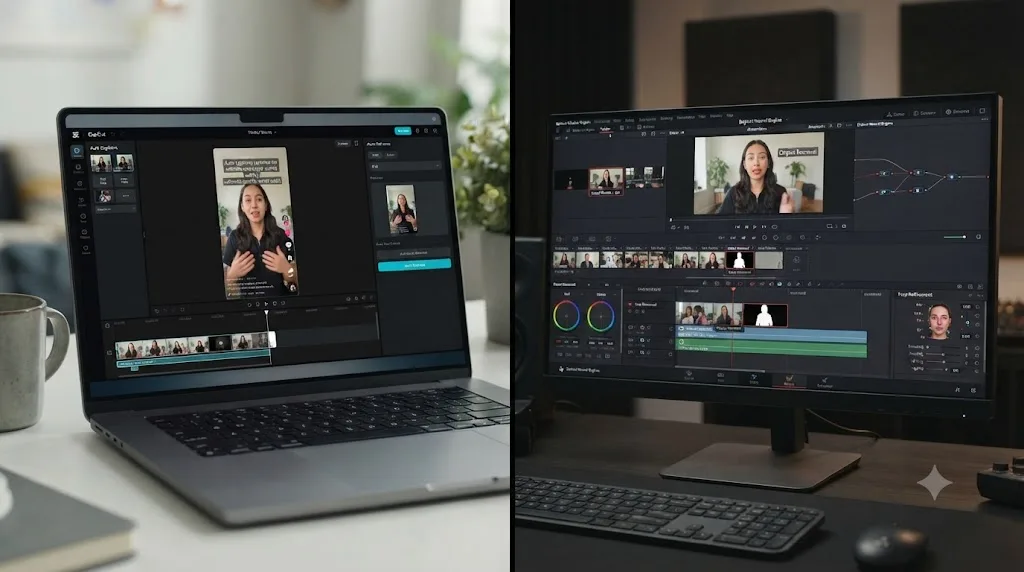
In CapCut, hitting these numbers is close to the default path. Start a project with the 9:16 vertical preset already selected, drop your clips in, and the export dialog defaults to matching resolutions with H.264 baked in as the standard codec option; adjusting bitrate is a slider in the export panel rather than a field you have to know exists.
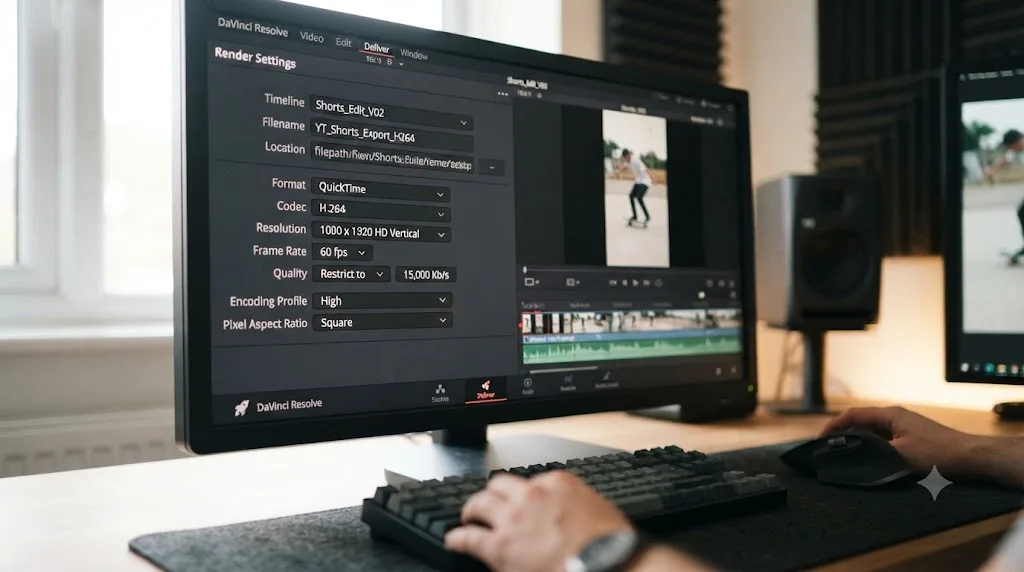
In DaVinci Resolve, none of this is a preset by default; it's a setup you build once and reuse. Open Project Settings, set the timeline to 1080x1920 under Master Settings (our beginner's guide covers where that setting lives if you haven't touched it before), reframe each shot with the Transform controls in the Inspector, then on the Deliver page set Format to MP4, Codec to H.264, resolution to 1080x1920, and audio to AAC. It's more manual the first time. Saved as a custom render preset, it becomes a one-click export for every Short afterward, at which point the speed gap with CapCut narrows considerably for this specific task.
What are the exact export settings for TikTok?
TikTok's own published numbers come from its ad specification, since the platform, like Meta, doesn't publish a detailed organic bitrate table the way YouTube does. Per TikTok's official Auction In-Feed Ads specification, vertical (9:16) video needs a minimum resolution of 540x960 pixels, MP4 or MOV format, a file size under 500MB, and a bitrate of at least 516 kbps, with duration up to 10 minutes.
That documented 516 kbps figure is a floor, not a usable target. It exists so TikTok's system accepts a file at all, not so your video looks good once it's live. In practice, most short-form editors export well above that minimum, closer to 1080x1920 at a bitrate in the 5,000-8,000 kbps range, since TikTok re-compresses whatever you upload, and starting from a low-bitrate source gives its encoder less to work with, the same physics that governs Instagram Reels and YouTube uploads alike.
| Setting | TikTok's documented minimum | Practical target |
|---|---|---|
| Resolution | 540 x 960 (vertical minimum) | 1080 x 1920 |
| Aspect ratio | 9:16 | 9:16 |
| Format | MP4 or MOV | MP4 |
| Codec | Not specified beyond format | H.264 |
| Bitrate | ≥516 kbps | 5,000-8,000 kbps |
| File size | ≤500 MB | Well under, at these resolutions |
| Duration (default account) | Up to 10 minutes | 15-60 seconds for most feed content |
CapCut's TikTok export is again close to a default path, since ByteDance owns both TikTok and CapCut and tunes the export dialog's presets accordingly. The 9:16 project preset, H.264 output, and a bitrate slider that defaults into a reasonable range cover most of this table without extra configuration.
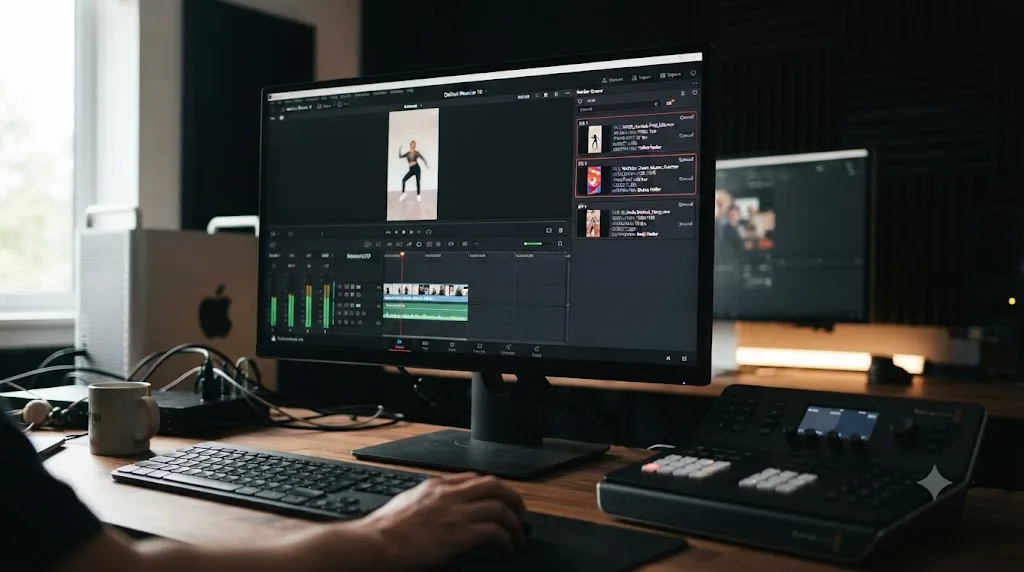
DaVinci Resolve needs the same manual setup described in the Shorts section above, with the resolution and bitrate fields adjusted to this table's numbers instead. The good news is it's the exact same Deliver page workflow either way; once you've built one vertical export preset in Resolve, TikTok, Shorts, and Instagram Reels all use nearly identical settings, with only the resolution ceiling and safe-zone margins shifting slightly between platforms. Our Reels export settings guide covers that platform's specific numbers if you're delivering the same vertical master across all three.
Which has better audio tools for short-form content?
DaVinci Resolve, by a wide margin, though it's worth being honest about how much of that gap actually matters for a 30-second vertical video.
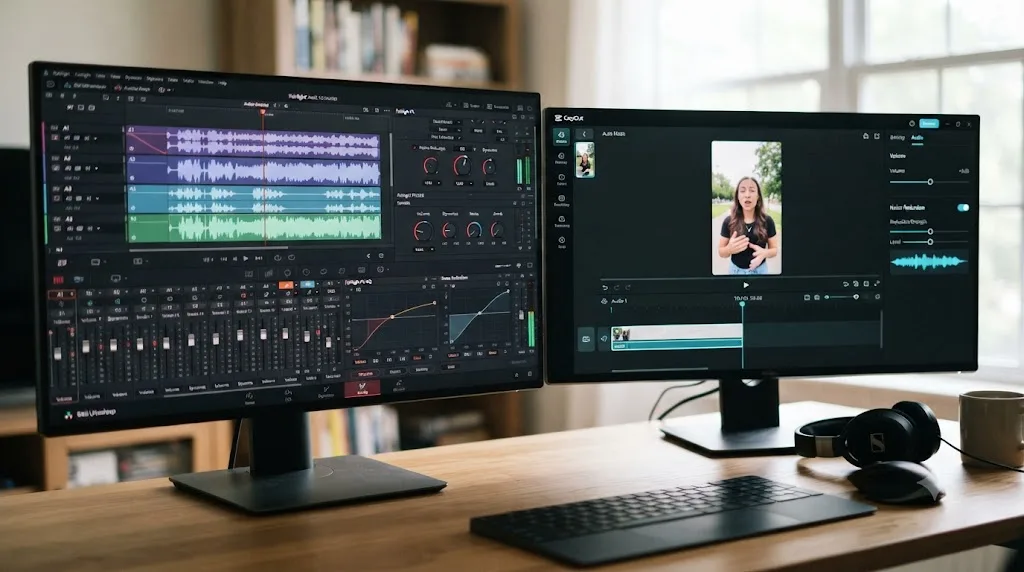
Fairlight, Resolve's built-in audio page, is a full digital audio workstation: multi-band EQ, loudness metering to broadcast standards, noise reduction, and bus routing, all inside the same app as the edit and the color grade. Resolve 21 added track folders and a six-band clip EQ, according to Blackmagic's What's New page. For a short-form creator dealing with a windy outdoor shoot or an inconsistent phone mic, that's real, usable cleanup power with no separate app or plugin purchase required.
CapCut's audio tools are lighter by design: volume adjustment, basic noise reduction, a limited EQ, and auto-ducking that lowers music under dialogue automatically. That covers the overwhelming majority of short-form audio problems, since most TikToks and Shorts are a single voice over a phone mic with a music bed underneath, not a multi-track dialogue mix needing broadcast-grade cleanup.
Where this actually decides anything: audio that's genuinely damaged. Wind noise that muddies dialogue, a room with bad echo, a mic that clipped during a loud moment, these are the specific failures where Fairlight's deeper toolset earns its extra setup time and CapCut's lighter panel runs out of headroom. Our background noise removal guide covers that specific fix if a short-form clip's audio is bad enough that CapCut's basic tools aren't cutting it.
For most short-form audio, in good conditions, neither app's ceiling matters, because a phone mic in reasonable conditions doesn't need broadcast-grade cleanup. The gap opens specifically on damaged audio, not on ordinary audio, which is a narrower use case than either app's marketing implies.
Which one has a gentler learning curve for a total beginner?
CapCut, and this isn't close for someone who has never opened an editing app before.
CapCut's timeline mimics the scroll gesture short-form creators already know from consuming the content they're trying to make. Templates hide the underlying complexity almost entirely: drop your clips into a pre-built structure and the cuts, transitions, and text animations are already timed. Someone with zero prior editing experience can ship a usable, trend-appropriate video on day one, which matters enormously for a beginner whose first goal is just posting something rather than mastering a craft.
DaVinci Resolve's learning curve is real and shouldn't be undersold. It's a professional tool with seven distinct pages, and even limiting yourself to the two most relevant for short-form work, Edit and Color, means learning a timeline that's more powerful and less immediately intuitive than CapCut's. Our beginner's guide frames the realistic timeline: comfortable with the Edit page inside a couple of weeks of regular use, Color and Fusion taking meaningfully longer.
Per CapCut's own comparison materials, even CapCut acknowledges that DaVinci Resolve's "comprehensive feature set... can be overwhelming for beginners" while positioning itself for exactly that beginner audience. That's an accurate self-assessment on both sides, not marketing spin.
The counterargument for starting on Resolve anyway: if you already know your short-form content is a stepping stone toward longer-form work, brand deals requiring higher production value, or a portfolio that needs to hold up against other editors' work, learning Resolve's fundamentals now avoids relearning an entirely different tool later. A beginner planning to stay purely short-form and mobile-first gets more immediate value from CapCut's gentler ramp.
What do creators who've actually used both say?
Marketing pages describe what each company wants you to believe about its own product. Creators living inside the actual workflow describe something more useful, and both apps have real, documented commentary worth reading.
When TikTok, and its sister app CapCut, went dark in the United States in January 2025 during the divest-or-ban shutdown, the sudden loss revealed exactly how dependent short-form creators had become on CapCut specifically, not just TikTok. YouTube creator Seth "Seth the Nerfer" Beavers, who edits exclusively in CapCut, described the touch-first workflow directly: "Using a touch screen, it works very well, and I'm practiced in it. So, now I have to learn a new editing program," he told Digiday in January 2025, adding that alternatives forced a tradeoff: "I've tried other editing software, and you have to pay to get rid of watermarks, or they don't have as many features, like iMovie."
Ali Grant, co-CEO of the influencer agency The Digital Department, described the outage's ripple effect on working creators in the same Digiday piece: "CapCut also took longer to come back than TikTok, so even when creators were able to post again to TikTok, they were without their go-to editing app." That's a useful data point independent of any feature comparison: for a meaningful share of working short-form creators, CapCut isn't a nice-to-have alternative, it's the tool their entire production pipeline assumes is available.
CapCut's user base backs that dependency up with real scale. It commands roughly 81% of total active users for mobile video editing and had generated an estimated $125 million in mobile revenue in 2024, according to Bloomberg's reporting via Yahoo Finance. Content creator and video editing instructor Camilo Castañeda, discussing what a CapCut disruption means for creators who depend on it, put the stakes plainly in the same Bloomberg piece: "Those tools have allowed people to, without friction, create content. For those apps to go, you're literally losing a whole revenue stream."
On the DaVinci Resolve side, Blackmagic Design CEO Grant Petty framed the company's own push into vertical, social-first editing when Resolve 18.1 first added native vertical resolution support back in November 2022: "This is a major update with new added support for social media vertical resolutions. Now, customers can work quickly and easily to create video posts for sites such as TikTok, Snapchat, Facebook shorts, Instagram TV and more," Petty said in Blackmagic's release, covered by PetaPixel. That statement matters as context: Resolve's short-form support isn't an afterthought bolted onto a film tool, it's a feature Blackmagic has actively built out for years, even if the app's core design still assumes a desktop workflow CapCut never required.
The creators most dependent on CapCut aren't hobbyists experimenting with a fun app; they're people whose posting schedule and income both assume it works. That's the real lesson from watching what happened when it briefly didn't. Read every comparison, including this one, with that dependency in mind: the tool that's "better" on a feature checklist isn't the same question as the tool your actual production pipeline is already built around.
Can you use both together for one channel?
Yes, and a lot of working creators already do, treating "which one" as the wrong question for a channel that outputs more than one kind of content.
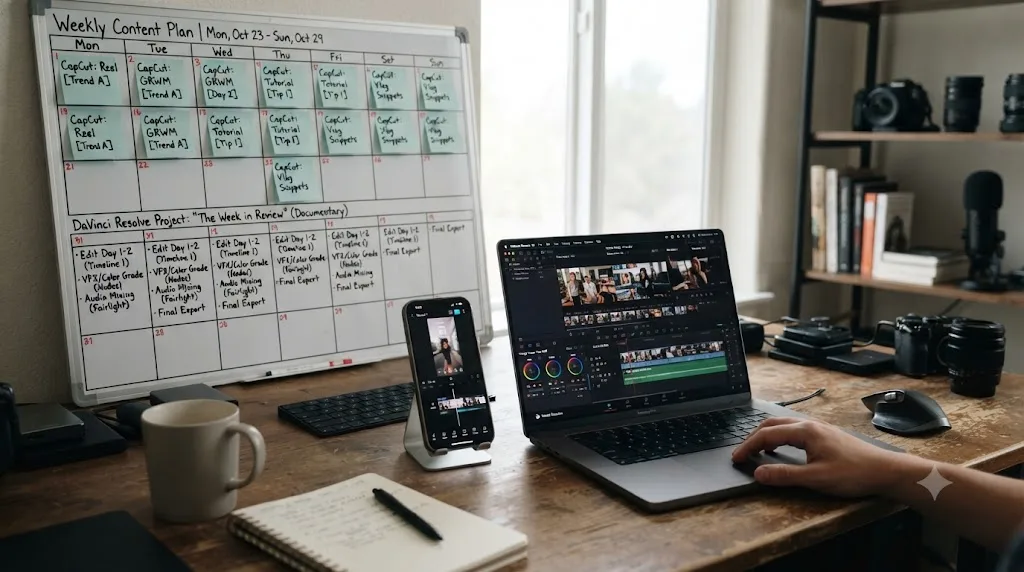
The common pattern looks like this: daily or near-daily TikToks and Shorts get cut entirely in CapCut, on a phone or the desktop app, using templates and auto-captions to hit a fast posting cadence without burning hours per video. Higher-effort content, a weekly long-form YouTube video, a branded collaboration, a portfolio piece, gets cut and graded in DaVinci Resolve, where the extra setup time is worth it because the output has to hold up to more scrutiny. Short-form cutdowns of that longer content sometimes route back through CapCut for the captions and vertical-native polish that platform expects.
This isn't a compromise between two competing products, it's each tool doing the specific job it's actually built for. A wedding videographer or documentary editor building both a long-form deliverable and a set of social cutdowns for the same shoot, covered in more depth in our DaVinci Resolve vs Premiere Pro comparison's discussion of hybrid workflows, faces the same logic here: match the tool to the deliverable instead of picking a permanent favorite.
Most serious short-form creators don't actually choose between CapCut and DaVinci Resolve; they choose which one handles which part of the job. The false premise in most versus-format comparisons is that picking a favorite means abandoning the other tool entirely. Creators who post daily and occasionally produce something more ambitious have generally already made that call, whether or not they'd describe it in those terms.
What are common mistakes creators make choosing between them?
A handful of avoidable mistakes account for most of the regret creators report after picking a side too fast.
Choosing CapCut purely because it's "what everyone uses" for TikTok, without checking whether your content actually needs its templates. If you're posting talking-head commentary or a podcast cutdown where captions matter more than trending transitions, CapCut's template library adds little you couldn't build once and reuse in Resolve. Match the tool to your actual content format, not to what's popular in your feed.
Buying DaVinci Resolve Studio before confirming the free version isn't enough for short-form work. The free tier covers full editing, color, audio, and vertical export with no watermark. The Studio-only triggers, Smart Reframe, Magic Mask, resolutions past 4K, mostly matter for demanding production, not a standard TikTok or Short. Check the free vs Studio guide against your actual needs before spending $295.
Assuming CapCut's free tier has no cost because there's no watermark on core editing. The watermark shows up specifically on Pro-tier templates, transitions, filters, and fonts, per multiple pricing breakdowns of CapCut's tier structure. A creator building an identity around a specific premium template style can end up paying monthly without realizing the free tier they started on never actually covered that particular asset.
Trying to force DaVinci Resolve into a phone-only workflow it was never built for. If your entire production chain has to run on an iPhone or Android phone with no laptop involved, Resolve simply isn't an option; there's no phone app, and the iPad app, while real and capable, needs an iPad specifically, not just any mobile device. Confirm your actual hardware before investing time learning either tool.
Ignoring platform export specs and letting either app's defaults silently under-deliver. Both TikTok and YouTube re-compress whatever you upload, and a source file with too low a bitrate or the wrong aspect ratio gets visibly worse after that platform pass, not better. Check the export tables earlier in this guide against whichever app's defaults you're relying on before assuming a "TikTok preset" button configured everything correctly.
Which one fits your specific situation?
Checklists beat a single verdict here, because "better" depends entirely on your hardware, your posting cadence, and what your short-form content is actually for.
| You are | Lean toward | Why |
|---|---|---|
| Shooting and editing entirely on a phone | CapCut | It's the only one of the two that runs on an iPhone or Android phone at all |
| Posting daily or multiple times a day | CapCut | Templates and auto-captions cut real minutes off every single edit |
| A total beginner who's never edited before | CapCut | Templates hide complexity; a usable video ships on day one |
| Already editing longer-form content in a desktop app | DaVinci Resolve | One tool, one project file, no format-switching between long and short cuts |
| Building a portfolio or chasing brand deals that judge production value | DaVinci Resolve | Color and audio depth CapCut's sliders can't match |
| Shooting mixed lighting or multiple cameras | DaVinci Resolve | Node-based color grading handles what sliders can't |
| Dealing with damaged or noisy audio regularly | DaVinci Resolve | Fairlight's DAW-grade tools go deeper than CapCut's basic panel |
| On a strict $0 budget with no plan to ever pay | Either | Both free tiers are genuinely usable, no watermark on core tools |
| Working on an iPad specifically | Either | Both have real, capable iPad apps as of 2026 |
| Producing a mix of daily shorts and weekly long-form | Both, in sequence | CapCut for the fast daily posts, Resolve for the weekly deliverable |
If you're still torn after reading this whole thing, ask yourself one question: does the next video you're about to make need to post in the next hour, or does it need to look better than the last ten videos you made? "Post in the next hour" is CapCut, every time. "Look better than the last ten" is DaVinci Resolve, and it's free, so the only real cost is the setup time this guide just walked through.
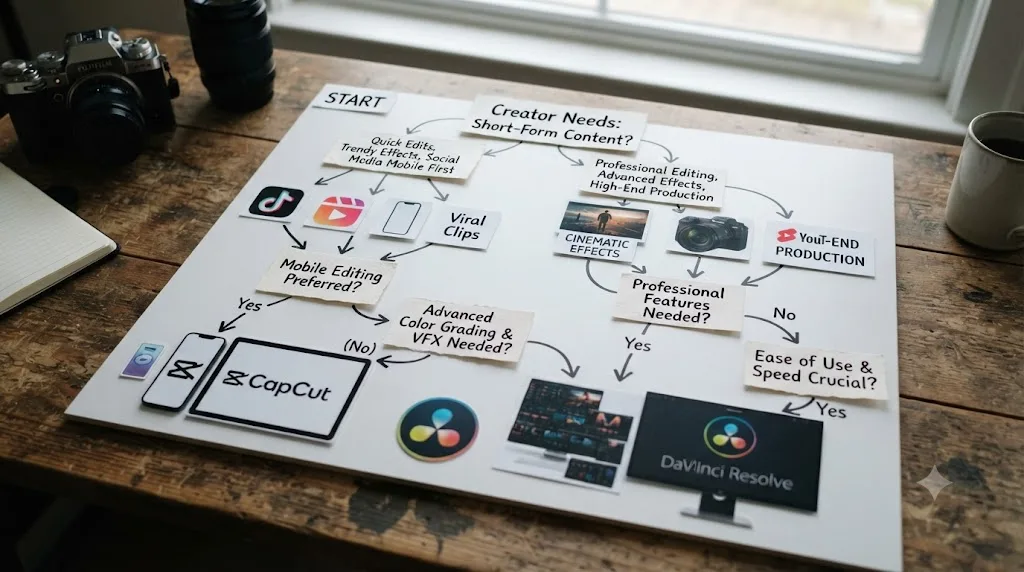
What's changed most in this comparison recently?
If you compared these two apps in 2022, right when Resolve first added native vertical support, you'd have written a very different post than this one, and the shift on both sides is worth naming.
On CapCut's side, the change is scale and monetization pressure. What started as TikTok's companion editing app now reportedly commands roughly 81% of mobile video editing's active user base and generated real, meaningful revenue even before its 2026 pricing restructure split the paid tier into Standard and Pro, per Bloomberg's reporting and CapCut's own current pricing page. The January 2025 divest-or-ban shutdown, however brief, exposed exactly how dependent working creators had become on a single free-to-use app, a dependency that's arguably only deepened since.
On DaVinci Resolve's side, the change is deliberate expansion into territory CapCut used to own uncontested: a real iPad app with genuine color tools, Smart Reframe for auto-tracking vertical conversions, and continued native vertical timeline support that's now five major versions deep since it first shipped in Resolve 18.1. Blackmagic isn't trying to out-template CapCut. It's making the case that a free, professional-grade tool can also handle the vertical, mobile-adjacent workflow short-form creators need, without ever compromising the color and audio depth that separates it from a phone-first editor.
Neither company is copying the other's core identity, but each has spent real engineering effort closing the specific gap where it was previously weakest. CapCut into 4K export and a deeper AI toolkit for creators who want more polish without leaving the app. DaVinci Resolve into vertical-native workflows and a real tablet app for creators who want more speed without leaving a professional-grade tool. Watch that pattern more than any single feature release: it's a better predictor of where both apps head next than either company's own product pages.
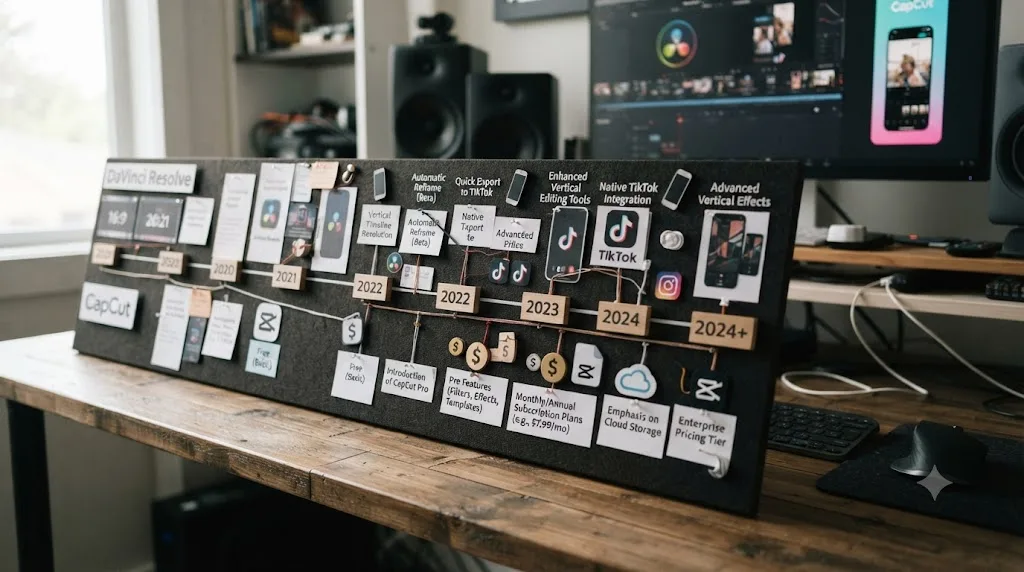
So which one should you actually open today?
If your next video needs to be live within the hour and you're working from your phone, open CapCut. Build it from a template if a trend fits, add auto-captions, export at 1080x1920 with H.264, and post. That's the entire decision tree for that specific, extremely common scenario, and second-guessing it with a longer comparison wastes the exact time advantage CapCut exists to give you.
If you're already at a desktop, already comfortable with a real timeline, or you know this particular video needs to look better than your last ten posts, open DaVinci Resolve instead. It costs nothing to try, it has no watermark on any export, and once you've built a vertical export preset for Shorts, TikTok, and Reels, the setup cost that makes it feel slower than CapCut mostly disappears on every video after the first.
Neither choice locks you out of the other. Creators move between these two constantly, often within the same week, sometimes within the same project. If your phone-shot footage needs real color work before it becomes a TikTok, TryUncle is an AI tutor built specifically for DaVinci Resolve that points at the exact control you need on your own screen, which shortens exactly the setup-time gap this whole comparison keeps coming back to. Pick the tool that matches what today's specific video actually needs, and revisit the question the next time your content changes shape, not before.
Frequently asked questions
- Is CapCut or DaVinci Resolve better for YouTube Shorts and TikTok?
- CapCut wins on raw speed for daily short-form output: built-in captions, trending templates, and a real phone app that lets you shoot and post from the same device. DaVinci Resolve wins the moment your Shorts or TikToks need real color grading or clean audio, and it's free too, just not mobile-first the way CapCut is.
- Is DaVinci Resolve actually free like CapCut's free tier?
- Yes, and more generously. DaVinci Resolve's free version has never added a watermark on any export, on any page, at any resolution up to Ultra HD 60fps. CapCut's free tier is watermark-free for its own core toolkit too, but templates, effects, and fonts marked Pro export with a watermark unless you subscribe.
- Can I edit TikToks or YouTube Shorts in DaVinci Resolve?
- Yes. Set your timeline to a vertical resolution like 1080x1920 under Project Settings, and Resolve's free version exports it with no watermark and no time limit. It just won't auto-caption your video, suggest a trending sound, or generate a template the way CapCut does out of the box.
- Does DaVinci Resolve have a mobile app like CapCut?
- No phone app for iPhone or Android. DaVinci Resolve does have a genuine, free iPad app with editing and color grading, distinct from the phone-first CapCut experience. If you shoot and edit entirely on an iPhone or Android phone, CapCut is the only one of these two apps that runs there at all.
- Does CapCut's free version have a watermark?
- Not on its own core editing tools like cutting, trimming, or basic effects. The watermark shows up specifically on templates, transitions, filters, and fonts marked Pro, which export watermarked unless you're subscribed. A plain cuts-and-captions edit built from free-tier assets exports clean.
- What export settings should I use for YouTube Shorts and TikTok?
- Both platforms want 1080x1920, 9:16, MP4 with H.264, AAC audio, and native frame rate up to 60fps. TikTok's own ad specification sets a documented bitrate floor of 516 kbps, but in practice 5,000-8,000 kbps holds up far better under the platform's re-compression. YouTube publishes 8 Mbps as its 1080p SDR target.
- Is CapCut good enough for color grading, or do I need DaVinci Resolve?
- CapCut's color tools are sliders and filters: brightness, contrast, saturation, a curves panel, and LUT-style presets. DaVinci Resolve's node-based Color page, the same lineage that grades feature films, handles isolated corrections, tracked power windows, and secondary grading that CapCut's panel was never built to do.
- Should a total beginner start with CapCut or DaVinci Resolve for short-form content?
- Start with CapCut if you're shooting and posting entirely from your phone and want your first video live today. Start with DaVinci Resolve if you're already comfortable with a desktop workflow or you know color and audio quality will matter once your channel grows past casual posting.
Sources
- CapCut Standard vs Pro comparison (official, pricing and features)
- CapCut vs DaVinci Resolve (CapCut's own comparison page)
- How much does CapCut Pro cost (CapCut Help Center)
- Bloomberg (via Yahoo Finance): The Rise of ByteDance's CapCut Threatens Adobe and Canva
- Digiday: Creators are split on whether to keep using TikTok's editing app CapCut post-shutdown
- PetaPixel: DaVinci Resolve 18.1 Adds Support for Social Media-Friendly Vertical Video
- DaVinci Resolve product page (free version)
- DaVinci Resolve Studio product page
- DaVinci Resolve - Tech Specs (Blackmagic Design)
- DaVinci Resolve - What's New (Blackmagic Design, Resolve 21)
- Blackmagic Design Announces DaVinci Resolve for iPad (official release)
- Newsshooter: Blackmagic Design DaVinci Resolve for iPad
- DaVinci Resolve for iPad (App Store listing, Apple)
- Understand three-minute YouTube Shorts (YouTube Help)
- YouTube Shorts ads: Asset specs and best practices (Google Ads Help)
- YouTube recommended upload encoding settings (YouTube Help)
- TikTok Auction In-Feed Ads specifications (TikTok Ads Manager Help)
Learn by doing, not watching
Learn Resolve inside Resolve.
TryUncle watches your screen and points at the exact control when you ask. No tabs, no timestamps, no rewatching tutorials.
Download for MacKeep reading
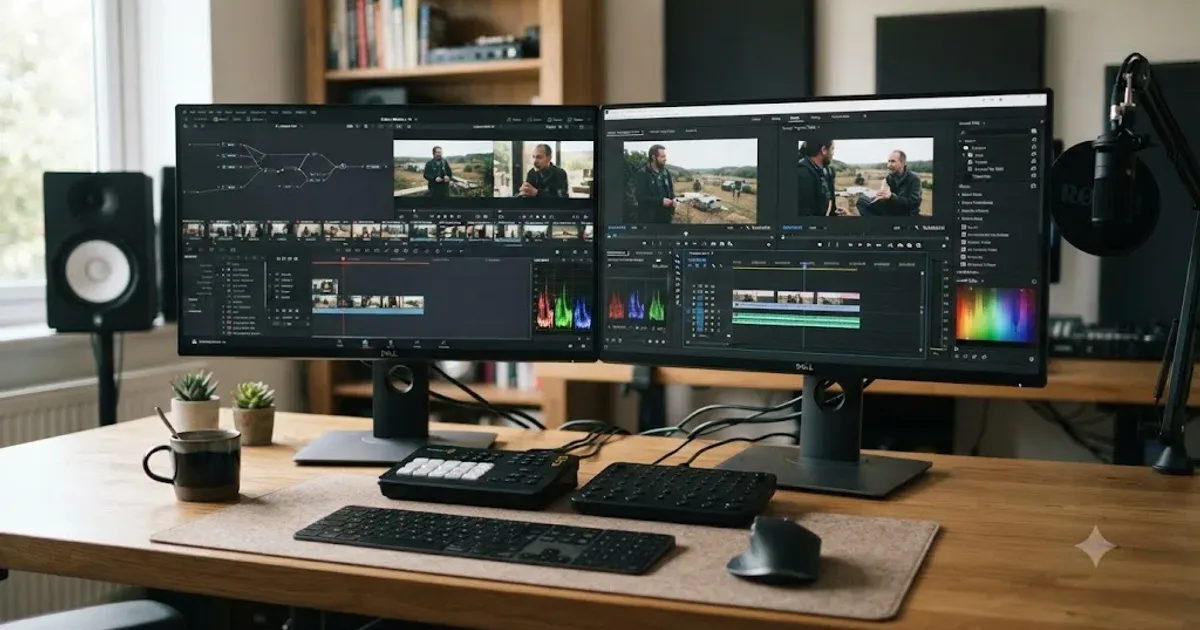
Comparisons · Jul 11, 2026 · 30 min
DaVinci Resolve vs Premiere Pro in 2026: Which Should You Use?
DaVinci Resolve vs Premiere Pro in 2026: pricing, color grading, AI tools, Fusion vs After Effects, and which editor actually fits your workflow.
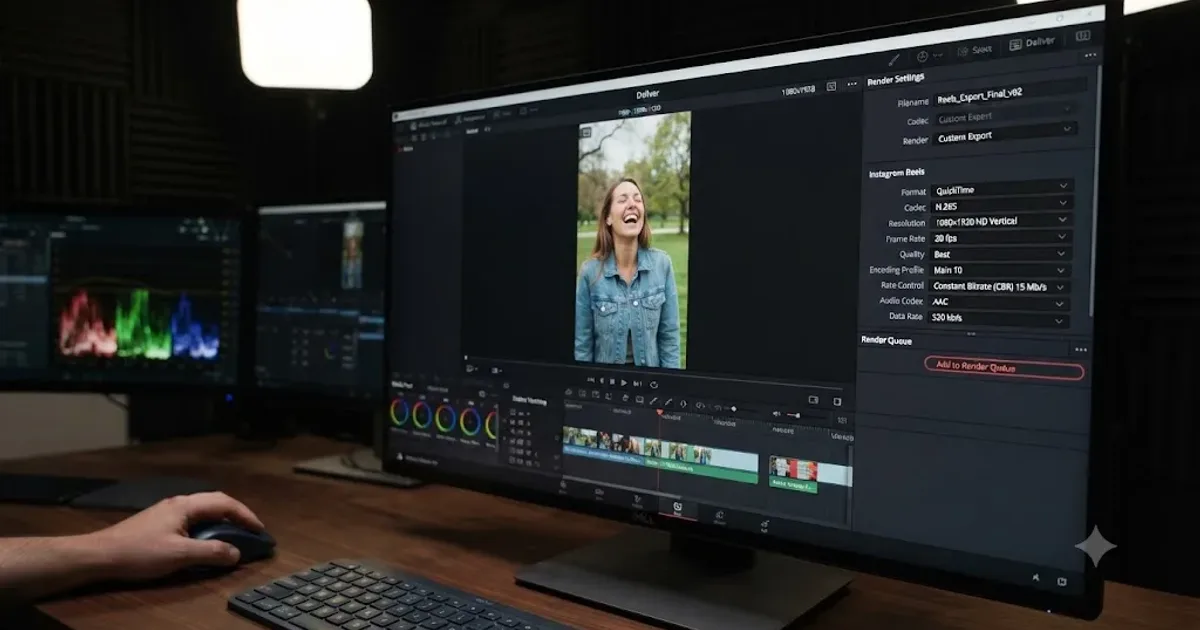
Guides · Jul 12, 2026 · 26 min
DaVinci Resolve Export Settings for Instagram Reels
Exact DaVinci Resolve export settings for Instagram Reels: 1080x1920 vs 1440x2560, H.264 only, bitrate, safe zones, and duration, sourced from Meta's own specs.
Comparisons · Jul 7, 2026 · 28 min
DaVinci Resolve Studio Price: Free vs. Studio Cost, Explained
DaVinci Resolve Studio costs $295, paid once, not monthly. Here's exactly what that buys, how it stacks up against Premiere Pro and Final Cut Pro, and who needs it.