Articles / Fixesupdated for DaVinci Resolve 21.0.2 (July 2026)
DaVinci Resolve Multicam Sync Off by Frames: Every Fix
Quick answer
Multicam sync drifts because DaVinci Resolve's waveform match can lock onto the wrong seconds of audio, and timecode sync can't fix cameras that were never jam-synced or that recorded at slightly different frame rates. Nudge the angle with the period and comma keys, or use the Audio Offset column, then rebuild the clip with jam-synced timecode next shoot.
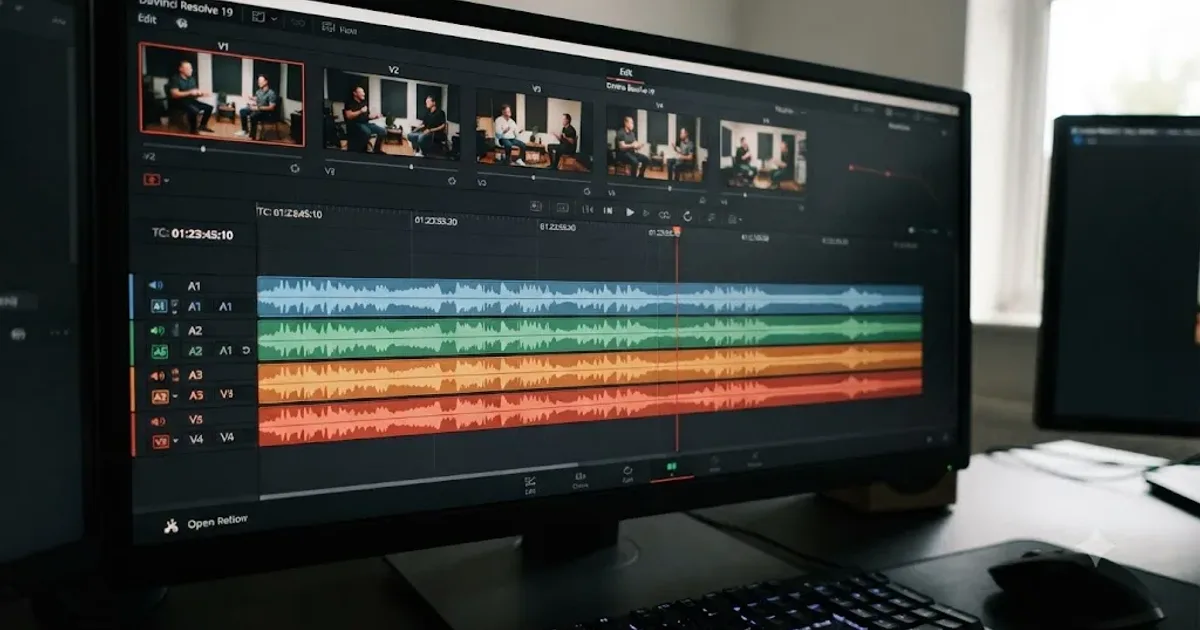
Your four angles looked perfect in the field monitor. On the timeline, camera B lands a beat late, camera C is worse, and by the second verse of the song everyone's mouth is somewhere between two different words. You didn't touch a single clip. DaVinci Resolve's multicam sync just didn't hold.
This happens constantly, and it happens for two genuinely different reasons that get treated as one problem. Sometimes the sync is wrong from frame one and stays wrong by the same amount forever. Sometimes it starts close enough and gets worse the longer the timeline plays. Below is how to tell those two apart in under a minute, then the exact fix for each, plus what to do differently on your next shoot so you're not doing any of this again.
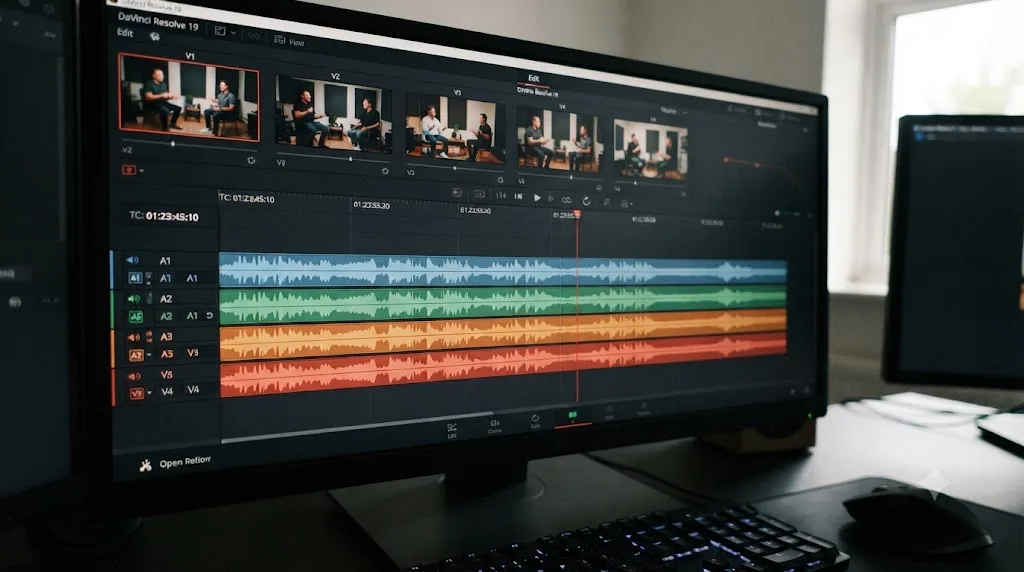
What causes a DaVinci Resolve multicam clip to sync off by frames?
Multicam sync in Resolve runs on one of a small set of methods, and every one of them can fail in its own specific way. Per Blackmagic's own manual on creating multicam clips, the new clip's start point is set either by the timecode value at your sync point, if Angle Sync is defined by timecode, or by the sync point on whichever clip has the earliest timecode, if Angle Sync is defined by waveform. Two completely different calculations, two completely different failure modes.
Waveform sync asks Resolve to listen to each camera's scratch audio, find the best-matching moment across all of them, and line the clips up there. It's genuinely clever when it works. It's also a pattern-matching guess, not a measurement, and a guess can land on the wrong few seconds of audio if two cameras happen to share a loud, generic sound like applause, wind, or a drum fill. Timecode sync skips the guessing entirely and reads a number, but that number is only trustworthy if every camera and recorder agreed on the same clock before you started rolling. If they didn't, timecode sync is fast and confidently wrong.
Waveform sync in DaVinci Resolve compares only a short window of audio on each clip, and a wrong match there throws every angle off by the same fixed number of frames for the entire multicam clip. That's the failure editors on Creative COW and the Blackmagic forum describe most often, a whole angle sitting a beat late or early, uniformly, from the first frame to the last.
There's a second, less obvious cause that produces a symptom that looks identical at first glance but needs a completely different fix: cameras that recorded at slightly different frame rates. That one doesn't stay a fixed offset. It grows. We'll get to it in a moment, because telling these two apart is the entire key to fixing either one quickly.
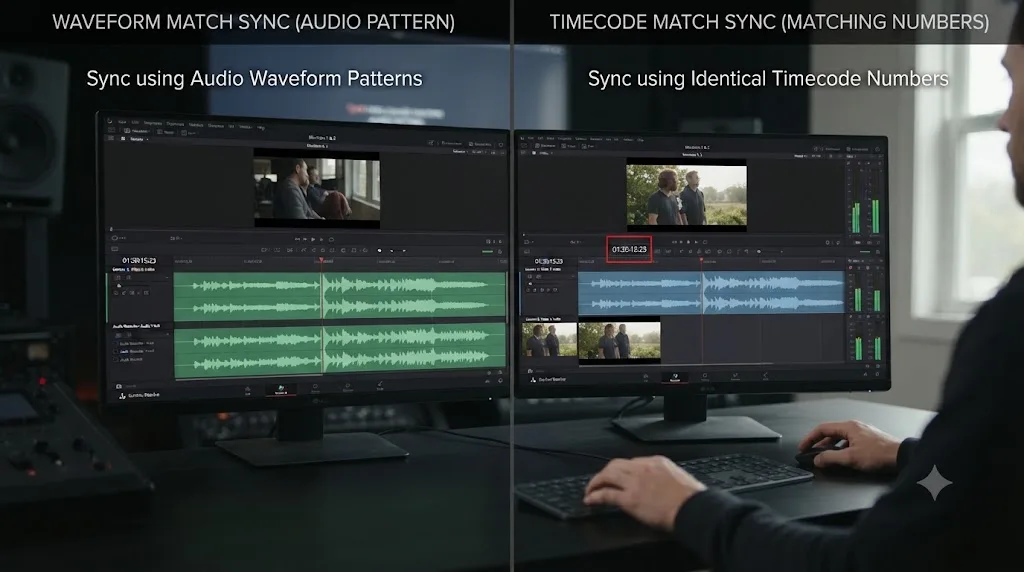
Is your sync off by a constant number of frames, or does it drift over time?
Before you touch a single setting, run this thirty-second test. It decides which half of this article you actually need.
Scrub the multicam clip to the very start and note how far off an angle is, in frames. Then scrub to a point several minutes later in the same clip and check the same angle again. Two outcomes:
- The gap is the same size at both points. That's a sync match problem. The angle was placed wrong once, at creation, and it never gets better or worse because nothing about the two clips' timing is actually changing relative to each other. Skip straight to the nudge and Audio Offset fixes below.
- The gap is bigger later in the clip than it was at the start. That's not a sync match problem at all. It's a frame rate mismatch, and no amount of nudging fixes it, because you'd be correcting a moving target. You need the frame rate section further down this page.
This distinction matters more than anything else on this page, because the two fixes are almost opposites. Nudging a drifting clip into sync at minute one just guarantees it's wrong again by minute five. And re-encoding a clip's frame rate to fix a constant one-time offset is a lot of rendering for a problem a comma key would have solved in five seconds.
| Symptom | Likely cause | Where to fix it |
|---|---|---|
| One angle consistently early or late by the same amount, start to finish | Waveform matched the wrong moment | Nudge with period/comma, or Audio Offset column |
| Sync is close at the start, worse by the end | Frame rate mismatch between cameras | Check Clip Attributes, standardize the frame rate, rebuild the multicam clip |
| No sync at all, angles scattered randomly | Missing or unanalyzed audio, wrong files selected | Check scratch audio, reselect clips, sync on In/Out instead |
| Every angle is off by the exact same huge amount, like 30 or 60 seconds | Cameras weren't jam-synced, timecode sync used anyway | Resync on waveform or In/Out points instead of timecode |
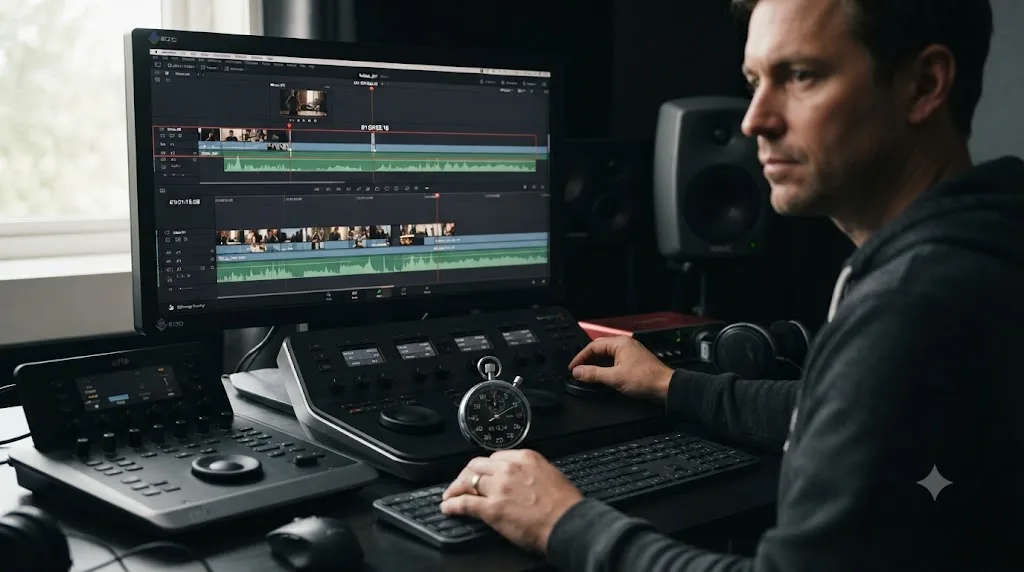
How do you fix a multicam clip that's off by a fixed number of frames?
If your test above showed a constant gap, the fix lives entirely inside the multicam clip itself. You don't need to touch your source files or rebuild anything from scratch.
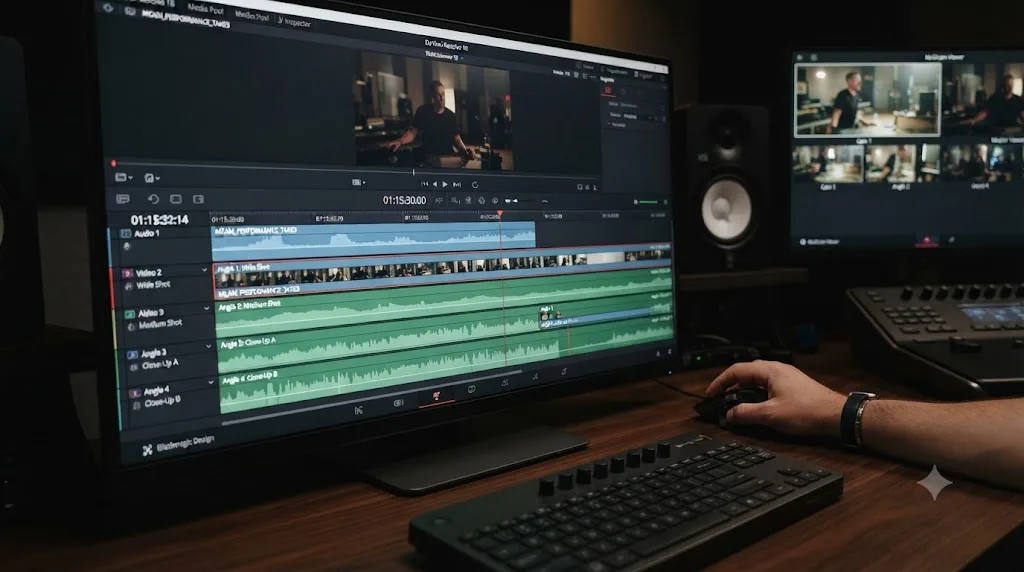
Start by isolating the wrong angle. Right-click the multicam clip on your timeline and choose Open in Timeline. Per Blackmagic's manual on opening and altering multicam clips, this exposes the individual angle clips on their own tracks, editable directly, with changes rippling back into every instance of that multicam clip on your main timeline. That last part matters: fix it once here, and every cut you've already made using this multicam clip inherits the correction automatically.
Select the offending angle's clip and nudge it. The manual is specific about the tool for this: "you can slide a multicam clip left or right to alter its sync (selecting an angle and using the Period (.) and Comma (,) 'nudge' keyboard shortcuts can be a good way of doing this)." Each press moves the clip by one frame. Park your playhead on a shared reference point, something both angles genuinely share, like a hand clap, a door slam, or a flashbulb, and nudge until that reference lines up identically across angles.
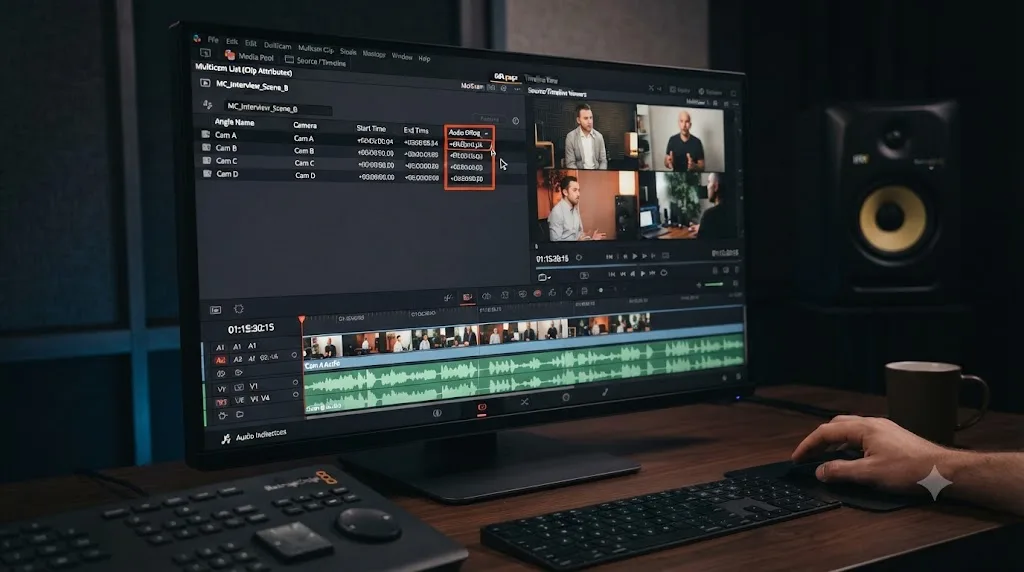
If you need finer control than whole-frame nudges, or you'd rather type an exact value than eyeball it, use the Audio Offset column instead. Right-click the column header in the Media Pool or the multicam angle editor and enable it, then enter the precise offset for the angle that's off. It works even on a multicam clip you've already cut into a timeline, which is the detail that makes it worth learning over just re-nudging by feel every time.
A single wrong waveform match at creation time is a five-minute fix, not a reason to reshoot or re-render anything. The angle, the offset, the nudge. That's the whole job.
Why does multicam sync drift worse the longer the timeline runs?
This is the case that fools people, because it looks exactly like a bad waveform match at first glance and behaves nothing like one. If your test above showed the gap growing, stop reaching for the nudge keys. You're not fighting a sync mistake. You're fighting two clocks that disagree about how fast time is passing.
A multicam clip that starts in sync and drifts wider as the timeline plays is not a sync failure at all, it's a frame rate mismatch between cameras that recorded at slightly different speeds. A camera set to 23.976fps and one set to 24fps look almost identical for the first few seconds of footage. Over five or ten minutes, that tiny per-frame difference compounds into a visible, audible gap, and it keeps growing for as long as the clip runs. Nudging the angle fixes the drift at exactly one point in time and re-breaks it everywhere else.
This is also the failure mode behind the most alarming reports in this space, editors describing sync that's off by 55 seconds or more on a long multicam, as described in one Blackmagic forum thread about timecode sync producing incorrect results. A gap that large, growing over a long recording, points straight at a rate mismatch rather than a one-time bad match, because a waveform sync error doesn't scale with clip length. A frame rate mismatch does.
Editor Dan Swierenga's writing on mixed frame rates in Resolve explains why this is such an easy trap to fall into by accident. Changing a clip's frame rate through Clip Attributes doesn't touch the actual file. As Swierenga puts it, you're "simply telling Resolve to play back the files with a different frame rate. The recorded number of frames in a file won't change." The consequence lands directly on multicam and dual-system audio work: "the timecode of the clips within the Resolve project will no longer match the timecode embedded in the source file on disk," and critically, "just changing frame rate with clip attributes will make the audio unusable." Reinterpreting a clip's rate to force a match is not the same thing as the clip actually having that rate, and Resolve's sync tools care about the real number.
Changing a clip's frame rate in Clip Attributes does not change how many frames the file actually contains, it only changes how fast Resolve plays them back, and that breaks the timecode match to everything else in the multicam clip. If you've ever "fixed" a rate mismatch this way and had multicam sync get stranger afterward, this is why.
The fix starts with finding the actual culprit, not guessing. Select every source clip feeding the multicam clip, one at a time, in the Media Pool, and check its native frame rate in Clip Attributes or the Metadata panel. You're looking for the odd one out: three cameras at 24fps and one at 23.976fps, or a phone shot that landed at 29.97fps next to cinema cameras at 24fps. Once you've found it, don't reinterpret it in Clip Attributes. Transcode it to genuinely match the others using a tool like Shutter Encoder or HandBrake, which changes the actual frame count and timing instead of just relabeling it, then rebuild the multicam clip from the corrected files.
Should you sync multicam by waveform, timecode, in/out points, or markers?
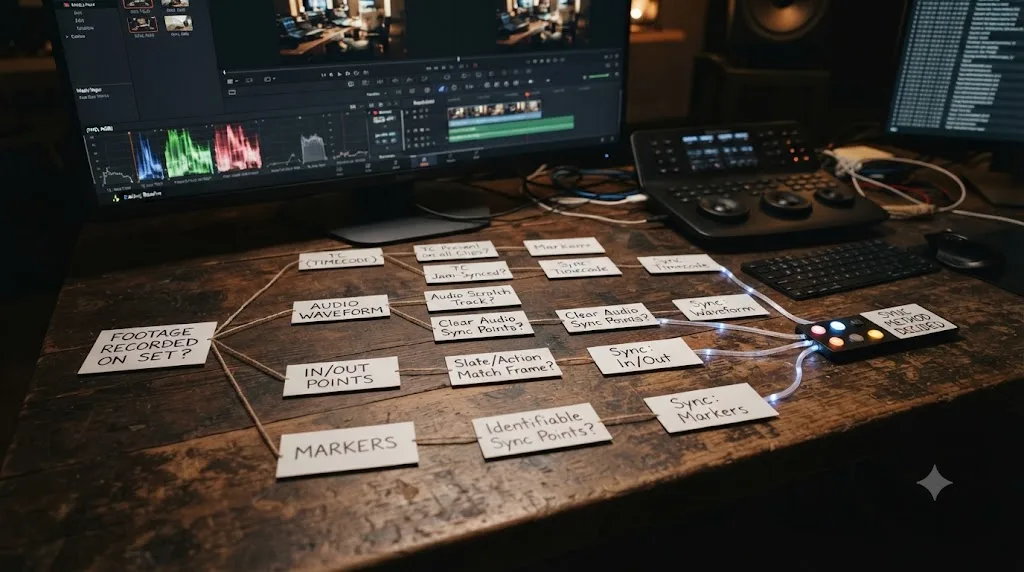
Resolve gives you more than one way to build a multicam clip, and picking the right one for your footage prevents most of this article from ever applying to you. Editor and trainer Larry Jordan sums up the options plainly: "Resolve supports syncing on the In, Out, matching timecode, common audio or markers," which covers every method you're likely to reach for.
| Method | Best when | Weak point |
|---|---|---|
| Timecode | Cameras and recorders were jam-synced before rolling | Useless, and confidently wrong, if the clocks were never actually matched |
| Sound (waveform) | No jam sync, but every camera has usable scratch audio of the same live sound | Can lock onto the wrong few seconds if the audio is repetitive or generic |
| In Point / Out Point | No timecode match and no usable audio | Entirely manual, you have to find and mark the shared moment yourself |
| Markers | You use a clapperboard or a visual/audio cue on every take | Markers are frame-based, so they inherit any imprecision in exactly where you placed them |
Jordan's own workflow is worth noting because it explains why so many working editors skip audio sync entirely: "If all clips have the same audio, syncing on matching audio is the easiest, though slowest," but "I can't always count on audio recorded to all clips." His preference lands on markers instead: "Since I use clapper slates, I tend to use markers." That's a deliberate trade. Markers take an extra step on set, but they turn sync from a guess into a direct instruction, because you're telling Resolve exactly which frame matches exactly which frame, rather than asking it to infer that from sound.
The manual describes the same four methods living inside Resolve's Sync Bin, the automatic multicam tool on the Cut page: "Timecode: This button will try to align all the clips by timecode... Audio: This button will try to align all the clips by analyzing the audio tracks of each clip. In Point: This button will try to align all the clips by their user set In point. Out Point: This button will try to align all the clips by their user set Out point," confirming these aren't separate features scattered across the app, they're the same core toolkit available wherever you build a multicam clip.
Pick the method that matches how you actually shot, not the default. If you don't know whether your rig was jam-synced, don't guess with timecode first. Try waveform, and if that's unreliable too, fall back to a manual In point on a shared visual cue.
Why does Resolve's audio-based multicam sync fail outright?
Sometimes the problem isn't a wrong match, it's no match at all. Angles land scattered with no coherent offset, or Resolve tells you outright it can't sync a clip. This is a different bug from a drift or a fixed offset, and it has a small, specific list of causes.
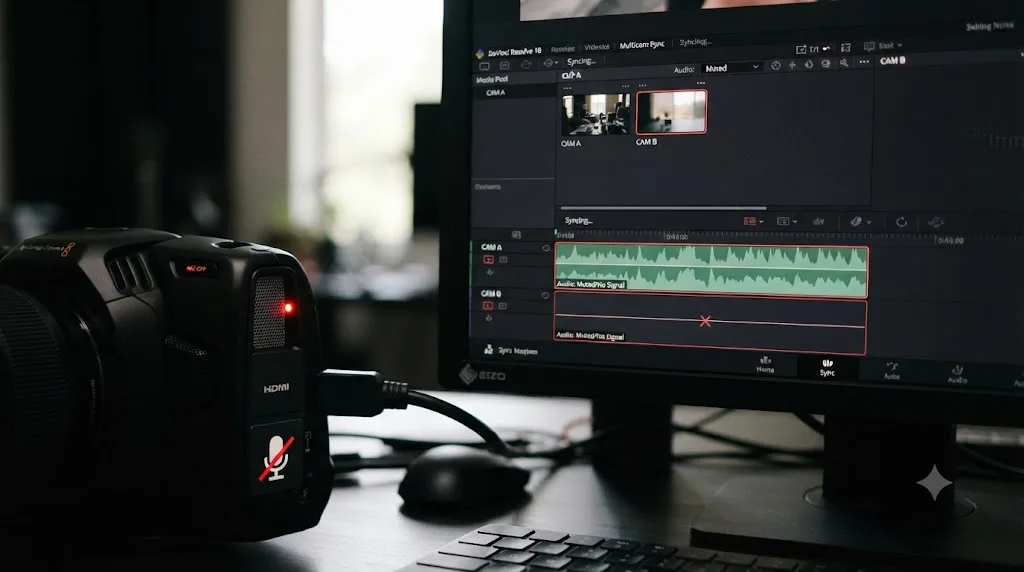
The most common one, by a wide margin, is missing audio. If a camera's built-in microphone was muted, switched off, or simply never recording, there's nothing on that clip for waveform sync to compare against anything else. A user on the Creative COW forum thread "Clips not syncing up for multicam" described exactly this pattern while trying to sync 40 clips at once: Resolve's sound-based sync worked correctly on roughly two of them, and a reply in that same thread suggested the poster's own camera audio simply wasn't clean enough for the algorithm to lock onto reliably.
A camera with its microphone muted or turned off gives Resolve nothing to compare, and waveform sync fails silently instead of warning you which angle it couldn't place. Before you blame the algorithm, play each source clip's audio in the Media Pool viewer or Source tab. If a clip is silent there, no sync setting inside Resolve fixes that. The audio has to exist first.
A second, quieter cause: Resolve hasn't finished analyzing the waveform yet. Large batches of freshly imported footage need a moment to build audio and thumbnail caches in the background, and syncing before that finishes can produce a failed or nonsensical match. Give a big import a minute or two after it lands in the Media Pool before you attempt to sync it, especially on spinning hard drives where that analysis takes longer.
The third cause is a simple selection mistake, and it's an easy one to make when you're moving fast. If your production used a separate audio recorder, like a Tascam or Zoom, alongside camera audio, you need to select both the video clip and its paired audio file together before syncing. Selecting only the video clip, or only the audio file, gives Resolve half the picture, and a thread on the Blackmagic forum titled "Multicam sound sync" describes exactly this kind of failure with cameras that had different start timestamps and no shared timecode, where sound-based sync simply couldn't resolve a match and syncing on the In point instead was the working alternative.
How do you resync a single angle without rebuilding the whole multicam clip?
This is worth its own section because it's the single most time-saving habit in this whole guide, and a lot of editors don't learn it until they've already rebuilt a multicam clip from scratch the hard way at least once.
You almost never need to delete and recreate a multicam clip because one angle is wrong. Right-click the multicam clip anywhere it appears on your timeline, choose Open in Timeline, and Resolve exposes the underlying angle clips as an ordinary editable timeline. Every angle sits on its own track, in its original position relative to the others, fully accessible with the tools you already know: select, slide, nudge, trim.
Find the wrong angle in that view. If you already know which camera is off from watching playback, select just that clip. Use the period and comma keys to nudge it a frame at a time toward correct, checking against a shared audio or visual cue as you go, or switch to the Audio Offset column if you know or can calculate the precise number of frames you need.
The part that makes this worth learning: once you close that opened timeline, the correction is baked into the multicam clip itself, not just into this one instance of it. Every place you've cut to that multicam clip anywhere in your project, every angle switch, every cutaway, inherits the fix automatically. You correct sync exactly once, in exactly one place, and it propagates everywhere the clip is used.
Fixing one angle inside an opened multicam clip corrects that sync error everywhere the clip has already been edited into your project, with no need to re-cut a single thing. That's the entire reason to reach for this tool before you reach for a rebuild.
How do you jam-sync timecode so this doesn't happen on your next shoot?
Everything above is a repair. This section is prevention, and it's worth the ten minutes it takes on set, because it eliminates the guesswork that waveform and audio sync both have to do after the fact.
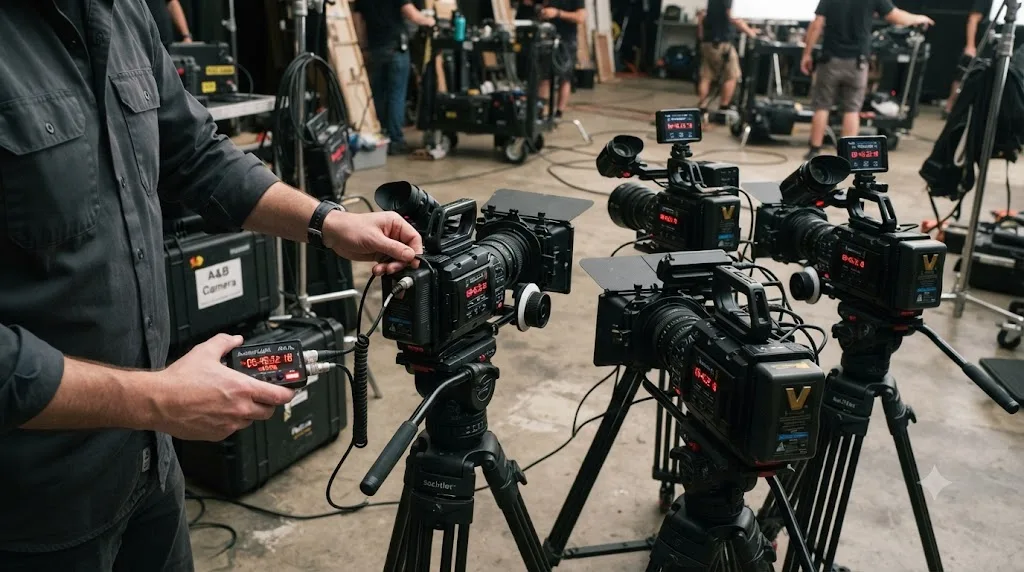
Jam-syncing means feeding one master timecode source into every camera and audio recorder before you start shooting, so all of them agree on the exact same running clock down to the frame. Once that's done, timecode sync in Resolve stops being a hopeful guess and becomes a direct lookup, matching numbers instead of matching sounds or shapes.
Blackmagic's own manual on Sync Bin editing describes the mechanics: professional cameras and recorders can "jam-sync their timecodes together so that each separate video and audio source records the exact same timecode at the exact same time," and that shared timecode "is then recorded as metadata in each captured clip, which can be read automatically by DaVinci Resolve." The manual adds a practical detail worth following exactly: name your cameras consistently, "either alphabetically (A, B, C, etc.), or numerically (1, 2, 3, etc.), and in a sequential order" matching how many cameras you're running, so Resolve's automatic tools can identify each angle correctly on import.
Jam-syncing timecode before you shoot removes the guesswork that waveform sync has to make later, because every camera already agrees on the same clock instead of Resolve estimating it from sound. Once every source shares real, matching timecode, set Angle Sync to Timecode when you build the multicam clip, and sync becomes close to instantaneous and close to bulletproof, regardless of how long the take ran or how noisy or quiet the location audio was.
One caveat carries over from the frame rate section above: jam sync only holds if every device is also set to the same frame rate. A perfectly jam-synced timecode source feeding a camera at 24fps and another at 23.976fps still drifts, because the timecode counters themselves are ticking at different real-world speeds even though they started matched. Confirm frame rate before you confirm timecode, not after.
What if some of your cameras recorded variable frame rate video?
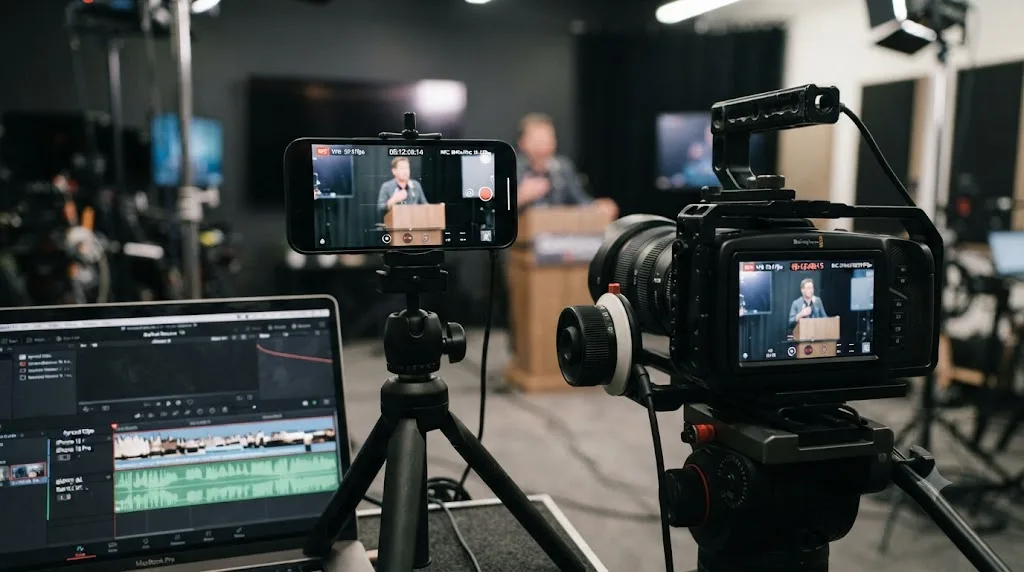
Frame rate mismatch has a more extreme cousin, and it shows up constantly in run-and-gun multicam setups that mix professional cameras with a phone or a screen recorder for a wide shot or a stream capture. Variable frame rate, VFR, footage doesn't just run at a slightly different fixed speed than your other cameras. The gap between its own frames shifts constantly, speeding up and slowing down as the recording device's processing load changes.
A VFR clip breaks multicam sync in a way that no nudge, offset, or even a correct jam-synced timecode can repair after the fact, because the clip's own internal timing isn't consistent with itself, let alone with anything else on your timeline. Sync it correctly at the start and it drifts. Correct that drift at the halfway point and it's wrong again ten seconds later, in the opposite direction this time.
Confirm the diagnosis with the free MediaInfo tool: open the suspect file and check the frame rate mode field. Constant Frame Rate is what you want everywhere on a multicam project. Variable is the problem, and it's common specifically on phone footage, drone footage, and screen recordings made with tools like OBS. Resolve's own Media Pool metadata generally won't flag this for you, which is exactly why it goes unnoticed until sync starts behaving strangely for no visible reason.
The fix happens before the clip ever touches your multicam, not inside it. Transcode the VFR file to a constant frame rate using Shutter Encoder or HandBrake, matching your project's actual rate, then bring the converted file in as the source for that angle. Rebuild the multicam clip using the corrected file. If VFR footage on your timeline is also causing stutter or playback problems separate from sync, our choppy playback guide covers that side of the same root cause.
Does the Sync Bin on the Cut page avoid this problem automatically?
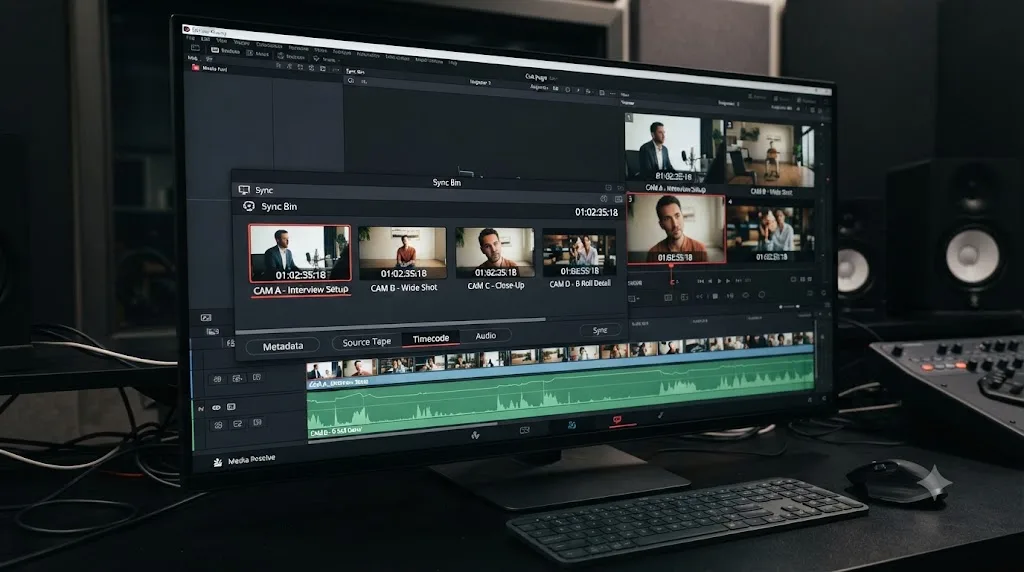
Partly, and it's worth knowing what it actually does before you rely on it. The Sync Bin lives on the Cut page and, per Blackmagic's manual, acts as an ongoing background process: as clips carrying matching, jam-synced timecode land in that bin, Resolve automatically groups them and keeps every angle available for instant switching while you edit, without you manually building a multicam clip first.
The Sync Bin's convenience comes with the same dependency as manual timecode sync: it works because it's reading real, matching timecode metadata off your files. It isn't running a smarter waveform analysis behind the scenes, and it isn't immune to a frame rate mismatch. If your cameras weren't jam-synced, or if one of them is running at a different frame rate than the rest, the Sync Bin will group and present angles with the exact same offset or drift problem described throughout this guide, just automatically instead of manually.
Where it genuinely helps is speed and visibility on a properly jam-synced shoot. You skip the manual multicam clip creation step entirely, angles appear grouped as soon as Resolve reads their timecode, and you can start cutting with instant angle switching right away. It's a workflow upgrade for footage that was captured correctly, not a fix for footage that wasn't.
If you're new to where the Cut page and its tools sit relative to the rest of Resolve's seven pages, our beginner's guide to DaVinci Resolve maps out where each page lives and what it's built for.
What if some cameras have no usable audio at all?
Silent cameras, whether by design (a wide security-style shot with no mic) or by accident (a muted or disconnected microphone), take both waveform sync and timecode sync off the table if that footage also lacks jam-synced timecode. That doesn't mean the angle can't be synced. It means you're doing it by eye instead of letting Resolve do it for you.
Sync on In or Out points instead. The method is manual but reliable: find a single frame that every angle shares visually, a clapperboard snapping shut, a flashbulb, a door slamming into frame, even a specific dance move if that's the sharpest cue your footage gives you. Mark that exact frame as the In point on every angle, select all the clips, and choose to sync on In rather than on timecode or sound.
This is the same principle film editors used before digital sync existed at all, just executed with modern tools. A clapperboard exists specifically to give every camera and every microphone a single, unambiguous, shared moment to lock onto, which is why professional sets still use one even when everything is also jam-synced. It's a backup that works when the electronics don't.
If only one or two angles in an otherwise-synced multicam clip lack audio, you don't need to manually sync the whole set this way. Sync the clips that do have matching timecode or usable audio automatically, then Open in Timeline and manually slide just the silent angle into place against a shared visual cue, the same nudge workflow covered earlier in this guide.
Which symptom points to which cause?
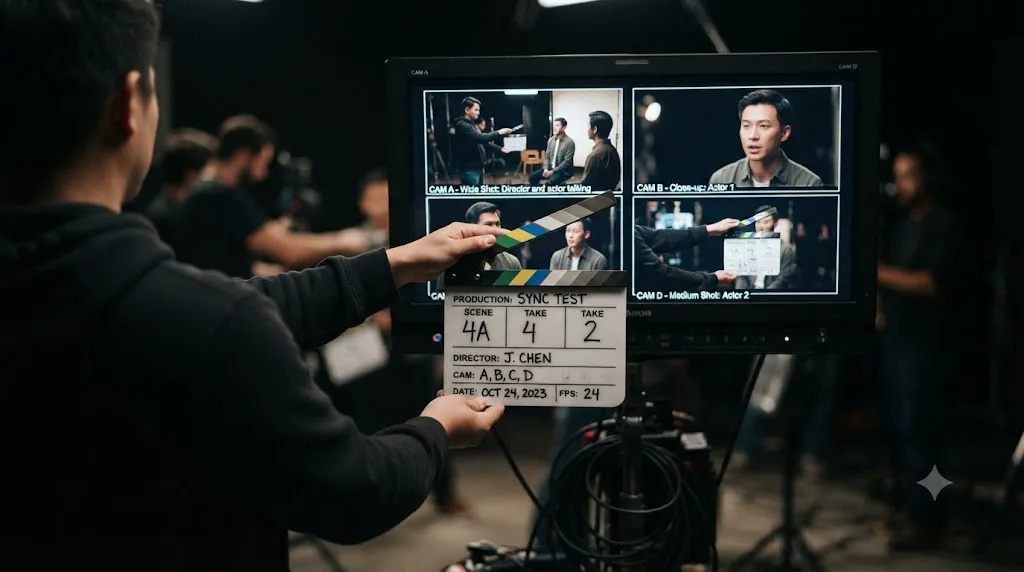
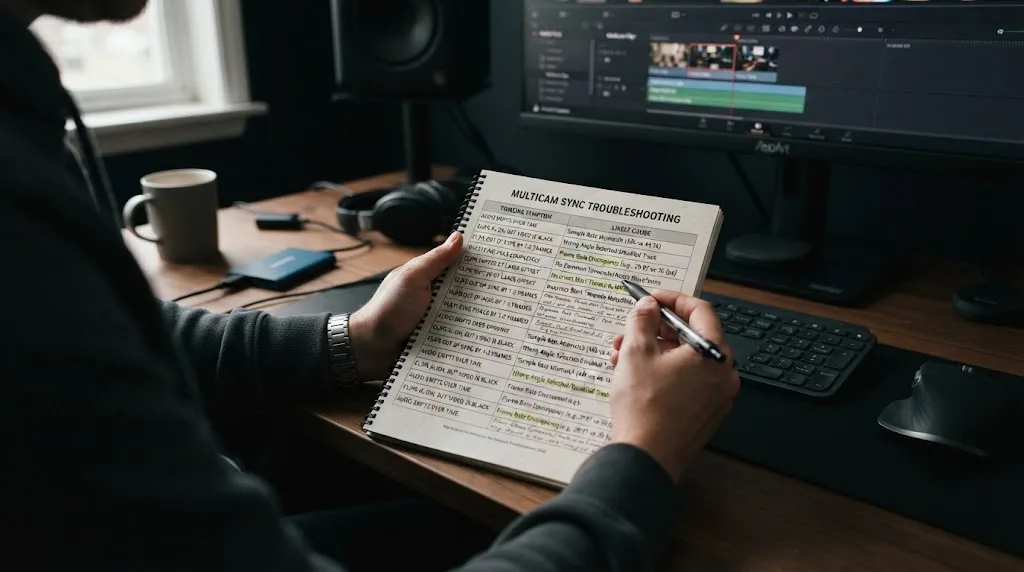
A quick-reference table, matched from actual symptom to actual fix, so you don't have to reread the whole guide every time a new multicam clip comes in wrong.
| Symptom | Most likely cause | Where to fix it |
|---|---|---|
| One angle off by the same amount, start to finish | Waveform matched the wrong few seconds of audio | Open in Timeline, nudge with period/comma or Audio Offset |
| Sync starts close, gets worse over the length of the clip | Frame rate mismatch between two or more cameras | Check Clip Attributes on every source, transcode the odd one out |
| Sync gets worse and never settles, even after correcting | Variable frame rate source footage | Check with MediaInfo, transcode to constant frame rate before syncing |
| Angles scattered with no coherent pattern, or sync fails outright | Missing scratch audio, unanalyzed waveform, or wrong files selected | Verify audio plays in Media Pool, wait for analysis, reselect video and audio pairs together |
| Every angle off by a large, uniform amount (tens of seconds or more) | Cameras weren't actually jam-synced, timecode sync used anyway | Resync on waveform, or manually on a shared In point |
| No audio on one or more angles | Muted, off, or absent microphone | Sync remaining angles automatically, manually nudge the silent one against a visual cue |
| Multicam looks right on the Cut page's Sync Bin but plays wrong | Sync Bin trusted bad or mismatched timecode metadata | Same fixes as above, the Sync Bin isn't a separate sync engine |
Match your symptom to a row, jump straight to that section above, and skip the rest.
What does the full diagnosis look like on a real multicam timeline?
Here's the method applied to a realistic project, so you can see how quickly most of this narrows down once you actually run the test at the top of this guide.
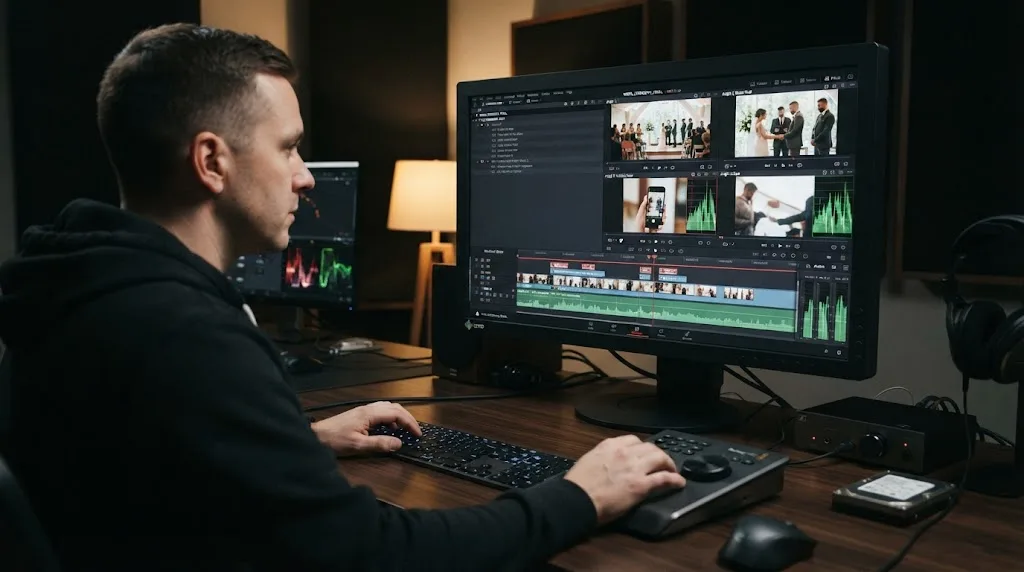
Say you're cutting a four-camera wedding ceremony: two static cameras jam-synced with a professional timecode box, a handheld camera the videographer forgot to add to the jam-sync chain, and a guest's phone recording from the back row for a wide safety angle. You build the multicam clip on waveform sync, since you're not confident everything shares real timecode, and hit play.
First check: the ceremony's opening moments look tight across all four angles. Good sign. You scrub to twenty minutes in, near the vows, and the handheld camera has drifted almost a full second behind the two static angles. That's growth over time, not a fixed gap, so this isn't a bad waveform match. You check Clip Attributes on all four sources and find it: the two static cameras and the phone are all recording at 29.97fps, but the handheld somehow landed on 30fps exactly, probably a setting bumped by accident before the ceremony. You transcode the handheld footage to genuinely match 29.97fps, not just relabel it, and rebuild the multicam clip. The drift is gone.
Second check: the phone angle isn't drifting, it's simply nowhere close to synced at all, off by what looks like random seconds with no relationship to the other angles. You play its audio in the Media Pool and it's audible but distant and roomy, recorded from the back of the venue rather than close to the altar like the camera-mounted mics. The waveform shape it captured doesn't resemble what the other, closer microphones caught, so Resolve's matching algorithm had nothing reliable to lock onto. There's no timecode on a guest's phone either. You fall back to a manual In point: you find the exact frame the officiant raises a hand to begin, mark that as In on all four angles, and sync on In instead of sound. It lands correctly in one pass.
Two very different problems on the same four-camera project, and neither one needed a reshoot, a support call, or more than a few minutes once you'd correctly identified which kind of wrong you were looking at. That's the pattern behind almost every multicam sync complaint: symptom first, cause second, fix third, in that order, never the reverse.
What's the fastest way to check and fix multicam sync, in order?
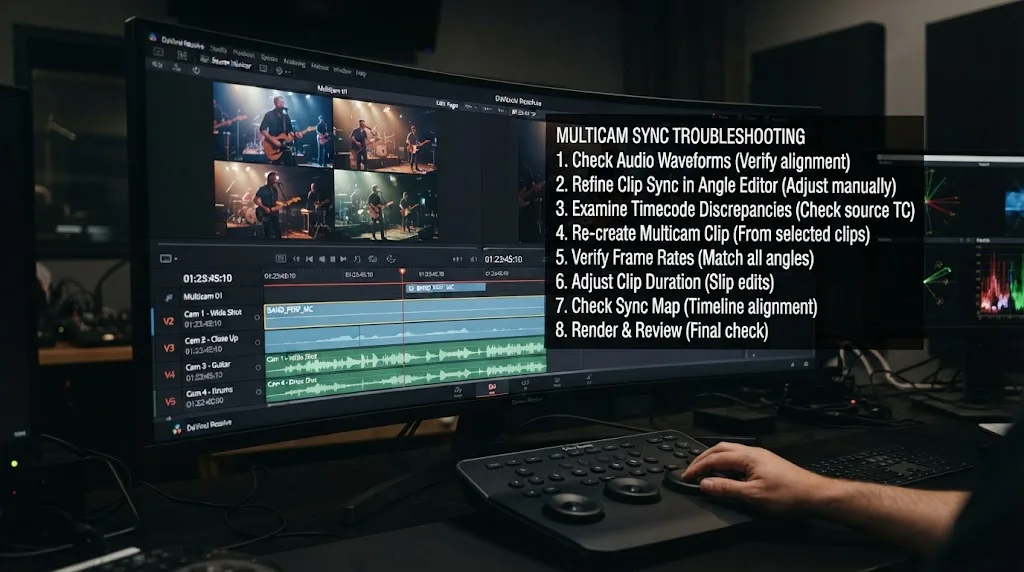
Work through these in sequence. Most multicam sync problems resolve in the first three steps.
- Run the drift test. Compare the offset at the start of the clip and several minutes later. Same size gap means a bad match. Growing gap means a frame rate problem.
- For a fixed offset: right-click the multicam clip, choose Open in Timeline, select the wrong angle, and nudge it with the period and comma keys, or set an exact value in the Audio Offset column.
- For a growing drift: check every source clip's actual frame rate in Clip Attributes. Transcode the mismatched camera to genuinely match the others, then rebuild the multicam clip.
- For no sync at all: confirm every camera's audio actually plays in the Media Pool viewer. A muted or missing microphone can't be synced by sound, no matter what setting you choose.
- For scattered or wildly-off sync: you likely selected timecode sync on footage that was never actually jam-synced. Switch to waveform, or fall back to a manual In point on a shared visual cue.
- For known-VFR sources, phones, drones, screen recordings: check the frame rate mode in MediaInfo, and transcode to constant frame rate before you sync anything, not after.
- Going forward: jam-sync a real timecode source to every camera and recorder before you shoot, confirm every device shares the same frame rate, and set Angle Sync to Timecode. This is the only fix on this list that prevents the problem instead of repairing it.
If jumping between Clip Attributes, the Audio Offset column, and Angle Sync settings across a long multicam shoot is the part that eats your afternoon, that's the kind of question TryUncle is built to answer. It looks at your actual Resolve window and points at the exact control you're asking about, instead of sending you back to a forum thread to guess.
Is DaVinci Resolve's multicam sync just unreliable, or is this fixable?
Neither answer is quite right on its own. Multicam sync in Resolve genuinely does fail more often than editors coming from other tools expect, and that reputation is earned. Editor and colorist Patrick Inhofer put it bluntly in his own walkthrough of resyncing broken multicam clips: "When it works, it's magic. When it doesn't, it can be off by 2 frames… or 2 minutes!"
But "unreliable" undersells what's actually going on. Waveform sync is a genuine pattern-matching estimate, not a measurement, and every editing tool that offers it, not just Resolve, produces occasional wrong matches for the same reason. Timecode sync isn't unreliable at all, it's only as good as the jam sync that fed it. And a growing drift was never a sync bug in the first place, it's physics: two clocks running at even slightly different speeds will always separate further the longer they run.
Once you split those apart, "multicam sync is broken" turns into three much smaller, much more specific problems, each with a fast, known fix. That's the whole point of running the drift test before you touch anything. Diagnose first, and the fix that follows takes minutes, not an afternoon of nudging in the dark.
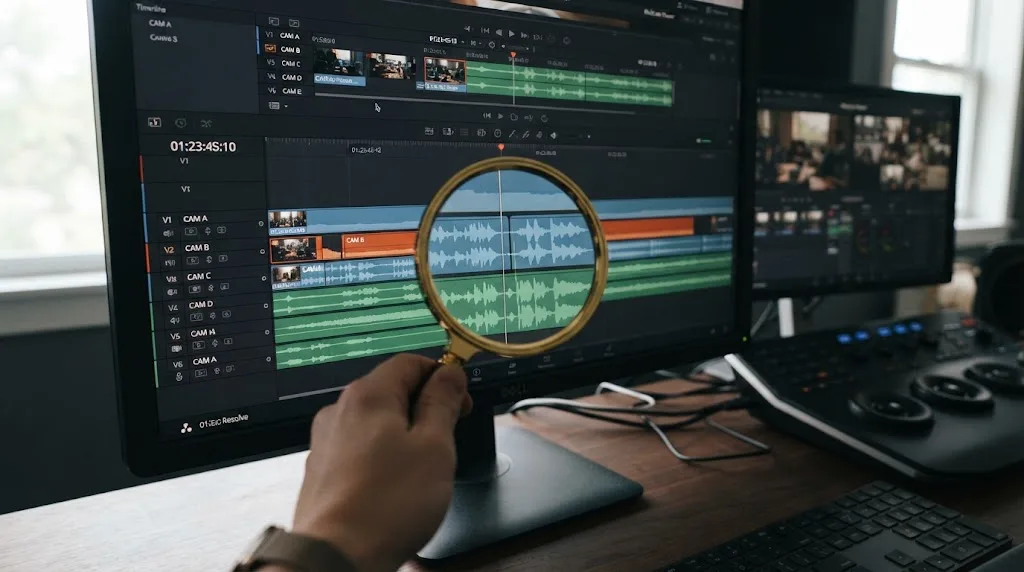
Sync a multicam clip in Resolve, run the thirty-second drift test before you touch a single setting, and you'll spend more time cutting your edit than fighting to build it. If you're also cleaning up export settings once the cut is locked, our DaVinci Resolve export settings guide picks up right where this one leaves off.
Frequently asked questions
- Why is my DaVinci Resolve multicam clip off sync by a couple of frames?
- Waveform sync only compares a short window of audio on each clip and can lock onto the wrong match point, especially if two cameras caught similar sound like applause or wind. The whole angle then shifts by a fixed number of frames for its entire length. Select the angle, park on a shared visual reference like a clap or a flash, and nudge it into place with the period and comma keys.
- Why does multicam sync get worse the longer the timeline runs?
- A constant offset that grows over time is not a sync failure, it's a frame rate mismatch. One camera recording at 23.976fps and another at 24fps agree closely at the start of a clip and disagree by a full frame every few minutes, because the two clocks are running at genuinely different speeds. Check every source clip's actual frame rate in Clip Attributes before you blame the sync method.
- Should I sync my multicam clip by waveform or by timecode?
- Timecode if every camera and recorder was jam-synced before you rolled, because it's a direct read of matching numbers and doesn't care how the footage sounds or looks. Waveform if you weren't jam-synced but every camera has usable scratch audio of the same live sound. In and Out point sync is the fallback when neither timecode nor audio is reliable, and it needs you to manually mark a shared moment on each angle first.
- Why did DaVinci Resolve's audio-based multicam sync fail completely instead of just drifting?
- Usually one of three things: a camera's microphone was muted or off so there's no audio to compare, Resolve hasn't finished analyzing the clip's waveform yet, or you selected only the video file and not its paired audio recorder file. Play each clip's audio in the Media Pool viewer first. If a camera is silent there, no sync method inside Resolve can fix it.
- How do I fix sync on just one camera angle without rebuilding the whole multicam clip?
- Right-click the multicam clip on the timeline and choose Open in Timeline. That opens the individual angle clips as a normal timeline where you can select the one offending angle and slide it left or right with the period and comma nudge keys, or type a new value into the Audio Offset column. The change ripples back into every instance of that multicam clip automatically.
- Can I sync multicam clips that have no audio at all?
- Yes, but not automatically. Without timecode or usable audio, sync on In or Out points instead: mark the exact frame of a shared visual event, like a clapperboard snap or a camera flash, as the In point on every angle, then sync on In. It's the same principle silent-film era matchback used, just done by hand instead of by ear.
- Does DaVinci Resolve's free version sync multicam clips differently than Studio?
- No. Multicam creation, Angle Sync by timecode, waveform, or in and out points, the Audio Offset column, and manual nudging are all available in the free version. Studio doesn't add a better sync algorithm. If your multicam is drifting, the fix is the same regardless of which license you're running.
Sources
- Creative COW Forum: Clips not syncing up for multicam
- Mixing Light: Multicam Gone Wrong: Re-syncing Clips in DaVinci Resolve 14 (Patrick Inhofer)
- DaVinci Resolve Manual: Creating and Modifying Multicam Clips (Blackmagic Design)
- DaVinci Resolve Manual: Opening and Altering Multicam Clips (Blackmagic Design)
- DaVinci Resolve Manual: Sync Bin Multicam Editing (Blackmagic Design)
- Frame.io: Mixing Frame Rates in DaVinci Resolve, Part 2: Native Frame Rates (Dan Swierenga)
- Larry Jordan: Get Started: Multicam Editing in DaVinci Resolve 18
- Blackmagic Forum: Multicam sound sync
- Blackmagic Forum: Multicam Timecode sync isnt syncing correctly
Learn by doing, not watching
Learn Resolve inside Resolve.
TryUncle watches your screen and points at the exact control when you ask. No tabs, no timestamps, no rewatching tutorials.
Download free for MacKeep reading
Fixes · Jul 7, 2026 · 26 min
DaVinci Resolve No Audio: Every Cause and How to Fix It
Timeline plays video but no sound? Check the mute and solo buttons, the I/O Engine setting, sample rate, and Export Audio, in that order. Full fix list.
Fixes · Jul 7, 2026 · 25 min
DaVinci Resolve Playback Choppy or Stuttering? The Real Fix
Fix choppy DaVinci Resolve playback with Optimized Media, Proxy Media, Render Cache, Timeline Proxy Mode, and the Resolve 21.0.2 NVIDIA decode fix.
Guides · Jul 7, 2026 · 32 min
DaVinci Resolve for Beginners: The Complete Starter Guide
Learn DaVinci Resolve from zero: what it costs, what it needs to run, the seven pages you'll actually use, and the steps to cut your first project.