Articles / Fixesupdated for DaVinci Resolve 21.0.1 (June 2026)
DaVinci Resolve Gallery Stills Disappeared? Fix Black Thumbnails
Quick answer
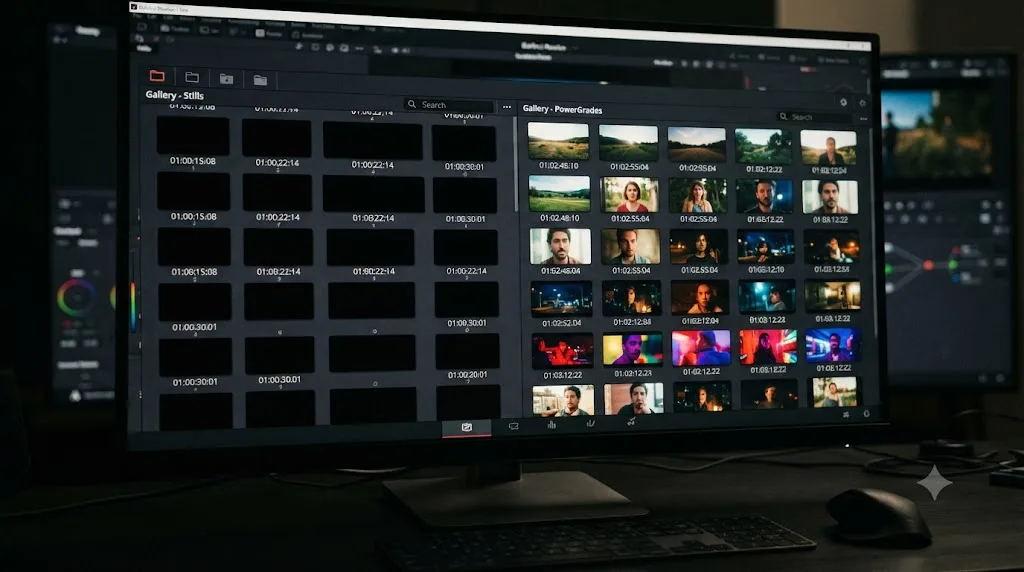
Gallery stills turn black or vanish when Resolve loses the path to its hidden .gallery folder, usually after a drive swap or scratch disk change. Reconnect the original Media Storage volume, or reset the gallery path in Project Settings, and save future grades as PowerGrades, which survive drive changes far better than the Stills album.
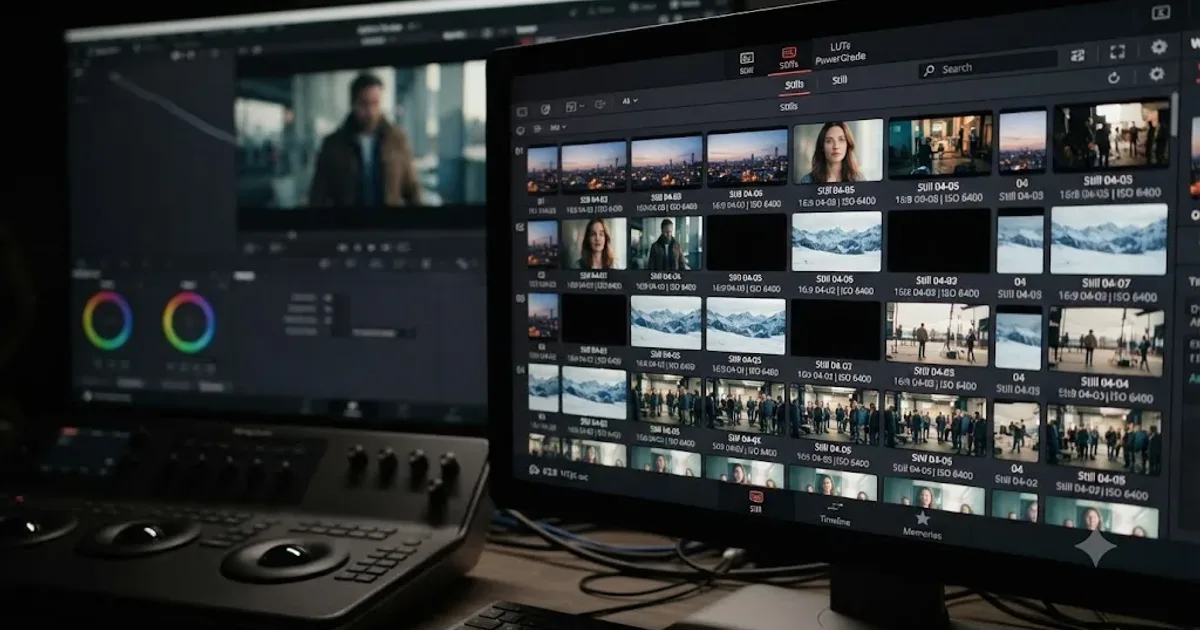
You open a project you graded last month and the gallery panel that used to be full of reference thumbnails is now a wall of black squares. Or worse, it's just empty, like those stills never existed.
Don't panic and don't start re-grading from scratch yet. This is one of DaVinci Resolve's oldest, most-reported quirks, and it has a specific, mechanical cause almost every time. Your grades are very likely still intact. The picture that goes with them is what went missing, and that's a much smaller problem than it looks like.
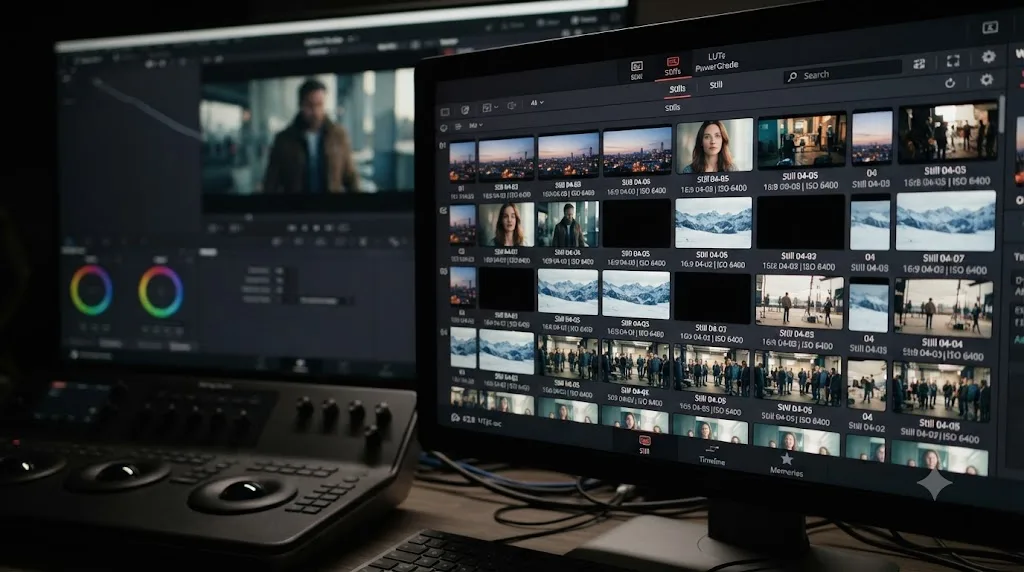
Why do DaVinci Resolve gallery stills turn into black thumbnails?
Every still you grab in Resolve is really two separate pieces of data saved in two different places. The grade itself, the full node tree, wheel positions, curves, everything you built, gets written into your project. The picture, a small DPX image that lets you actually see and wipe against the still, gets written to a folder on disk, outside the project file.
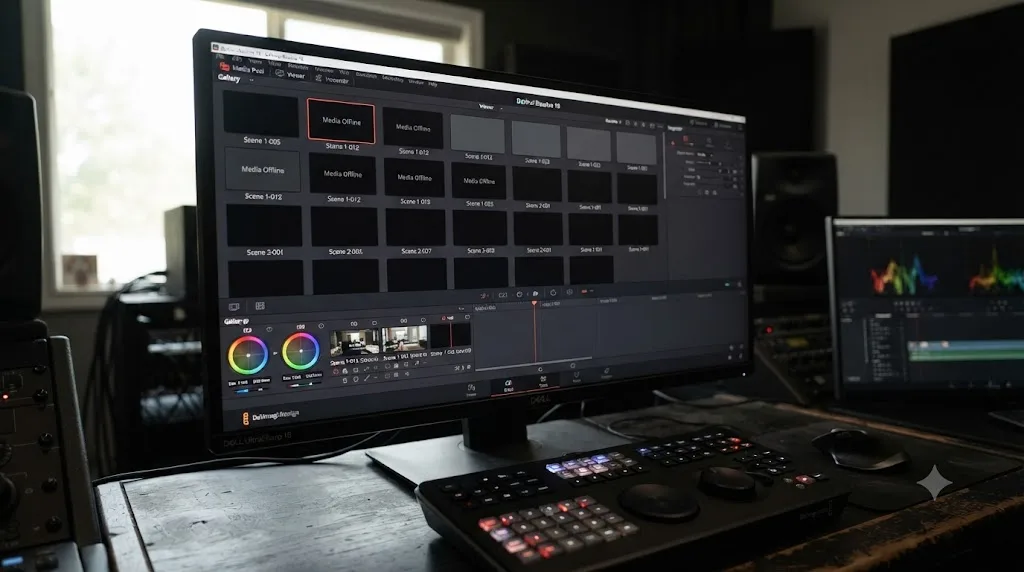
That picture folder lives on whatever drive currently sits first in your Media Storage list. Move that drive, disconnect it, rename it, or let something reorder your storage preferences, and Resolve can no longer find the DPX files. It still knows a still exists at that gallery position. It just can't paint a picture into the thumbnail, so it draws black instead.
This is exactly the failure Blackmagic's own forum has tracked since the DaVinci Resolve 14 beta. A thread titled "Gallery Stills Lost - Workaround," posted in February 2018 and discussing versions 14.1 through 14.3, described the same symptom users still report today: the Still Gallery "turning into black thumbnails and get lost forever" after saving and quitting the application. It's not a new bug in Resolve 21. It's a storage-path problem that's outlived a decade of version numbers.
A black gallery thumbnail almost never means Resolve deleted anything. It means Resolve can't find the folder it wrote the picture into. That distinction is the whole post, and everything below is either about proving it or about fixing the path so it stops happening.
Is a black still gone for good, or is the grade still safe?
Ask this before you touch anything, because the answer changes what you do next.
On the Lift Gamma Gain colorist forum, a user named Elieser Jairo laid out the mechanism plainly: when the drive holding your stills becomes unavailable, "the picture part of the still won't be stored (it will be black), but the information of the grade of the still will be stored with the project file." That's the split. The grade is metadata inside your project. The picture is a file on a drive. One of those two things is fragile, and it isn't the one that matters most.
Here's how to tell what you're actually looking at:
| Symptom | What it means | Is the grade safe? |
|---|---|---|
| Thumbnail is solid black, still visible in the gallery | Picture data missing, entry intact | Yes, almost always |
| Still is missing from the gallery entirely | Either the album's storage path is gone, or the project database lost the reference | Usually yes if the project file itself is intact |
| Double-clicking a black still does nothing or errors | Both the picture and possibly the grade reference are broken | Depends, check the project's other stills first |
| Applying a black still to a clip produces no visible change | The node data behind it may also be missing | Test on a throwaway clip before assuming the worst |
The fast diagnostic: double-click a black still and see if it applies a grade to your current clip at all. If wheels move and the image changes, the grade survived and only the preview picture is gone, which is cosmetic and completely recoverable once the storage path is fixed. If nothing happens, you're dealing with a deeper database problem, and the section on corrupted databases further down is where you want to go next.
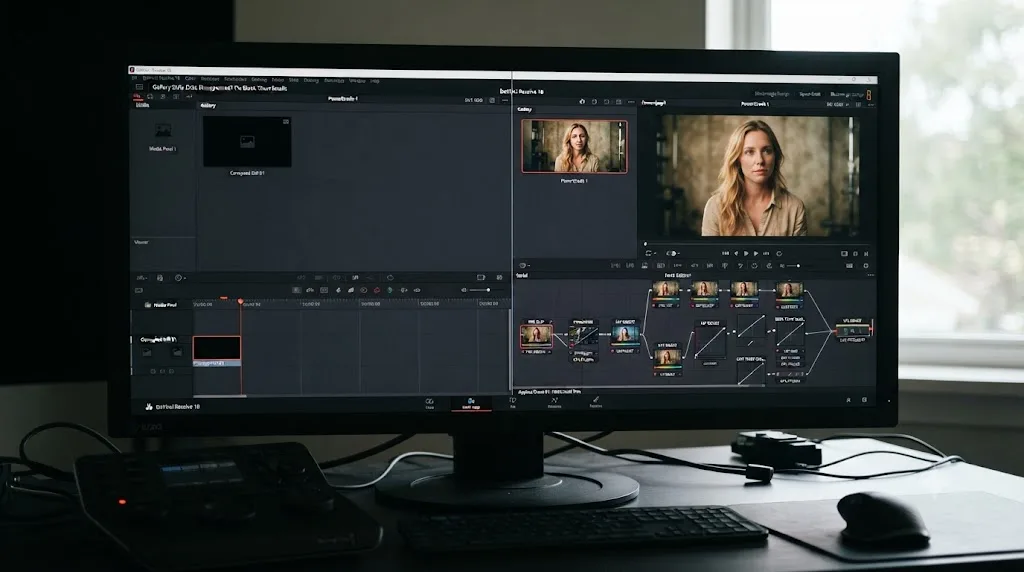
Where does DaVinci Resolve actually store your gallery stills?
To fix this reliably, you need to know exactly where Resolve is looking, because the app never asks you directly. It infers the location from a setting most editors set once during install and never think about again.
Per Blackmagic's own reference manual, the rule is specific: "The first volume in this list is where Gallery stills and cache files are stored, so you want to make sure that you choose the fastest storage volume to which you have access," according to the Media Storage section of the DaVinci Resolve manual. Not any volume in your Media Storage list. The first one, specifically, ranked by position, not by name or by how recently you added it.
By default, that first volume gets a hidden folder called .gallery created at its root, and every DPX picture you've ever grabbed lives inside it. The manual's page on changing the PowerGrade still directory confirms the default explicitly: the PowerGrade directory "defaults to a hidden '.gallery' directory that's created at the location of the first Media Storage Volume you specify in the Media Storage panel of the System Preferences window." Ordinary Stills albums follow the same default path unless you've customized it.
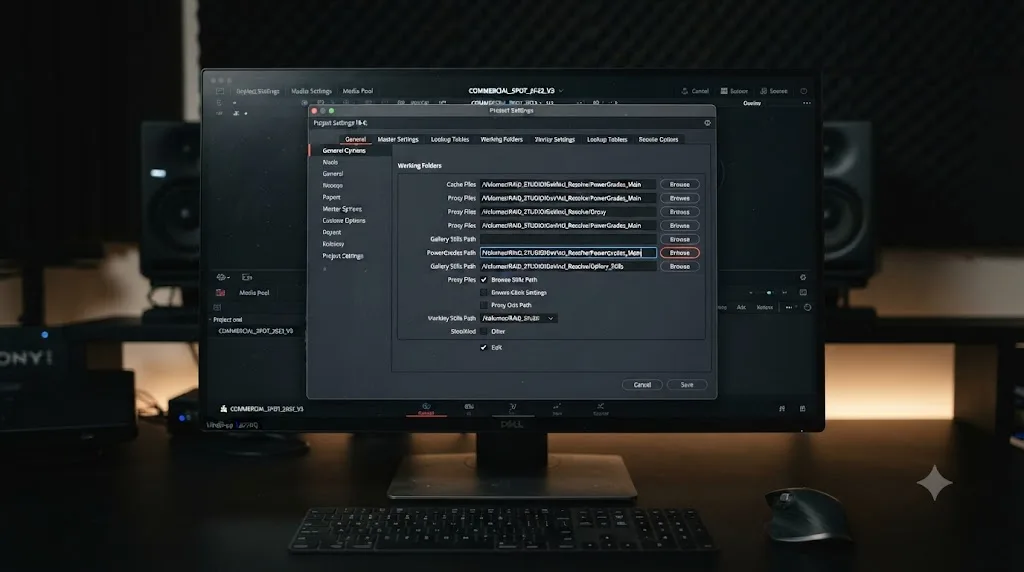
You can also see and override this directly. Project Settings > Master Settings > Working Folders has a field called Gallery Stills Location, and the manual's Working Folders page is explicit about the default behavior: "By default, all stills you save are saved in the DPX format, and are placed in the directory path specified by this field." The same panel has a separate Cache files location, defaulting to a hidden CacheClip folder on that same first volume, and the manual notes Resolve will actively warn you with a dialog box if that cache volume goes missing.
DaVinci Resolve stores every still you grab in a hidden .gallery folder on whichever drive sits first in your Media Storage list, not inside the project file itself. That single fact explains nearly every black-thumbnail report you'll find on any forum, going back to Resolve 12.
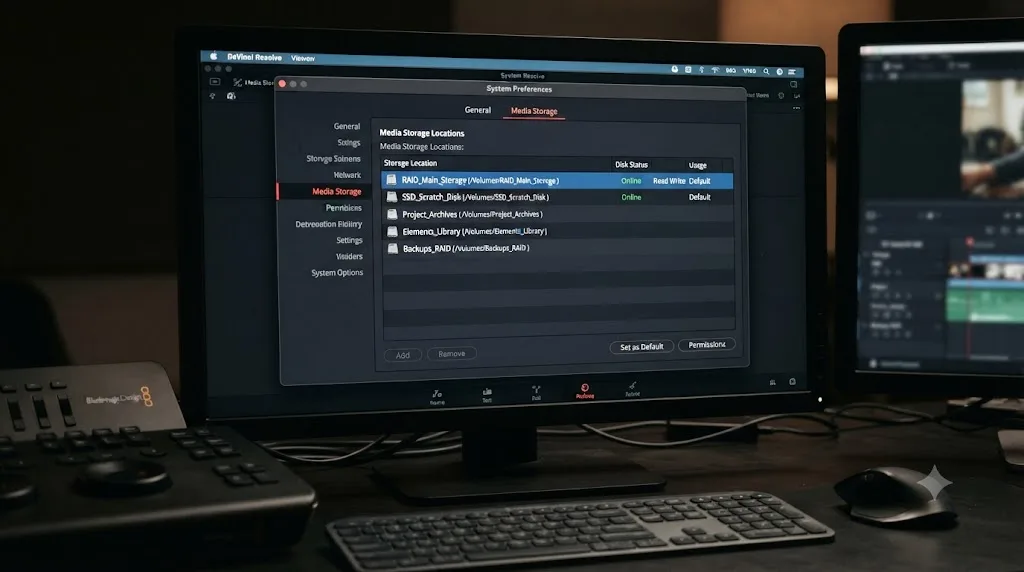
How do you fix black stills when the original drive is still connected?
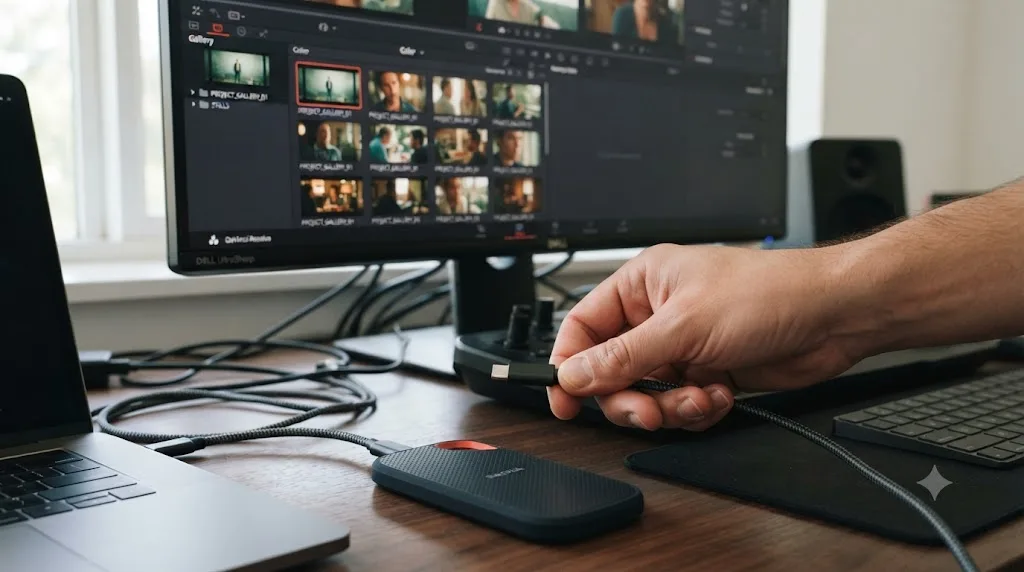
This is the easy case, and it's also the most common one, because most black-still reports trace back to a drive that's plugged in but simply isn't ranked first anymore.
- Open DaVinci Resolve > Preferences (Mac) or DaVinci Resolve > Preferences (Windows), then the Media Storage tab.
- Look at the order of the volumes listed. Whatever drive was first when you originally grabbed your stills needs to be first again.
- If a new drive got added above it, whether from a fresh SSD, a cloned backup, or Resolve auto-detecting new storage, drag it back down or remove it from the list.
- Confirm the drive is actually mounted and accessible, not just listed. A greyed-out or disconnected entry still counts as "first" to Resolve, and it still breaks the gallery.
- Restart the project (closing and reopening the project, not necessarily the whole app, is usually enough) and check whether the thumbnails repaint.
If they don't repaint immediately, look for a still-missing warning dialog. Per the manual's Working Folders notes, Resolve throws an explicit alert when a designated cache or gallery volume is unavailable, so if you dismissed that warning on launch without reading it, that dismissal is often the whole story.
One more wrinkle worth checking before you assume the drive itself is the problem: did the drive's letter or mount name change? A drive plugged into a different USB port on Windows can remount under a new letter, and a drive that didn't eject cleanly on a Mac can remount under a slightly different name in /Volumes. Resolve matches the path, not just "the drive with that data on it," so an identical drive under a new name looks exactly like a missing drive to the Media Storage list. If a rename or a letter shuffle is the culprit, the sibling problem, and the fix for it, is covered in more depth in our Media Offline guide, because it's the same underlying path-matching mechanic that breaks footage links too.
How do you fix it when the scratch drive is gone for good?
Drives die, get repurposed, or get wiped by accident. When the original volume genuinely isn't coming back, reconnecting it isn't an option, and you need to redirect Resolve to a new location instead.
- Open Project Settings > Master Settings > Working Folders.
- Find the Gallery Stills Location field and click to browse for a new folder, on a drive you actually trust to stay put.
- Do the same for Cache files location if that also pointed at the dead volume, since it defaults to the same first Media Storage volume as your gallery.
- For PowerGrade albums specifically, open the Gallery panel's three-dot option menu and choose Change PowerGrades Path, which the manual describes as prompting a "Select PowerGrades Folder" dialog. This setting is separate from the ordinary Gallery Stills Location field, which matters more than it sounds like, and the next section covers exactly why.
- Accept that anything stored only on the dead drive, with no backup and no way to regrab it, is gone as a picture. The good news is that if the project file that referenced those stills is intact, the grades those stills represent may still be recoverable by reapplying them to their original frames, covered two sections down.
This is also the moment to stop and set the new path deliberately rather than letting Resolve pick a default again. Point it at a drive that isn't your primary footage scratch disk, isn't a drive you swap between projects, and isn't a network share you don't control the uptime of. A dedicated internal SSD, used for nothing else, is the boring, unglamorous answer, and boring is exactly what you want from something that's supposed to survive years of project history.
Why does the gallery path break after quitting Resolve, even when nothing moved?
This is the part that convinces people they're losing their minds, because sometimes nothing visibly changes and the stills still go black.
Go back to that February 2018 Blackmagic forum thread. The underlying claim behind the "Gallery Stills Lost" workaround wasn't just about drives disconnecting. It was that DaVinci Resolve loses the link to the Still Gallery folders after saving and quitting the application, and this had been reported repeatedly since the Resolve 14 beta cycle. In other words, the path can go stale purely from a normal save-and-quit, independent of anything the user physically touched.
A related, earlier Creative COW thread backs this up with an even wider window. In April 2016, a user named Chris Oben reported the issue on version 12.3.2, writing plainly that "even without quitting resolve some folders of stills literally turn to black." He wasn't alone. Bruce Greene reported the same behavior separately, on version 12.1 running Windows 8.1, per the Creative COW discussion thread. Two different users, two different Resolve versions, two different operating systems, four years apart from the 2018 report, all describing the same black-thumbnail failure with no obvious trigger.
What connects all of these reports isn't a specific bug in one version. It's that Resolve resolves its gallery and cache paths at load time, and anything that shifts what "first Media Storage volume" resolves to between sessions, a driver update reordering drive enumeration, a Windows update changing how a drive mounts, even something as small as plugging in a phone or a second monitor's storage before launching Resolve, can silently change which folder the app is pointing at the next time it opens. You never touched your gallery. Resolve just decided, on that particular launch, that a different drive came first.
Resolve resolves its gallery path fresh every time it starts, and anything that changes drive order between sessions can silently break a path that worked perfectly the day before. That's why this bug has outlived a decade of version numbers: it isn't really a bug in the gallery code. It's a structural consequence of resolving storage paths dynamically instead of pinning them.
Should you save grades as PowerGrades instead of Stills?
For anything you actually care about keeping, yes, and this is the single most repeated workaround across every source covering this bug.
That same 2018 Blackmagic forum thread lands on exactly this conclusion: "It seems that the only workaround to the Still Gallery turning into black thumbnails and get lost forever is to go back to each grade and save them inside Power Grades instead of Stills or inside Still Albums," according to the thread's discussion.
Why would moving a still into a different album type change anything, if both ultimately save to the same first-volume default? Two reasons.
First, ordinary Stills albums are project-specific. They're tied tightly to the project's own settings and its Working Folders configuration, which means every project you open can theoretically be resolving a slightly different gallery path, and any drift in one project's settings doesn't get corrected by a healthy setting in another. PowerGrade albums, by contrast, are system-level. They're shared across every project on the machine, and critically, they have their own separately settable path through the Gallery panel's Change PowerGrades Path option, independent of any individual project's Working Folders settings. Once you set that path once, deliberately, on a drive you trust, it stays put regardless of what any given project's settings do.
Second, PowerGrade albums are the format built for reuse across projects and across time, so the workflow habit of grabbing a look as a PowerGrade rather than a project-local still already pushes you toward the more durable storage path, even before you think about the bug at all.
PowerGrades survive a drive swap that would turn an ordinary Stills album into a wall of black thumbnails. Not because the file format is different, DPX is DPX either way, but because the path PowerGrades resolve against is one you set on purpose instead of one Resolve infers from whatever drive happens to enumerate first.
How do you set (and keep) a PowerGrades path that survives drive changes?
Setting it once isn't enough if you set it on the wrong kind of drive. Here's how to make the choice actually hold.
- Open the Gallery panel and click the three-dot option menu in the top corner.
- Choose Change PowerGrades Path.
- In the dialog, either browse to an existing folder or create a new one, on a drive that is internal, dedicated, and not shared with anything that might get reformatted, cloned, or swapped between projects.
- Confirm the path. Per the manual's description of this dialog, it shows you the current path and lets you verify that the DPX files genuinely exist there, so use that confirmation step rather than assuming it worked.
- Right-click in the album list area of the Gallery and create a dedicated PowerGrade album for looks you intend to reuse, separate from a general Stills album you might treat more casually during an active grade.
- Migrate anything from an old Stills album you want to keep long term: apply the still to a clip, confirm the grade still works, then grab it fresh into the new PowerGrade album so it's stored under the new, stable path rather than the old one.
What "dedicated" means in practice: not your footage scratch disk that fills up and gets swapped every few projects, not a RAID array shared with render cache (more on why in the next section), and not a network share whose uptime you don't control. A single small internal SSD, used for nothing but PowerGrades and maybe your cache, is the unglamorous but reliable answer. If you ever move to a new machine, the PowerGrade export workflow, right-click a still and choose Export, produces a .drx file you can carry over and reimport, so the album travels even when the drive underneath it eventually doesn't.
Can a RAID array cause gallery stills to disappear?
Yes, and this is a specific, reproducible pattern that goes beyond ordinary drive disconnects.
On that same Lift Gamma Gain thread, a user named Arthur Graham-Maw described a persistent version of this bug: stills that kept disappearing, repeatedly, project after project. His fix, reported on the thread, was moving his working folders "from my 3x RAID 0 HDD set" to "my single SSD boot drive," which resolved the persistent disappearing-stills problem for him.
RAID 0 specifically is worth flagging because of what it is: a striping configuration that spreads data across multiple physical disks with zero redundancy, chosen for speed, not reliability. It's a genuinely reasonable choice for a scratch disk handling render cache and heavy media, where losing the whole array to one failed drive is an acceptable risk against the performance win. It's a much worse choice for gallery stills specifically, for two compounding reasons: RAID controllers and their drivers can reorder or rename the array's mount point across reboots in ways a single drive doesn't, and if any one physical disk in the array degrades even partially, the whole striped volume can become unreliable or unmountable, taking every DPX file with it at once rather than failing gracefully.
Moving your gallery and cache off a RAID 0 array and onto a single dedicated SSD has fixed disappearing stills for editors who could reproduce the bug reliably. If your stills disappear on a schedule that correlates with reboots, driver updates, or heavy render sessions rather than with anything you deliberately changed, an unstable array mount point is worth ruling out before you blame Resolve itself.
The practical takeaway isn't "never use RAID." It's "don't point your gallery at the same volatile array you use for scratch and cache." Split them: fast, disposable RAID for render cache and proxies where a rebuild costs you time but nothing irreplaceable, and a single boring SSD for the gallery and PowerGrades, where a rebuild costs you looks you may not be able to recreate exactly.
Does a corrupted project database cause this too?
Sometimes, and it's worth separating from the path problem above, because the fix is different.
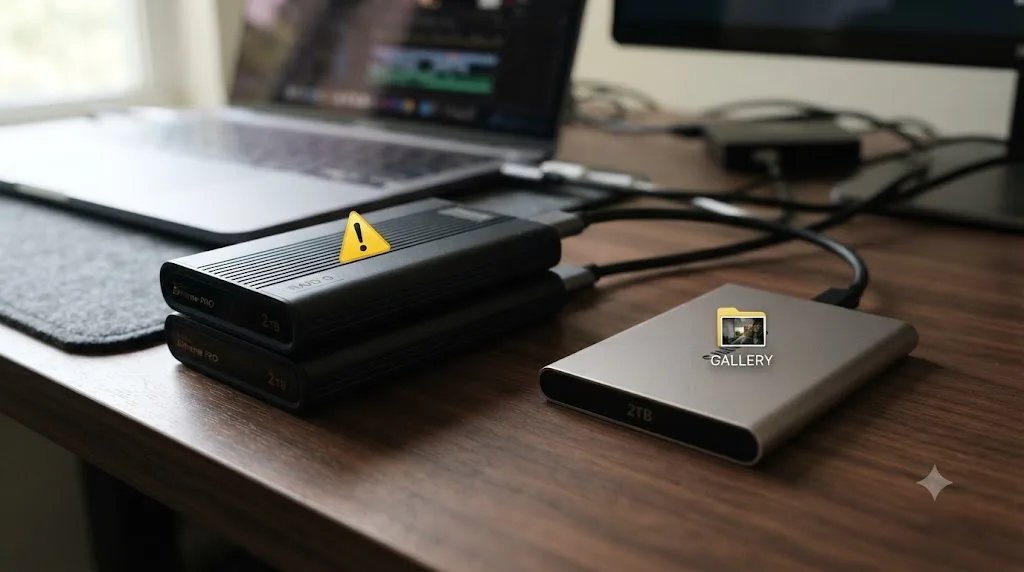
Back on the original Creative COW thread about disappearing stills, colorist Marc Wielage weighed in on Chris Oben's report with a framing that's stuck with editors for years since. "While Resolve looks like a color-correction program, but in a way it's really a big database that keeps track of color, stills, and edit decisions," Wielage wrote, according to the thread. The implication is direct: if that underlying database structure gets even slightly damaged, stills and their references can go wrong in ways a simple drive reconnection won't fix, because the problem isn't the picture file's location, it's the record that's supposed to point at it.
This connects directly to a separate, related failure mode: shared and moved databases. Colorist and trainer Robbie Carman covers this specifically in a Mixing Light tutorial on cache and gallery warning dialogs. He explains that these warnings show up because "Resolve hangs onto the cache & gallery locations (file paths) of the system that the database and projects were created on and those locations are not available on the system that the database or projects are being loaded onto," per his tutorial. In plain terms, a database created on one machine remembers that machine's drive paths, and opening the same database on a different machine, or after a significant storage change, hands you exactly the black-thumbnail symptom, because the paths it's holding onto simply don't exist where it's looking.
Carman's fix for the common case is almost anticlimactic: reopen the affected project, go into Project Settings, change any setting at all, save, and restart Resolve. He reports this resolves the warning dialogs "9 times out of 10." For the stubborn remainder, he describes a more surgical option: manually editing the Config2.XML and Project.XML files inside a Disk Database to locate and delete the outdated cache, gallery, and VTR path entries, with an explicit warning attached: "PLEASE, PLEASE, PLEASE don't touch anything else in these XML files," since editing the wrong field risks "seriously screwing up your project(s)."
If your gallery problems showed up right after a database move, a machine change, or a project inherited from another editor, rather than after a simple drive swap, this is your fault tree, not the scratch-disk one. And if the same session that lost your gallery also produced other strange symptoms, freezes, a project that won't reopen, settings reverting on their own, that's worth cross-checking against our crashing and stability guide, since a damaged database is one of the same root causes behind both problems.
Resolve is, underneath the color tools, a database, and a database that loses track of one path can lose track of thousands of stills at once. That's the sentence to remember the next time an entire album goes black in one project load instead of just one or two stills.
Can you recover a still after it's already showing black?
Sometimes, and the recovery path depends on whether the picture data still physically exists somewhere on disk.
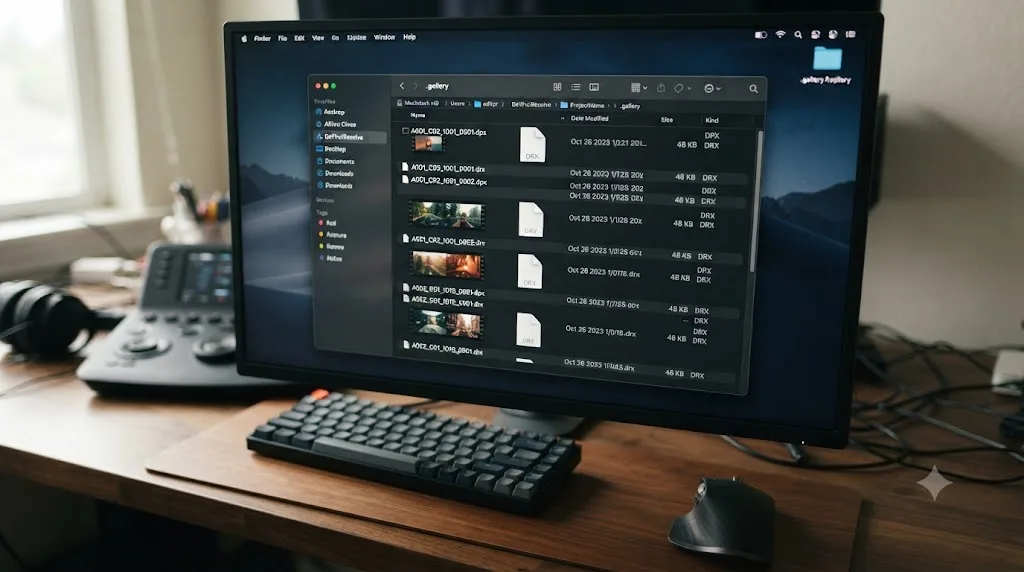
First, look for it. Every still Resolve ever saved lived, at the time it was saved, in a .gallery folder on whatever drive was first in your Media Storage list that day. If you still have access to that drive, even if it's not currently your active scratch disk, browse to it directly in Finder or File Explorer rather than through Resolve. Inside the .gallery folder, you're looking for matching pairs: a .dpx file, the picture, and its accompanying grade data. Resolve needs both to import a still correctly; a .dpx alone won't reconstruct the grade, and a grade reference without its .dpx won't render a picture.
If you find them:
- Duplicate the entire folder before touching anything. You're about to be doing surgery on the one copy of data you're trying to save.
- Confirm you have matched pairs, not orphaned files from a partial write.
- Import them back into a project's Stills or PowerGrades album using the Gallery panel's import option, pointing at the folder where the pairs live.
If the picture data genuinely isn't there, don't chase it further. The faster and more reliable recovery, and the one every source in this piece points toward, is to stop trying to resurrect the broken still and rebuild it instead:
- Reopen the original project that had the healthy grade, if you still have it. Grades saved inside the project file survive a lost gallery picture, per the split explained earlier.
- Navigate to the same source clip and the same frame the still was originally grabbed from.
- Confirm the grade is still applying correctly, wheels moving, image changing as expected.
- Grab a fresh still, right-click the viewer, Grab Still, into your new, properly configured PowerGrades album.
This is almost always faster than digging through XML files, and it produces a clean still with a correct path from the start, rather than a recovered one still tied to whatever fragile setup caused the loss in the first place.
What about shared databases and collaborative grading?
This is where the problem gets a genuine multiplier, because you're no longer dealing with one machine's storage drifting over time. You're dealing with several machines that each resolve the same gallery path differently.
When a colorist, an assistant, and an editor all open the same shared project database from different workstations, each machine checks the gallery and cache paths recorded in that database against its own local and network storage. A path that resolves correctly on the colorist's suite, because that machine has the reference SSD mounted at a specific point, can resolve to nothing at all on the assistant's laptop, which has never seen that drive. Both machines are being entirely honest about what they can see. The database just recorded one specific answer, and it's only correct for whichever seat originally set it.
The fix that scales across a team isn't a per-machine workaround. It's agreeing on a shared, always-available storage location before anyone grabs a single still, ideally a network volume every workstation mounts identically, under the same name, every time. Set your Gallery Stills Location and PowerGrades path to that shared location from the start of the project, on every machine, rather than letting each seat default independently to its own first Media Storage volume. Robbie Carman's shake-up fix, changing any Project Settings value and resaving, is worth keeping in your back pocket for the individual warning-dialog cases that inevitably slip through even a well-planned shared setup.
If your team already struggles with media paths disagreeing across workstations for footage, not just stills, that's the same underlying mismatch our Media Offline guide covers for clips, and the fix philosophy is identical: agree on the storage layout once, in writing, before the project starts, rather than debugging it seat by seat after the fact.
How do you stop this from happening on your next project?
A handful of habits fix this permanently rather than one project at a time.
- Pin your Media Storage order and leave it alone. Once your fastest, most reliable drive sits first in Preferences > Media Storage, resist the urge to reorder it for a one-off project. Add new drives below the existing entries, not above them.
- Move gallery and cache off any RAID array used for scratch or render duty, onto a single dedicated SSD used for nothing else. Speed matters less here than stability; the gallery is small enough that even a modest SSD is more than fast enough.
- Set a deliberate PowerGrades path early, through the Gallery panel's option menu, rather than letting Resolve default to whatever drive happened to enumerate first on a given launch.
- Save anything you'd hate to lose as a PowerGrade, not a project-local Still. Treat the ordinary Stills album as scratch space for the current grading session, and promote anything worth keeping to a proper PowerGrade album before you move on.
- Export a
.drxbackup of your important PowerGrade albums. Right-click a still, choose Export, and keep the resulting files somewhere outside your usual scratch and gallery drives entirely, the same instinct that makes any backup useful. - On a shared or moved database, standardize storage paths across every workstation before the first still gets grabbed, not after the first black thumbnail shows up.
- If warnings appear on launch about missing cache or gallery locations, read them instead of dismissing them. Per the manual, Resolve is actively telling you the path it's about to use doesn't exist. That dialog is the fix arriving before the damage, not after.
Does this behave differently on Windows, Mac, or Linux?
The core mechanism, the first Media Storage volume owning the gallery path, is identical across all three operating systems, since it's determined by Resolve itself rather than the OS. What differs is how each OS makes that first volume drift out from under you.
On Windows, drive letters are the usual culprit. Windows assigns letters in the order drives are detected, so plugging your gallery drive into a different USB port, or connecting a different external drive first on a given boot, can shuffle which letter your gallery volume gets, or push a different volume to the top of Resolve's Media Storage list depending on how you originally configured it. Assigning your gallery drive a fixed, unusual letter through Disk Management, one Windows won't hand out automatically to a new device, removes this failure mode almost entirely.
On Mac, drives mount under /Volumes by name, and an unclean eject can leave a stale mount point, forcing the returning drive to remount as /Volumes/Drivename 1 instead of its usual name. Resolve is looking for the exact original path, so this small rename is functionally identical to the drive being gone. Naming every drive uniquely, and unmounting cleanly through Finder rather than yanking a cable, both cut down on this.
On Linux, mount points are typically more static once configured through fstab or a desktop environment's automount rules, which makes the classic path-drift version of this bug rarer. What's more common on Linux is the shared-database and multi-machine scenario from the section above, since Linux grading suites are more likely to run against a centralized network database shared with Mac and Windows seats, and cross-platform path formats simply don't match each other without deliberate configuration.
Across all three, the fix philosophy from earlier holds without modification: pin the first Media Storage volume, keep it off anything that reorders or renames itself between sessions, and set your PowerGrades path once, deliberately, rather than trusting the default.
What's the fastest path back to a working gallery?
Check whether the grade still applies before you worry about the picture. A black thumbnail that still grades a clip when you double-click it is a cosmetic problem, not a lost look. Check your Media Storage list next, since a reordered or disconnected first volume explains the overwhelming majority of these reports, going back a decade of Resolve versions on every major forum that covers color work. If the original drive is truly gone, redirect the gallery and PowerGrades paths to a stable dedicated drive rather than letting Resolve pick a new default on its own, and rebuild anything unrecoverable straight from its source grade rather than chasing broken DPX files.
Then make the fix permanent instead of temporary. Get your gallery and cache off any RAID array shared with scratch duty, save anything worth keeping as a PowerGrade rather than a project-local still, and if you're working across a team, agree on shared storage paths before the first grab, not after the first black square shows up. If you're new enough to Resolve's storage model that Preferences and Project Settings still feel like a maze, our beginner's guide is a good place to build that foundation, and once your gallery is stable, our color grading basics guide covers what to actually do with a gallery full of reliable reference stills. If you'd rather have something point at the exact panel on your own screen the next time a warning dialog pops up mid-session, that's the specific gap TryUncle is built to close.
Your grades almost certainly survived this. Go check.
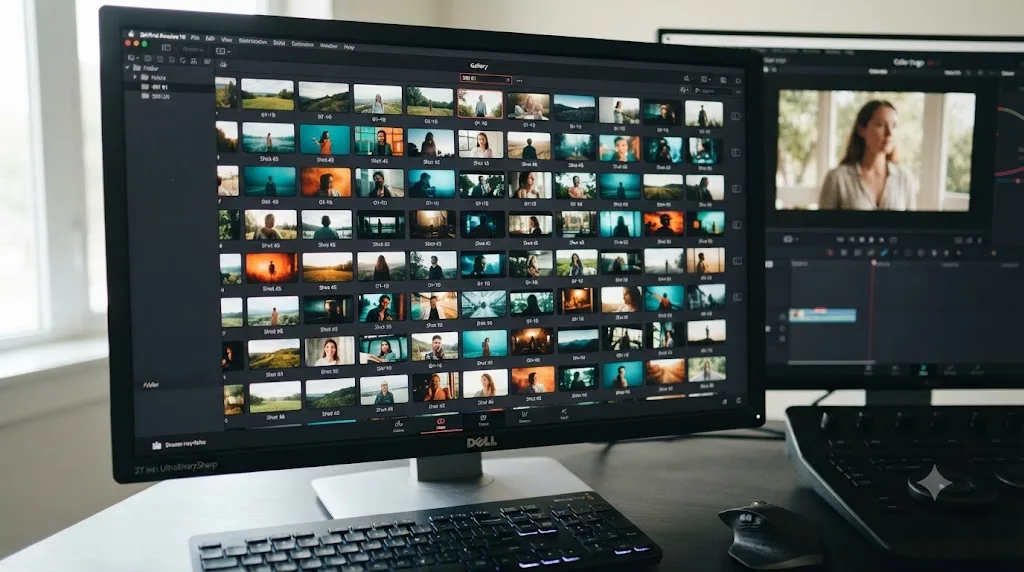
Frequently asked questions
- Why did my DaVinci Resolve gallery stills turn black?
- Resolve stores the picture for every still in a hidden .gallery folder on the first drive listed in your Media Storage preferences. When that drive is disconnected, renamed, reordered, or replaced, Resolve can no longer find the DPX picture data, so the thumbnail renders as solid black even though the grade information is still recorded.
- Are my grades gone if the gallery stills show up as black?
- Usually not. The node tree and grade settings for a still are saved with the project file itself, separately from the DPX picture. A black thumbnail almost always means the picture is missing, not the grade. Reconnecting the original storage path restores the thumbnail, and if it doesn't, you can often rebuild the picture by reapplying the grade to its source frame and grabbing a new still.
- How do I fix black gallery stills in DaVinci Resolve?
- Open DaVinci Resolve Preferences (or Project Settings on a shared database) and check the Media Storage list. Make sure the drive that was first in that list when you saved the stills is reconnected and still sits first. If the original drive is gone permanently, set a new Gallery Stills Location under Project Settings > Master Settings > Working Folders, and rebuild any stills you can't recover from the picture data.
- What's the difference between Stills and PowerGrades for avoiding this?
- Both save to a folder on your first Media Storage volume by default, so neither is immune on its own. The practical difference is that a PowerGrade album has its own separately configurable path, set through the Gallery's option menu, so you can point it at a stable, dedicated drive independent of whatever volume happens to sit first in your Media Storage list that week.
- Can I recover a still after it's already showing black?
- Sometimes. Look inside the hidden .gallery folder on your original scratch drive for matching DPX and XML files. If you find them, duplicate the folder before touching anything, since a still needs both a DPX and a DRX file to import. If the picture data is truly gone, the only recovery is to reopen the source project, reapply the grade to the same frame, and grab a fresh still.
- Does reinstalling DaVinci Resolve fix disappearing gallery stills?
- No. Reinstalling replaces the application, not your Media Storage preferences, your project database, or the drive paths your gallery depends on. It won't repair a broken storage path and it won't bring back a picture that's genuinely missing. Fix the storage path first; only chase a reinstall if you suspect the application itself is corrupted for unrelated reasons.
- Why do gallery stills disappear again after I fix them once?
- Because the underlying cause, an unreliable or reordered scratch disk, is still there. If you fixed the symptom by reconnecting a drive without changing your Media Storage order or moving your gallery off a shaky RAID array or network share, the next drive swap, OS update, or unplug-replug cycle can knock the path loose again.
Sources
- Blackmagic Forum: "Gallery Stills Lost - Workaround"
- Creative COW: "Gallery stills disappearing randomly!"
- Lift Gamma Gain: "Gallery Stills are coming up as black instead of actual still frame"
- DaVinci Resolve Reference Manual: Media Storage (Blackmagic Design)
- DaVinci Resolve Reference Manual: Working Folders (Blackmagic Design)
- DaVinci Resolve Reference Manual: Changing the PowerGrade Still Directory (Blackmagic Design)
- Creative COW: "Gallery stills and render cache files location"
- Robbie Carman, Mixing Light: "Fixing Cache & Gallery Warning Dialog Boxes"
- DaVinci Resolve - Color (Blackmagic Design)
Learn by doing, not watching
Learn Resolve inside Resolve.
TryUncle watches your screen and points at the exact control when you ask. No tabs, no timestamps, no rewatching tutorials.
Download free for MacKeep reading
Fixes · Jul 7, 2026 · 26 min
DaVinci Resolve Media Offline: Every Cause and the Fix
Every reason DaVinci Resolve marks a clip media offline, and the exact relink, cache, and codec fixes for each cause, in order of how often they happen.
Fixes · Jul 7, 2026 · 24 min
Why Does DaVinci Resolve Keep Crashing? The Real Fixes
DaVinci Resolve keeps crashing for a few real reasons: GPU drivers, VRAM limits, a corrupted cache, or a damaged project. Here's the fix, in order.

Guides · Jul 7, 2026 · 35 min
How to Color Grade in DaVinci Resolve: The Basics
Learn how to color grade in DaVinci Resolve: build a node chain, balance shadows and highlights with Lift, Gamma, and Gain, and read the scopes.