Articles / Fixesupdated for DaVinci Resolve 21.0.2 (July 2026)
Why Does DaVinci Resolve Keep Crashing? The Real Fixes
Quick answer
DaVinci Resolve usually crashes from an outdated GPU driver, VRAM running out, a corrupted cache or preferences file, or a damaged project database. Update your GPU driver first, then lower timeline resolution, reset preferences, and clear the cache. If crashes started right after updating to Resolve 21, install the newest point release, since Blackmagic has shipped several stability patches.
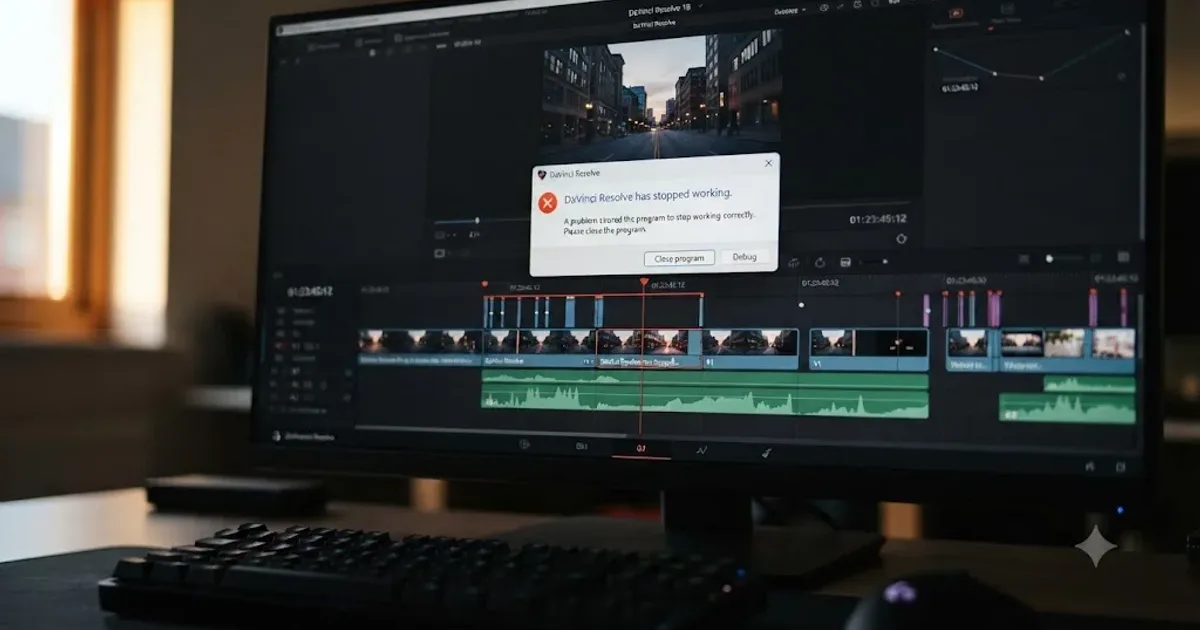
DaVinci Resolve crashing mid-grade isn't random, even when it feels that way. It's almost always one of a short list: a GPU driver, a VRAM ceiling, a corrupted cache or database, a third-party plugin, or a bug that Blackmagic has already patched. Here's how to tell which one you've got, and the order to check them in so you're not reinstalling the whole app for a five-minute fix.
What's actually causing DaVinci Resolve to keep crashing?
Resolve leans on your GPU for nearly everything: color grading, Fusion, noise reduction, and even scrubbing the timeline. When that dependency breaks down, in a driver, in available memory, or in a corrupted setting, the app doesn't degrade gracefully. It quits.
A DaVinci Resolve crash is a symptom, not a diagnosis. The trigger is different depending on whether it happens on launch, mid-scrub, or mid-render, which is why "just reinstall it" fixes so few of these cases. Match the moment of the crash to the cause below instead of guessing.
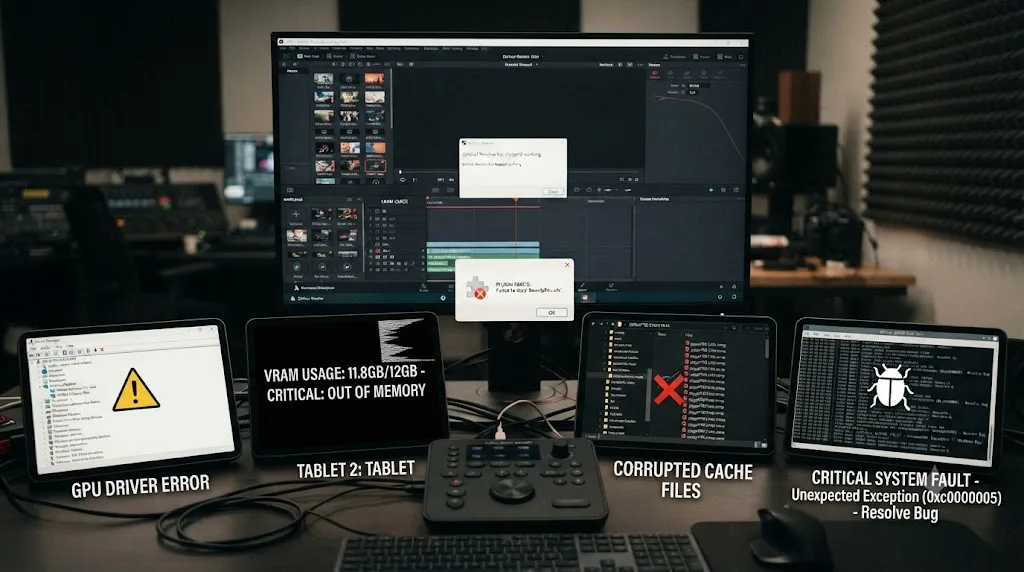
Where does DaVinci Resolve keep its crash logs, and how do you read them?
You don't have to guess at any of this. Resolve writes a log while it runs, and the last few lines before a crash usually name the thing that killed it.
The fast way is built into the app. Open Help > Create Diagnostics Log on Desktop and Resolve bundles its recent logs into a single zip file, which is also exactly what Blackmagic asks for when you file a report through its DaVinci Resolve support channels. The manual way depends on your OS:
| System | Where the logs live |
|---|---|
| Windows | %AppData%\Blackmagic Design\DaVinci Resolve\Support\logs |
| macOS | ~/Library/Application Support/Blackmagic Design/DaVinci Resolve/logs |
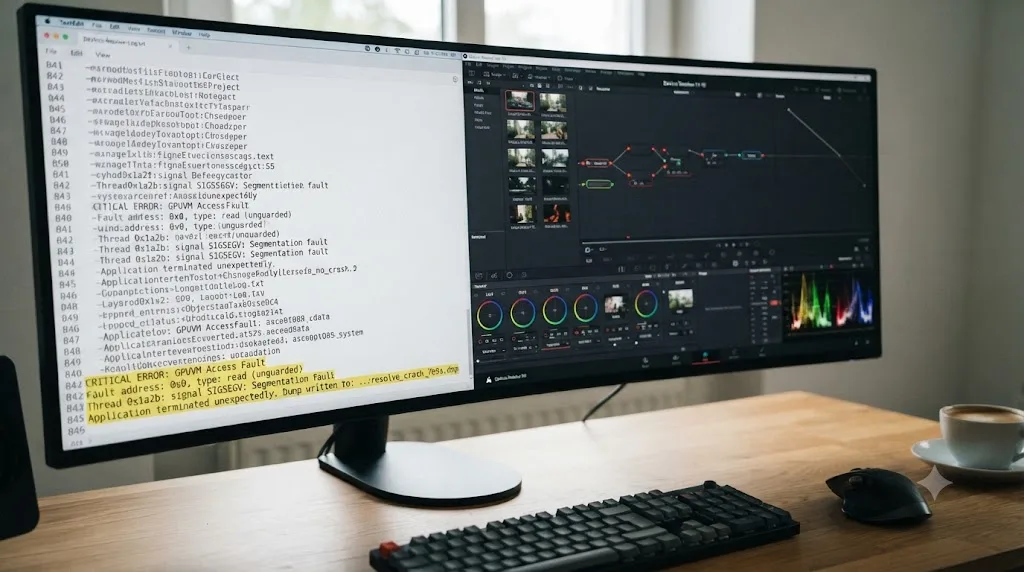
The last lines of a DaVinci Resolve crash log usually name the exact component that took the app down: a GPU call, a plugin, or a media file. Open the newest log in any text editor and jump straight to the end. You're not reading it like a book. A CUDA, Metal, or OpenCL error points at the GPU, so start with drivers and VRAM. A line naming a file that ends in .ofx points at a third-party plugin. A media file path repeated over and over points at one specific clip.
On a Mac you get a second witness for free. macOS writes its own crash report the moment any app dies, and you can open it in the Console app under Diagnostic Reports. The "Crashed Thread" section names the component that was running when everything stopped, which is often more specific than Resolve's own log.
Three lines of log reading can replace an afternoon of shotgun troubleshooting. Check it before you reinstall anything.
What should you do in the first minute after a crash?
Two things, in this order: preserve the evidence, then check what survived.
The evidence first. Resolve's logs roll over, so a crash from this morning gets buried under routine entries by this afternoon. Create the diagnostics zip right away and note what you were doing when it died. That last action, applying an effect, scrubbing a clip, starting a render, is the single most useful diagnostic fact you own, and it fades from memory faster than you'd think after the third crash of the day.
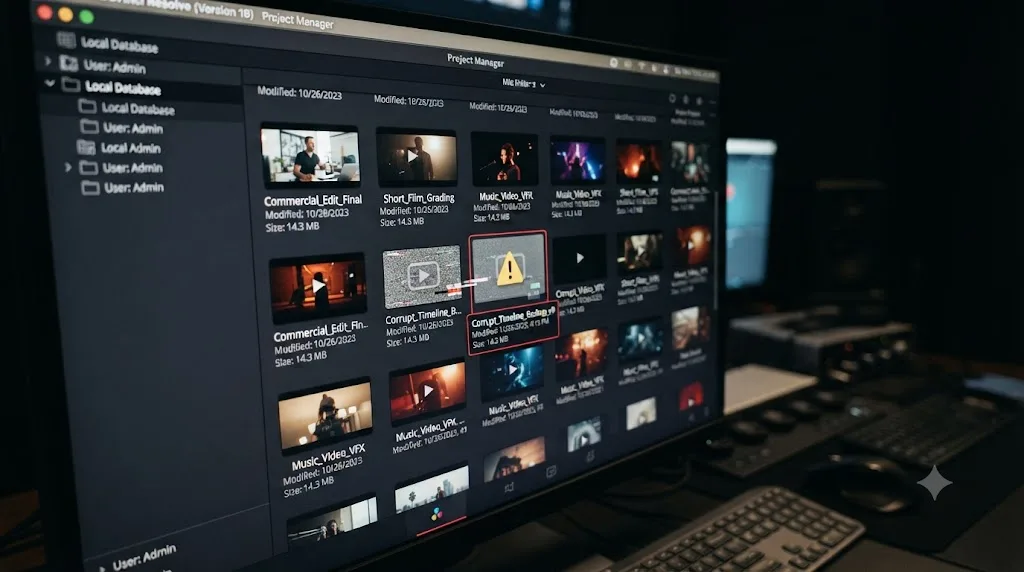
Then reopen Resolve and take stock before redoing anything. If Live Save was on, your edit is probably intact up to the last action. If the project won't open or opens visibly wrong, don't start rebuilding by hand. Right-click the project in the Project Manager and look at your project backups, which hold timestamped copies from minutes or hours ago, assuming you had backups enabled in Preferences > User > Project Save and Load. Rolling back twenty minutes beats re-editing an afternoon.
One more habit worth stealing: if the crash hit mid-render, treat the partial output file as garbage. Delete it and render that section again rather than trying to stitch around it, since a file cut off mid-write can itself misbehave when you re-import it to check the damage.
What you should not do is immediately repeat the exact action that crashed the app, with the same clip, the same effect, and the same settings, just to see if it happens again. It usually does. You've then learned nothing new and lost another minute, so change one variable first.
Is it your GPU driver?
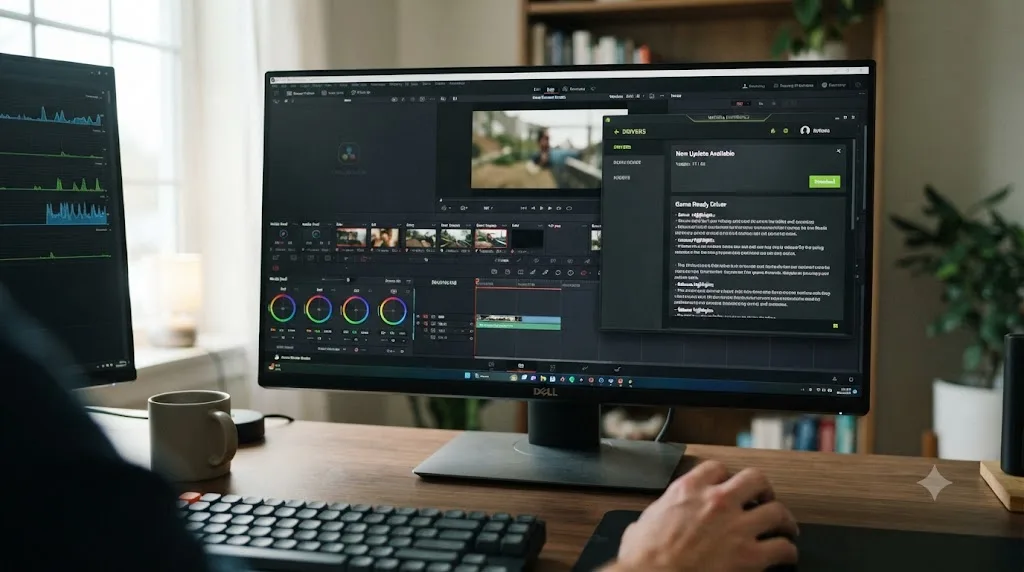
Check this first. As one breakdown of Resolve's crash patterns puts it, Resolve leans on the GPU for nearly everything, and "when the GPU runs out of VRAM, Resolve doesn't warn you. It just... quits," according to Vagon's guide to DaVinci Resolve crashes. A driver that's out of date, or one installed through Windows Update instead of straight from the manufacturer, is behind a large share of otherwise unexplainable crashes.
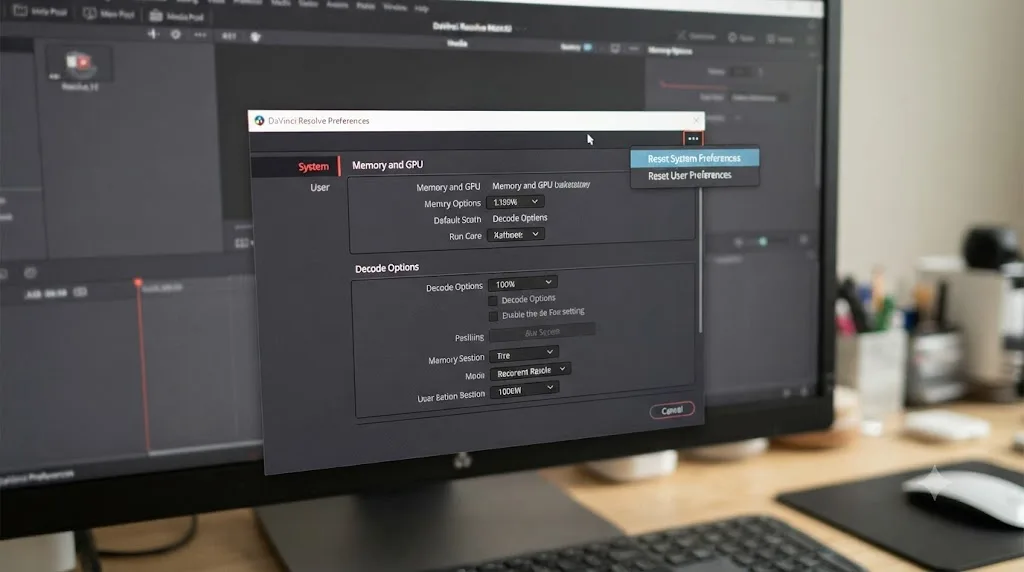
Install the newest driver directly from NVIDIA, AMD, or Intel. On an NVIDIA card, pick the Studio branch over Game Ready when the installer offers the choice, since Resolve 21's published requirements name the Studio driver specifically. If the crashes started right after a driver update, rolling back one version is a legitimate fix, not a last resort. Then open Preferences > System > Memory and GPU and confirm GPU Processing Mode matches your hardware instead of sitting on a default that stopped working after the update.
Is DaVinci Resolve running out of VRAM?
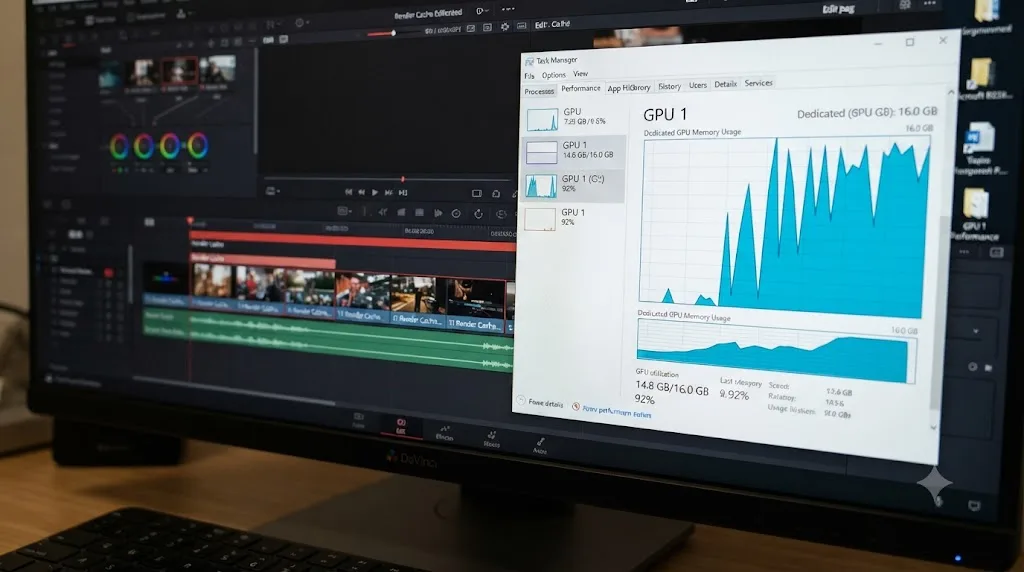
A GPU that's merely slow gives you stutter. A GPU that's completely out of VRAM crashes Resolve outright, with no dialog explaining why. Noise reduction, Magic Mask, Fusion compositions, and multiple layered effects all compete for the same pool of memory, and stacking two or three on a 4K clip is enough to tip a capable card into failure.
Per Puget Systems' hardware recommendations for DaVinci Resolve, plan for at least 8GB of VRAM at 1080p, 12GB at 4K, and 20GB or more at 6K or 8K. If your card is under that table for your actual working resolution, no preference tweak fixes it permanently, only fewer effects or a lower timeline resolution will.
Lowering timeline resolution frees GPU memory instantly and costs nothing permanent. Your source media stays untouched. You're only reducing what Resolve pushes to the GPU while you edit, and you can render the final export at full resolution from the Deliver page regardless.
Is your hardware below the minimum, or just below realistic?
There are two different bars here, and the gap between them explains a lot of "but my machine meets the specs" crashing.
The published minimum is the launch bar. Per DaVinci Resolve Club's requirements breakdown, Resolve 21 officially asks for 16GB of RAM on Windows (32GB if you use Fusion), a GPU with 4GB of VRAM, and Windows 10 Creators Update or newer. On Mac it wants macOS 15 Sequoia or later on Apple Silicon, with 8GB of unified memory as the floor. Meet those numbers and Resolve installs, opens, and cuts a light 1080p timeline without complaint.
The realistic bar is what keeps the app standing under a working timeline, and it sits much higher. The same breakdown notes that practical 4K work with effects wants 8 to 12GB of VRAM despite the 4GB official minimum. Puget Systems, which builds Resolve workstations for a living, goes further on system memory in its hardware recommendations: 64GB of RAM for 1080p footage, 96GB for 4K, and 128GB once you're cutting 6K.
| Resource | Official Resolve 21 minimum | What holds up in practice |
|---|---|---|
| System RAM (Windows) | 16GB, 32GB for Fusion | 64GB at 1080p, 96GB at 4K, per Puget Systems |
| GPU VRAM | 4GB | 8GB at 1080p, 12GB at 4K, 20GB+ at 6K/8K |
| Mac unified memory | 8GB, 16GB for Fusion | More, since GPU and system share one pool |
So when a minimum-spec machine crashes on a maximum-spec timeline, the machine isn't broken and neither is Resolve. The spec sheet just answered a different question than the one your timeline is asking. Laptops add one more wrinkle: thin machines throttle under sustained renders, so heat can finish off a session that the specs alone say should survive.
Could your footage's codec be the real problem?
Sometimes the timeline isn't too heavy. The files on it are just hostile.
Long-GOP camera codecs, the highly compressed H.264 and H.265 that mirrorless cameras record, make Resolve reconstruct most frames from their neighbors instead of reading them directly. That's cheap on the memory card and expensive at edit time. On Windows, hardware-accelerated decoding of those codecs is a Studio feature, so the free version pushes the work onto your CPU, and a machine that would sail through ProRes can wheeze and fall over on 10-bit H.265 from the same shoot.
Variable frame rate footage from phones and screen recorders is one of the most dependable ways to destabilize DaVinci Resolve. Phone cameras, OBS captures, and game recordings save frames at whatever rate the device managed moment to moment, while Resolve's timeline assumes one constant rate. The mismatch shows up as audio drift, stutter, and crashes that follow that one clip wherever you put it.
The fix for both is the same idea: stop making Resolve decode the hard file in real time.
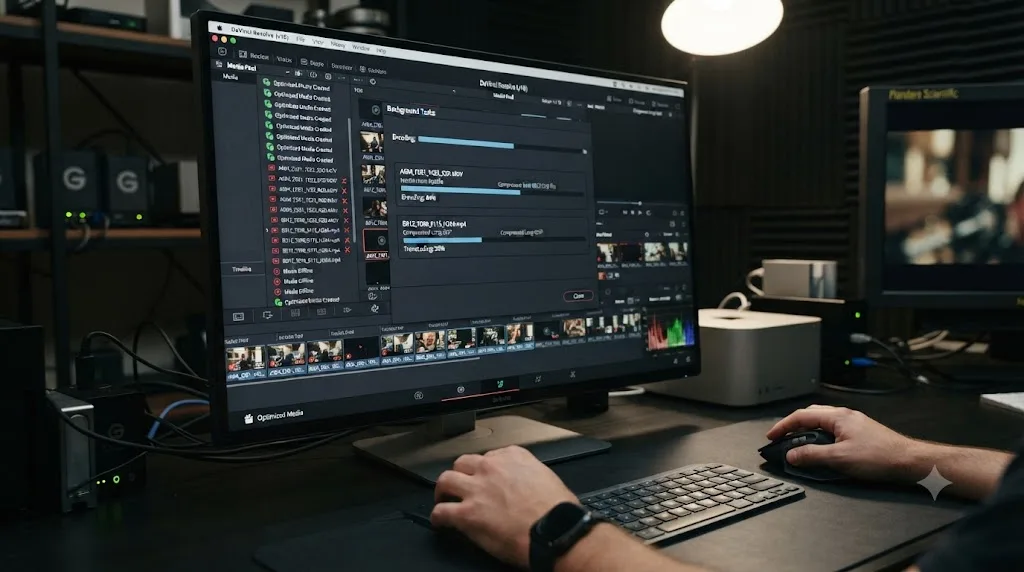
- Select the troublesome clips in the Media Pool, right-click, and choose Generate Optimized Media. Resolve builds edit-friendly copies and cuts with those, while your export still uses the originals.
- For variable frame rate files, convert to a constant frame rate before import instead, with a free tool like HandBrake, since optimizing after import can bake the drift in.
- If your whole workflow is long-GOP footage on a modest machine, work with proxies as a habit rather than a rescue.
This is also the honest answer to a machine that only crashes on one client's footage and never on your own. The client's camera picked the codec. You get to pick what Resolve actually plays.
Should you reset preferences and clear the cache first?
If the crash happens at the same repeatable point, on launch, opening a specific project, or scrubbing a particular clip, suspect corruption over hardware. Open Preferences > System and use the reset option in the top right corner to restore Resolve's settings to default without touching your project files. Then clear the cache through Playback > Delete Cache Files > All, since a damaged cached frame can crash playback the same way a damaged source file does.
Do this before you touch drivers or hardware if the crash is consistent rather than random. It costs a few minutes and rules out the cheapest explanation first.
Is your storage quietly causing the crashes?
Drives fail politely at first, and Resolve is often the app that notices.
Start with the cache drive's free space. Resolve writes cache files constantly during playback and rendering, and a drive that fills to the brim mid-write leaves the app holding a half-finished file it can't complete. Check where your cache points in Project Settings, and keep real headroom on that drive, not a token few gigabytes. Puget Systems' recommended build splits this exact risk apart, giving media cache and scratch their own NVMe drive so cache churn never competes with the OS or your footage.
External and network storage adds a different failure. A USB drive that power-saves itself to sleep, a cable that reseats loose in its port, or a NAS that pauses under load all yank media out from under Resolve mid-read, and the app doesn't always survive the surprise. If crashes cluster around one bus-powered drive or only happen when you're editing over the network, copy the media to an internal drive and re-link. Ten minutes of copying is a cheap experiment, and when it works you've found the cause without touching a single setting.
And take a slow, clicking, or frequently disconnecting drive seriously as a drive problem, not a Resolve problem. An editing app that reads thousands of files an hour is a better failing-disk detector than most disk utilities, because it finds the bad sectors your OS hasn't visited in months.
Could a corrupted project or media file be the cause?
Yes, and it's more common than people expect once a project has been open, saved, and crashed a few times in a row. Multimedia designer Mirko Fabian ran into this finishing a 6K BRAW short film loaded with color grading effects, describing how "those effects caused my system to constantly crash because the workload was simply too heavy," in his account of the troubleshooting process. Rather than keep forcing the same heavy timeline through, he pre-rendered the demanding sections individually to work around it.
If you suspect a specific project rather than the whole app, launch Resolve without opening it, right-click the project in Project Manager, and choose Export Project to a fresh copy on another drive. Import that copy back in instead of reopening the original. If a single clip crashes Resolve on load or scrub, re-import or re-link it rather than assume the whole project is unusable, the same isolation approach that fixes a stuck or failed render. And if the clip drops to Media Offline instead of taking the app down, that's a different failure with gentler fixes, covered in our media offline guide.
Is a third-party plugin or OFX effect crashing Resolve?
OFX plugins run inside Resolve's own process. There's no sandbox between them and the app, so when a plugin fails, Resolve goes down with it, and the crash dialog won't tell you which passenger caused the wreck.
Three signs point at a plugin. The crash happens the moment you apply or render one specific effect. The last lines of the crash log name a file ending in .ofx. Or the crashing started right after you installed an effects pack, a film grain plugin, or a transitions bundle. Any one of those moves plugins to the top of your suspect list.
Here's how to isolate the culprit:
- Check the plugin vendor's site for a Resolve 21 compatible build first. Major Resolve versions regularly break plugins that ran fine on the previous release, and an update is the clean fix.
- If there's no update, pull all third-party OFX out temporarily. Move everything from
C:\Program Files\Common Files\OFX\Pluginson Windows, or/Library/OFX/Pluginson macOS, into a spare folder on your desktop. - Relaunch Resolve and work for a while. If the crashing stops, a plugin was your problem.
- Move the plugins back one at a time, relaunching between each, until the crash returns. The last one you restored is the offender, and it stays out until its vendor ships a fix.
Timelines that used a removed plugin will show its effects as missing rather than crashing, which is exactly the trade you want while you test. Fusion templates and transition packs from marketplaces are worth the same suspicion, since a broken macro can take down the Fusion page even though it isn't an OFX file.
What if Resolve crashes on launch and you can't get in at all?
A launch crash blocks every in-app fix on this page. You can't reset preferences from a Preferences panel you can't reach. So you work from outside.
- Rule out the impossible first. On an Intel Mac, Resolve 21 doesn't crash at launch, it simply can't run there, and the fix is a different machine or an older Resolve version.
- Read the report the OS wrote. On macOS, open Console and check the newest entry under Diagnostic Reports. On Windows, Event Viewer's Application log records the error with a "faulting module" name, and that name often points straight at a driver file or a plugin.
- Pull third-party OFX plugins out of the shared plugins folder, exactly as described above. This needs no working copy of Resolve, and a plugin that fails while loading is a classic launch killer.
- Update or reinstall the GPU driver from the vendor's installer, which also runs fine without Resolve open.
- On a Mac, try launching from a fresh user account. If Resolve runs there, the problem lives in your account's settings and caches, not in the installation, which narrows the cleanup dramatically.
- Reinstall last, and only with the newest installer. Remember that preferences and caches survive a reinstall, so if steps two through five found nothing, a plain reinstall usually changes nothing either.
The order matters because each step is cheaper than the one after it. Reading a crash report costs one minute. A reinstall costs an evening and, done in frustration, teaches you nothing about why it happened.
Do Resolve 21's new AI tools make crashing worse?
They can, mainly on Windows. IntelliSearch and CineFocus both run on Resolve's Neural Engine, and per DaVinci Resolve Club's system requirements breakdown for Resolve 21, Windows machines should plan for 12GB of VRAM minimum before turning those AI tools on for a real timeline, since they stack on top of whatever color and Fusion work is already drawing from the same card. Apple Silicon Macs handle the load differently: the Neural Engine runs in dedicated hardware, so even an entry-level M3 avoids the GPU pressure a Windows machine sees running the same feature.
DaVinci Resolve 21 also dropped Intel Mac support entirely. If you're still on an Intel Mac, the app won't launch at all, which can look identical to a crash on startup but is really a hardware incompatibility no amount of troubleshooting fixes. For everyone on Apple Silicon or Windows, the fix isn't avoiding the AI tools, it's making sure your VRAM budget accounts for them before you turn them on.
Does Fusion crash differently from the rest of Resolve?
It does, and knowing how saves you from applying color-page fixes to a compositing problem.
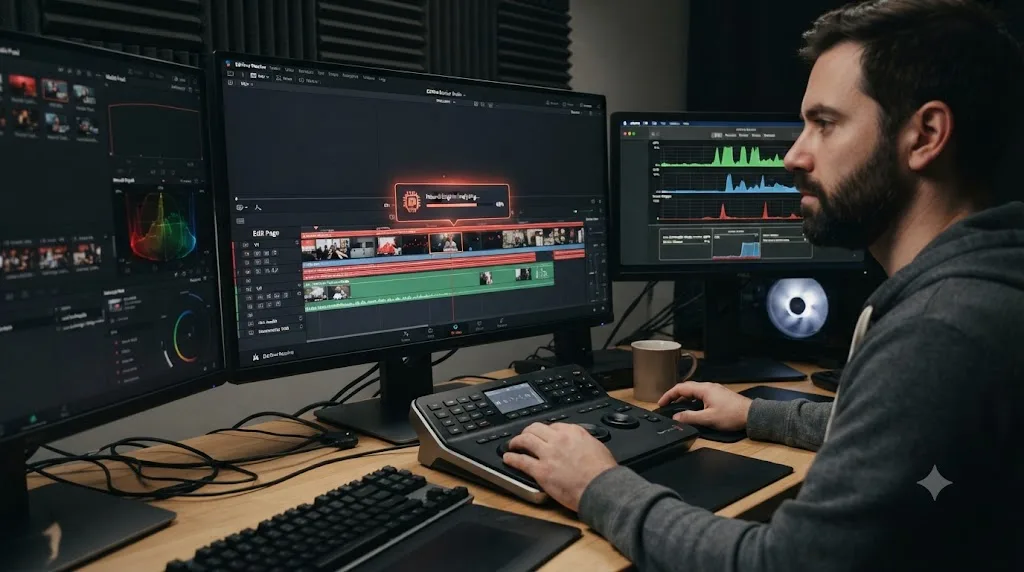
The Edit and Color pages lean hardest on your GPU. Fusion leans on system RAM as well, because it caches composited frames in memory to play them back, and a node tree with particles, 3D, or a dozen merges eats that cache fast. This is why Blackmagic's official requirements double the RAM the moment Fusion enters the conversation. It's also why Puget Systems' guidance flips for this one page: for Fusion, "you are better off with a CPU that has a high frequency than one with a lot of cores," per its Resolve hardware recommendations, since node trees process more serially than a render farm of timeline clips.
Two practical consequences follow. First, if Resolve only dies on the Fusion page, watch your RAM, not your VRAM. Open Fusion's own settings and cap how much memory its caching may take, then step through the composition instead of looping playback while you build it. Second, check the size of your sources. A 12,000-pixel photo or a screenshot dropped straight into a comp forces every downstream node to carry that resolution, and shrinking the still to something near delivery size before import removes an entire category of Fusion instability.
If the composition is simply that heavy, render it out. Finishing the comp as a clip and cutting the rendered file into the timeline is the same pre-render escape hatch that works for effect-heavy color grades, just applied one page earlier.
Is it a Windows problem or a Mac problem?
Some crashes only make sense once you know which operating system they're happening on, because the two platforms fail in different places.
On Windows, the classic is the driver you never installed. Windows Update replaces GPU drivers silently in the background, which is how a machine that rendered fine on Friday crashes all morning on Monday with nothing you did in between. Reinstalling the vendor's own driver over the top of whatever Windows delivered fixes it. On dual-GPU laptops, also open Windows' graphics settings and pin Resolve to the high-performance GPU, so it isn't negotiating with the integrated chip for decode work. And if other demanding apps crash on the same machine, stop blaming Resolve: memory overclocks and heat produce random application crashes across the board, and running RAM at stock speeds for a day is a free way to test that.
On a Mac, the shape of the memory changes the shape of the failure. Apple Silicon has no separate VRAM. The GPU and the system draw from one unified pool, so thirty Chrome tabs and a Slack call sit in the same memory budget as your node graph, and closing them is a legitimate stability fix in a way it never was on a discrete-GPU PC. The other Mac-specific trap is the annual OS cycle. Resolve 21 requires macOS 15 Sequoia or later, and each new macOS release tends to land before Blackmagic's compatibility update does, so upgrading the OS mid-project is a gamble I'd simply not take. Finish the edit, then update.
The Intel Mac case is its own category: as covered above, Resolve 21 won't run on one at all, and no amount of Windows-style driver troubleshooting translates to that situation.

Should you just update to the latest point release?
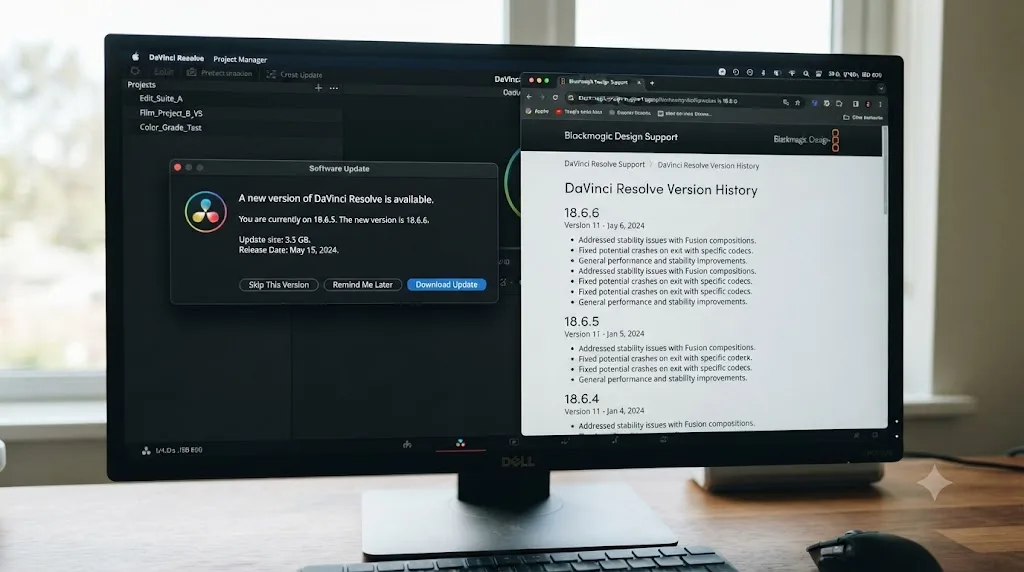
Check this before you spend another hour chasing settings. Blackmagic released DaVinci Resolve 21.0.2 as its second stability patch in just eight days after 21.0.1, adding general performance and stability improvements on top of fixes to thumbnail previews, retime curves, and IntelliSearch performance, per RedShark News' coverage of the release and Newsshooter's rundown of the same update. A brand-new major version ships faster than it gets battle-tested against every GPU and codec combination in the wild, and Resolve 21 hasn't been an exception.
If your crashes started right when you updated to 21, or you're still running the original 21.0 release, updating to the newest point release is a genuine fix, not a stalling tactic.
Is this a Resolve 21 problem or just a Resolve problem?
Three questions sort it out. Did the crashing start when you upgraded, on a project that was stable in Resolve 20? Does the crash involve a 21-only feature, like IntelliSearch, CineFocus, or the redesigned tools? And does a brand-new empty project crash the same way?
If the answer to the first two is yes, you're most likely looking at a version bug. The fix is the point release covered above, or turning the new feature off until the next patch, not a weekend of driver archaeology. If a fresh project crashes doing ordinary work, cuts and crossfades and a basic grade, the cause is almost certainly one of the perennials, driver, hardware, or corruption, and it would have bitten you on Resolve 20 too.
One warning before you consider rolling back to 20 as a test. When a newer Resolve opens an older project, it upgrades the project's internal format, and the older version can't open the upgraded copy afterward. If a rollback might be in your future, export a .drp copy of each project before you let 21 touch it, because that export is your only clean way home.
Which crash symptom points to which fix?
When you don't want to read a log, the timing of the crash narrows things down almost as well. Match your symptom here and jump straight to the section that covers it:
| When it crashes | Most likely cause | Start with |
|---|---|---|
| On launch, every time | Corrupted preferences or a third-party OFX plugin | Reset preferences, then pull third-party OFX |
| Only when opening one project | Damaged project | Export a copy and re-import it |
| Scrubbing one specific clip | Bad media file or corrupted cached frame | Delete cache files, then re-link or re-import the clip |
| Only with phone or screen-recording footage | Variable frame rate media | Convert to constant frame rate or generate optimized media |
| Only when media sits on an external or network drive | Drive sleeping or dropping out mid-read | Copy the media to an internal drive and re-link |
| Mid-render, same spot every time | An effect-heavy section spiking VRAM | Pre-render that section, lower timeline resolution |
| Only on the Fusion page | RAM pressure from caching or oversized sources | Cap Fusion's memory use, shrink giant stills |
| Right after applying one effect | The plugin behind that effect | Update or remove the plugin |
| Randomly, anywhere, any project | GPU driver, heat, or unstable hardware | Reinstall the vendor driver, watch temperatures |
| Right after updating Resolve | A version bug | Install the newest point release |
| Right after a Windows update | Windows silently swapped your GPU driver | Reinstall the driver from the manufacturer |
The table is a shortcut, not a guarantee. If your symptom matches two rows, the crash log breaks the tie faster than trying both fixes blind.
What's the right order to troubleshoot a crash from scratch?
Work through these seven steps and stop as soon as the crashing stops:
- Read the last lines of the crash log via Help > Create Diagnostics Log on Desktop, and let whatever it names skip you ahead in this list.
- Update your GPU driver from the manufacturer's site, not Windows Update.
- Lower timeline resolution and disable noise reduction, Magic Mask, or Fusion effects on the clip involved.
- Reset preferences through Preferences > System, then clear cache files through Playback > Delete Cache Files > All.
- Move third-party OFX plugins out of the shared plugins folder, then reintroduce them one at a time.
- Export a copy of the suspect project and re-import it, or re-link the specific clip that crashes on load.
- Update to the latest DaVinci Resolve point release.
If you've worked through all seven and it's still crashing on the exact same timeline, that's a hardware ceiling, most likely VRAM, not a setting left to chase. A forum thread on Blackmagic's own support board, bluntly titled "DaVinci keeps crashing, pretty much unusable," is a reminder that this frustration is common enough to have its own recurring threads, and common problems usually have documented fixes rather than needing a fresh reinstall every time. If troubleshooting menus by trial and error is what's actually costing you time, that's the specific gap TryUncle is built for, an AI tutor that looks at your actual Resolve window and points at the setting instead of sending you through five forum threads that may not match your case.
What does a full diagnosis look like on a real timeline?
Take the most common shape of report and walk it through. Say Resolve dies at the same clip during every render attempt, a 4K timeline, somewhere past the fourteen-minute mark, no error dialog, just gone.
The log goes first. The diagnostics zip shows the final entries repeating one media path, and it's the clip under the playhead when everything stops. So this isn't a launch problem, a preferences problem, or a random driver lottery. It's that clip or what's applied to it.
Next, separate the clip from its workload. Bypass all color grades with Shift-D on the Color page and run the render again. If it passes, the media file is fine and the grade is the trigger, and on inspection that clip is carrying temporal noise reduction plus a Magic Mask, two of the hungriest effects in the app stacked on one shot. If it fails even with grades bypassed, re-import the media file itself, because now the file is the suspect.
Suppose it passed. The cheap fix is to cache the expensive shot ahead of time: right-click the clip and use Render Cache Color Output, so the effects render once at your desk pace instead of live inside the export. The render completes. Done, today.
The honest long-term read is less comfortable. The card in this machine has 8GB of VRAM, and the practical bar for 4K work with effects sits at 12GB. Every future project with stacked effects on 4K will brush the same ceiling, so the real choice is fewer simultaneous effects, a 1080p timeline resolution while editing, or different hardware. That's the difference between fixing a crash and understanding it.
How do you stop the next crash before it happens?
The crash that actually costs you is the one that eats unsaved work, and two checkboxes remove that category entirely.
Live Save and Project Backups turn a corrupted DaVinci Resolve project into a menu choice instead of a lost day. Both live in Preferences > User > Project Save and Load, and both are documented in Blackmagic's reference manual. Live Save writes edits as you make them. Project Backups keeps timestamped copies at intervals you choose, so the question after a corruption isn't "how much did I lose" but "which timestamp do I want back".
Beyond the checkboxes, a short maintenance habit covers the rest:
- Export a .drp copy of every project at real milestones, onto a different drive. It's your rollback across version upgrades and your insurance against a damaged project library.
- If you work from a shared project library rather than single projects, back the library itself up too, not just the projects inside it.
- Point the cache at a fast drive with room to breathe, and delete cache files when you wrap a project rather than letting dead projects hoard the space.
- Never update Resolve, your GPU driver, or your OS in the middle of a deadline project. Blackmagic's support page keeps older installers available, so hold the version that works until the project ships, then update everything at once and test on something disposable.
- Keep the installer file of your current working version on disk. Future you, mid-rollback, will be glad it isn't a download away on hotel Wi-Fi.
None of this makes Resolve crash less on its own. It makes crashes boring, which is the next best thing.
For the GPU memory error that sits right next to crashing in most of these cases, our GPU memory is full guide covers the VRAM side in more depth, and if you're still deciding what hardware to build around before you commit to Resolve 21's AI tools, our beginner's guide to DaVinci Resolve covers Blackmagic's baseline specs first.
Frequently asked questions
- Why does DaVinci Resolve keep crashing on Windows?
- The most common cause is an outdated or mismatched GPU driver, followed by VRAM running out on a demanding timeline. Update your driver directly from NVIDIA, AMD, or Intel rather than through Windows Update, then check Preferences > System > Memory and GPU for the right processing mode.
- Why does DaVinci Resolve crash on Mac?
- On Apple Silicon, crashes usually trace to a corrupted cache, a damaged project database, or a plugin that hasn't been updated for the current version. DaVinci Resolve 21 also dropped Intel Mac support entirely, so an Intel Mac won't run it at all, which can look like a crash on launch but is really an incompatibility.
- Does resetting preferences actually fix crashing in DaVinci Resolve?
- Often, yes, especially if the crash happens at a specific, repeatable point rather than randomly. Open Preferences > System, use the reset option in the top right, then quit and relaunch. This clears settings corruption without touching your project files.
- Why did DaVinci Resolve start crashing right after I updated to 21?
- New major versions ship faster than they get battle-tested, and Resolve 21 was no exception. Blackmagic released 21.0.2 as its second stability patch in eight days, so if your crashes started with the update, installing the latest point release is often the actual fix, not a workaround.
- Where does DaVinci Resolve keep its crash logs?
- The quickest route is Help > Create Diagnostics Log on Desktop, which bundles the recent logs into one zip. Manually, Windows keeps them in the logs folder under AppData > Blackmagic Design > DaVinci Resolve > Support, and macOS under Library > Application Support > Blackmagic Design > DaVinci Resolve, with the OS crash report also visible in Console. The last lines before a crash usually name the failing GPU call, plugin, or media file.
- Will reinstalling DaVinci Resolve fix constant crashes?
- Rarely, on its own. A reinstall replaces the application files, but your preferences, cache, and project database usually live outside the install folder and survive the reinstall untouched. Reset preferences and clear the cache first. Save a full reinstall for after those steps fail.
- Why does DaVinci Resolve crash with phone or screen-recording footage?
- Phones and screen recorders like OBS often produce variable frame rate files, and Resolve's timeline assumes a constant frame rate. That mismatch causes drift, stutter, and crashes. Convert the clip to a constant frame rate before import, or generate optimized media inside Resolve so the timeline plays an edit-friendly copy instead.
- Does DaVinci Resolve save my work before it crashes?
- Only if you let it. Open Preferences > User > Project Save and Load and turn on Live Save, which writes edits as you make them, plus Project Backups, which keeps timestamped copies at set intervals. With both enabled, a crash usually costs seconds of work rather than a session.
Sources
- Vagon: DaVinci Resolve Crashes: Common Causes & Real Fixes for Smooth Editing
- Mirko Fabian: Resolving Rendering Issues in DaVinci Resolve
- RedShark News: Blackmagic releases DaVinci Resolve 21.0.2, second patch in 8 days
- Newsshooter: DaVinci Resolve 21.0.2 Update
- Puget Systems: Hardware Recommendations for DaVinci Resolve
- DaVinci Resolve 18 Manual, Memory and GPU preferences (VFXPedia mirror)
- DaVinci Resolve Club: DaVinci Resolve 21 System Requirements
- Blackmagic Forum: DaVinci keeps crashing, pretty much unusable
- Blackmagic Design: DaVinci Resolve support and downloads
- Blackmagic Design: DaVinci Resolve 18 Reference Manual (PDF)
Learn by doing, not watching
Learn Resolve inside Resolve.
TryUncle watches your screen and points at the exact control when you ask. No tabs, no timestamps, no rewatching tutorials.
Download free for MacKeep reading
Fixes · Jul 7, 2026 · 25 min
DaVinci Resolve GPU Memory Is Full: Every Real Fix
Why DaVinci Resolve throws 'GPU memory is full,' and which fixes actually work: timeline resolution, drivers, effects, and how much VRAM you need.
Fixes · Jul 7, 2026 · 24 min
DaVinci Resolve Not Exporting? Fix a Stuck or Failed Render
Why DaVinci Resolve renders get stuck at 0% or 99%, or fail with no error, and the exact checks that get a stalled export moving again.
Guides · Jul 7, 2026 · 32 min
DaVinci Resolve for Beginners: The Complete Starter Guide
Learn DaVinci Resolve from zero: what it costs, what it needs to run, the seven pages you'll actually use, and the steps to cut your first project.